How to Fix You're Not Connect Error in Microsoft Edge (Complete Guide)
If you use Microsoft Edge regularly, you may have encountered a frustrating issue where websites suddenly stop loading and Edge displays a message saying “You’re Not Connect” or “You’re not connected to the internet.” What makes this error confusing is that your internet may actually be working perfectly fine on other browsers or apps.
As someone who has worked extensively with Windows systems and browser troubleshooting, I can confidently say that this is one of the most common Edge-related issues, especially after Windows updates, network changes, or incorrect system configurations.
The good news is that you do not need to reinstall Windows or reset your PC to fix this problem. In this detailed guide, I will walk you through how to fix You’re Not Connect error using simple, proven, and beginner-friendly methods.
What Is “You're Not Connect Error” in Microsoft Edge?
The You’re Not Connect error appears when Microsoft Edge cannot establish a proper connection to the internet. This may happen even when:
Wi-Fi is connected
Ethernet is working
Other browsers open websites normally
This error usually indicates a browser-level or network-configuration issue, not an actual internet outage.
Common Causes of You're Not Connect Error
Understanding the root causes helps you fix the issue faster:
Corrupted Edge cache or cookies
Antivirus or firewall blocking Edge
Outdated Edge or Windows version
Network adapter misconfiguration
Now let’s move on to the step-by-step solutions.
Step 1: Check Internet Connection on Other Apps and Browsers
Before changing any settings, confirm whether the issue is only with Edge.
What to Do:
Open Chrome or Firefox
Visit any website
Check if YouTube or Google loads
Test Wi-Fi or Ethernet status
If other apps work fine, the problem is specific to Microsoft Edge.
Step 2: Restart Your PC and Router
Temporary network glitches are more common than you think.
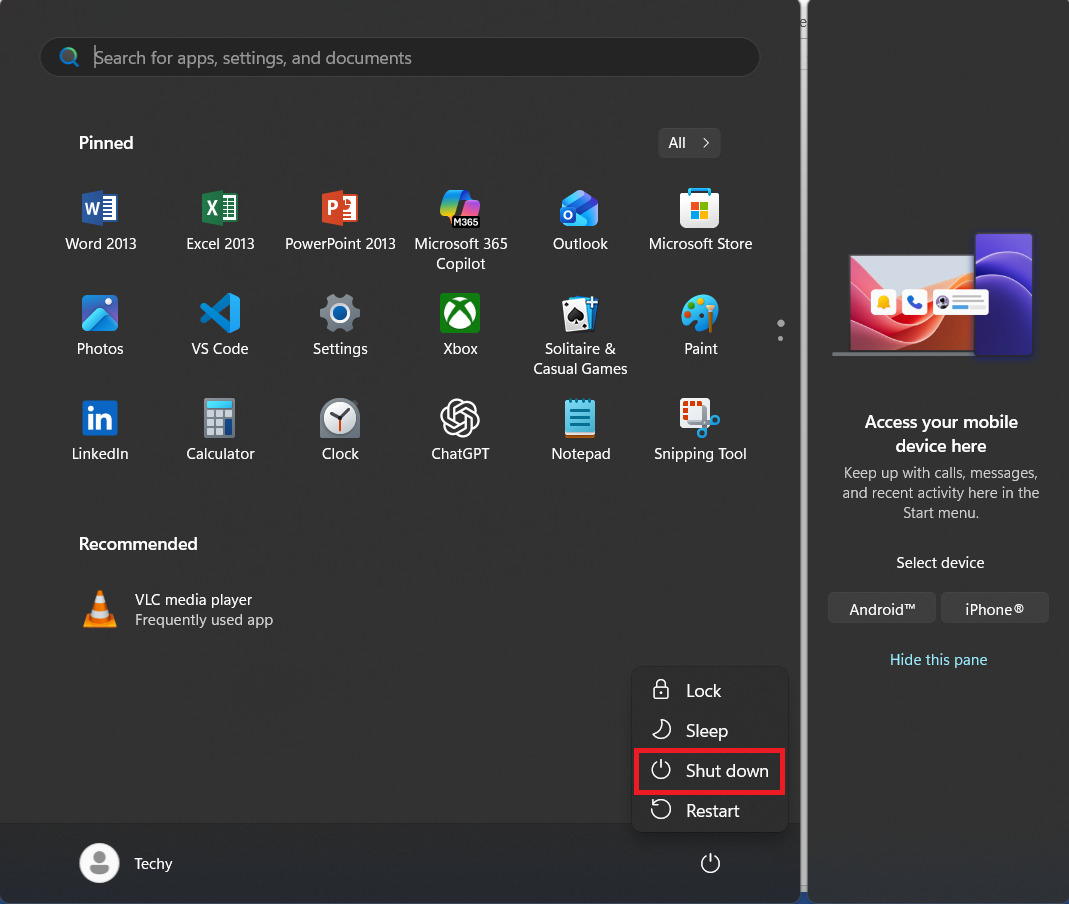
Shut down your PC
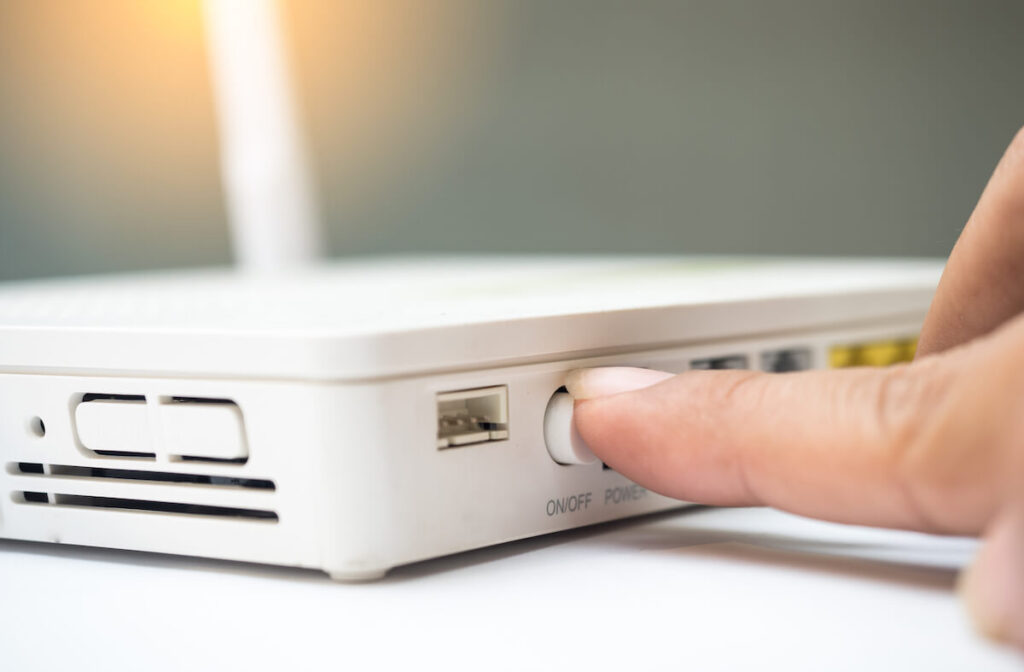
2. Turn off your router for 30 seconds
Turn everything back on & Open Microsoft Edge and test again. This simple step fixes many temporary connectivity problems.
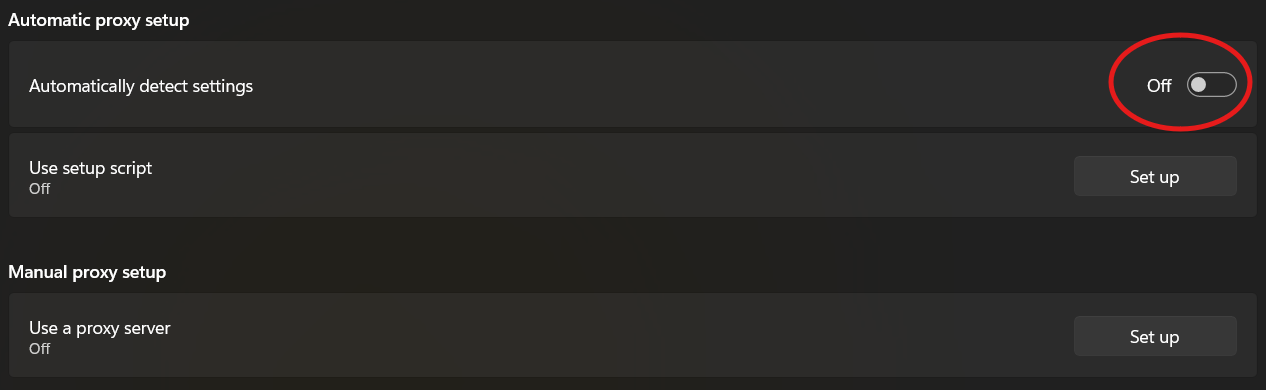
Step 3: Turn Off Proxy Settings (Most Effective Fix)
Proxy settings are one of the top reasons behind this error.
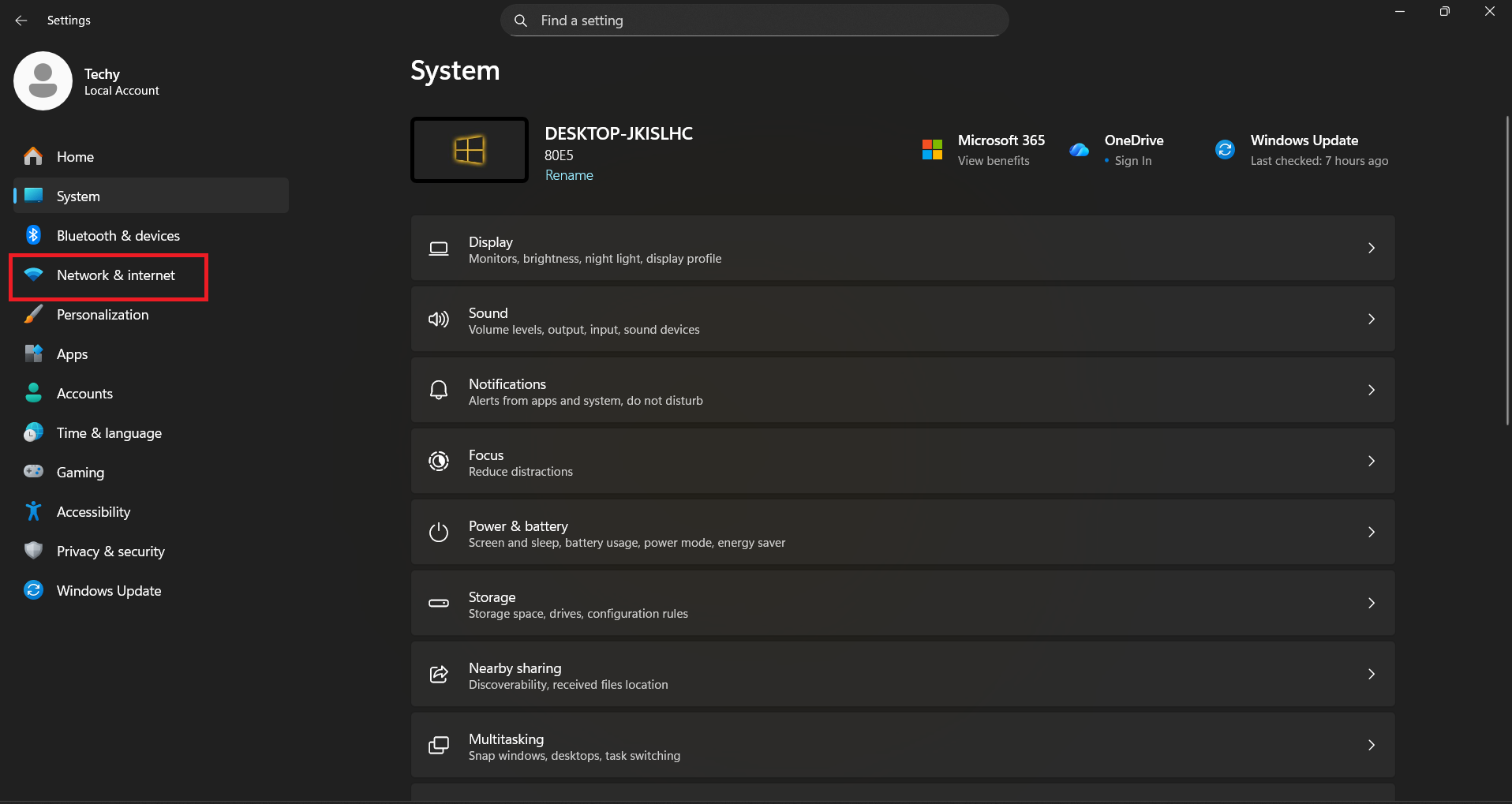
Press Windows + I
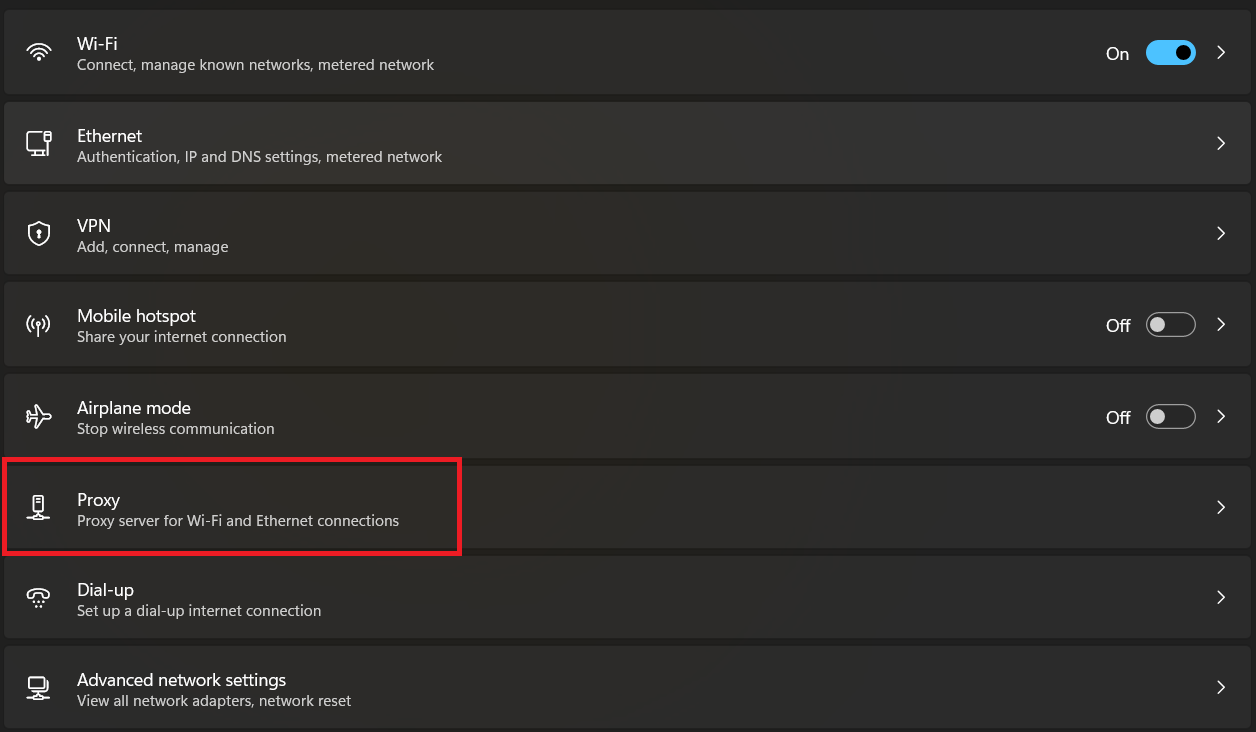
2. Go to Network & Internet & click Proxy
3. Automatically detect settings Turn OFF
Why This Works: Incorrect proxy settings prevent Edge from accessing the internet.
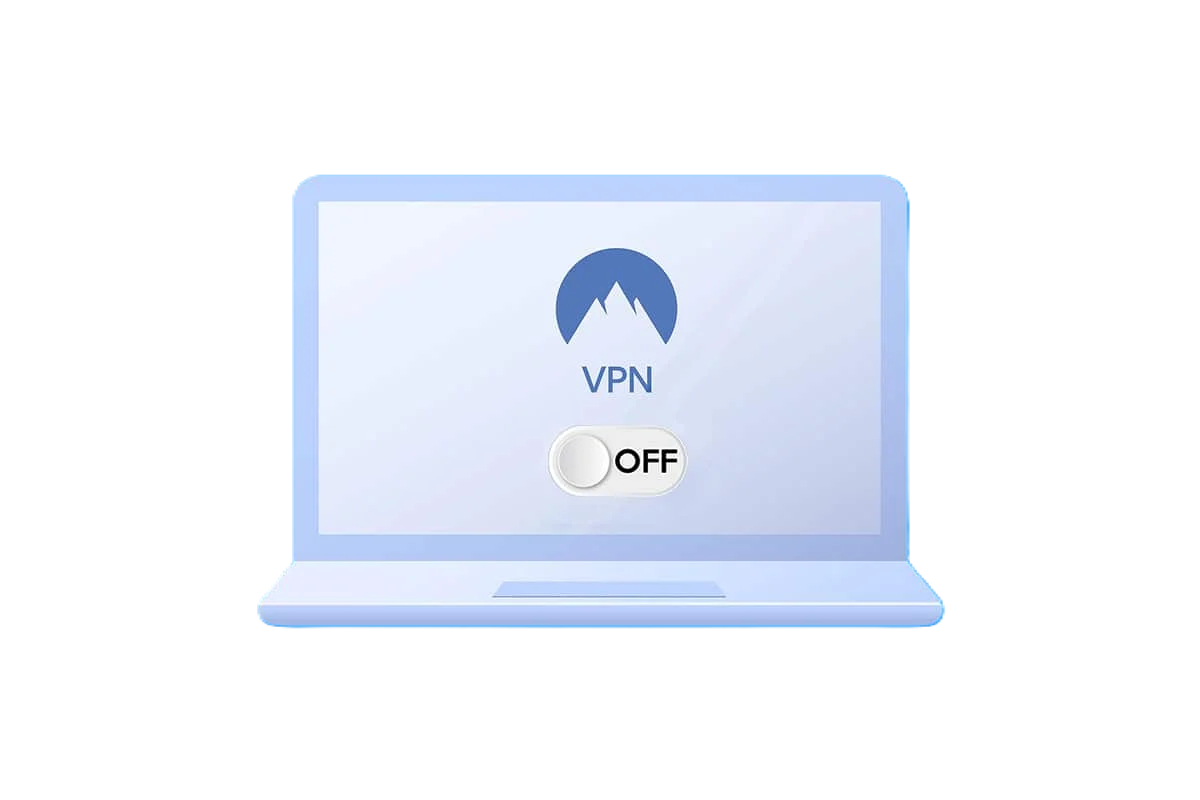
Step 4: Disable VPN Software Temporarily
VPNs often reroute traffic through unstable servers.
Turn off VPN
Close Microsoft Edge & Reopen Edge and check connectivity, If Edge works after disabling VPN, change VPN servers or uninstall it.
Step 5: Clear Microsoft Edge Cache and Cookies
Corrupted cache files can break network communication.
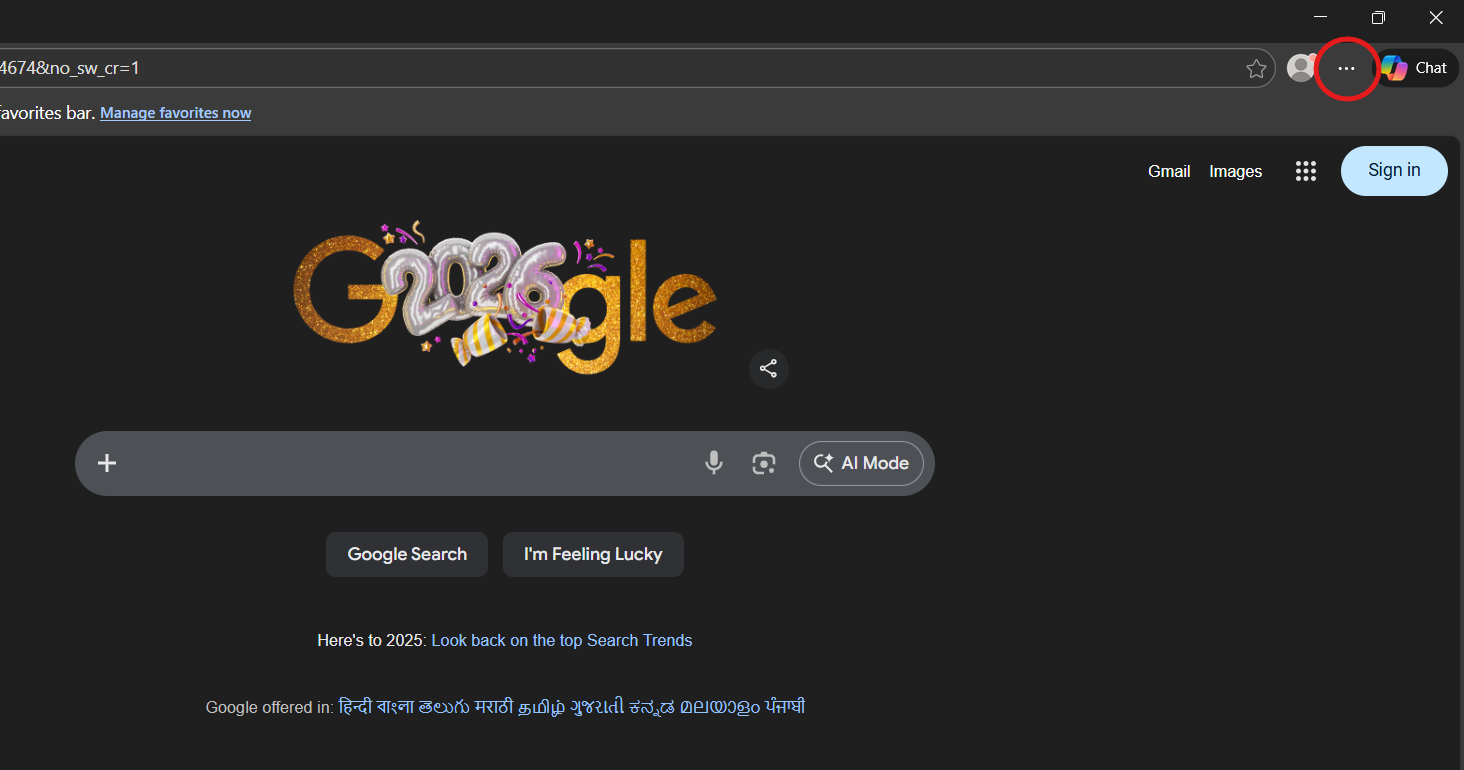
Open Microsoft Edge
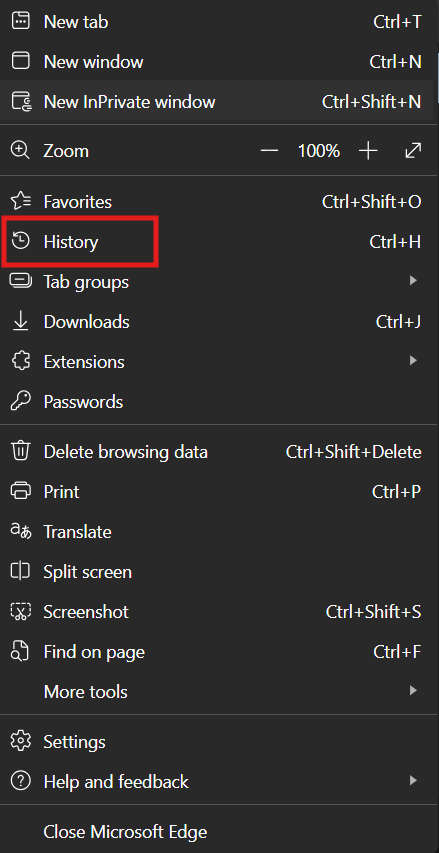
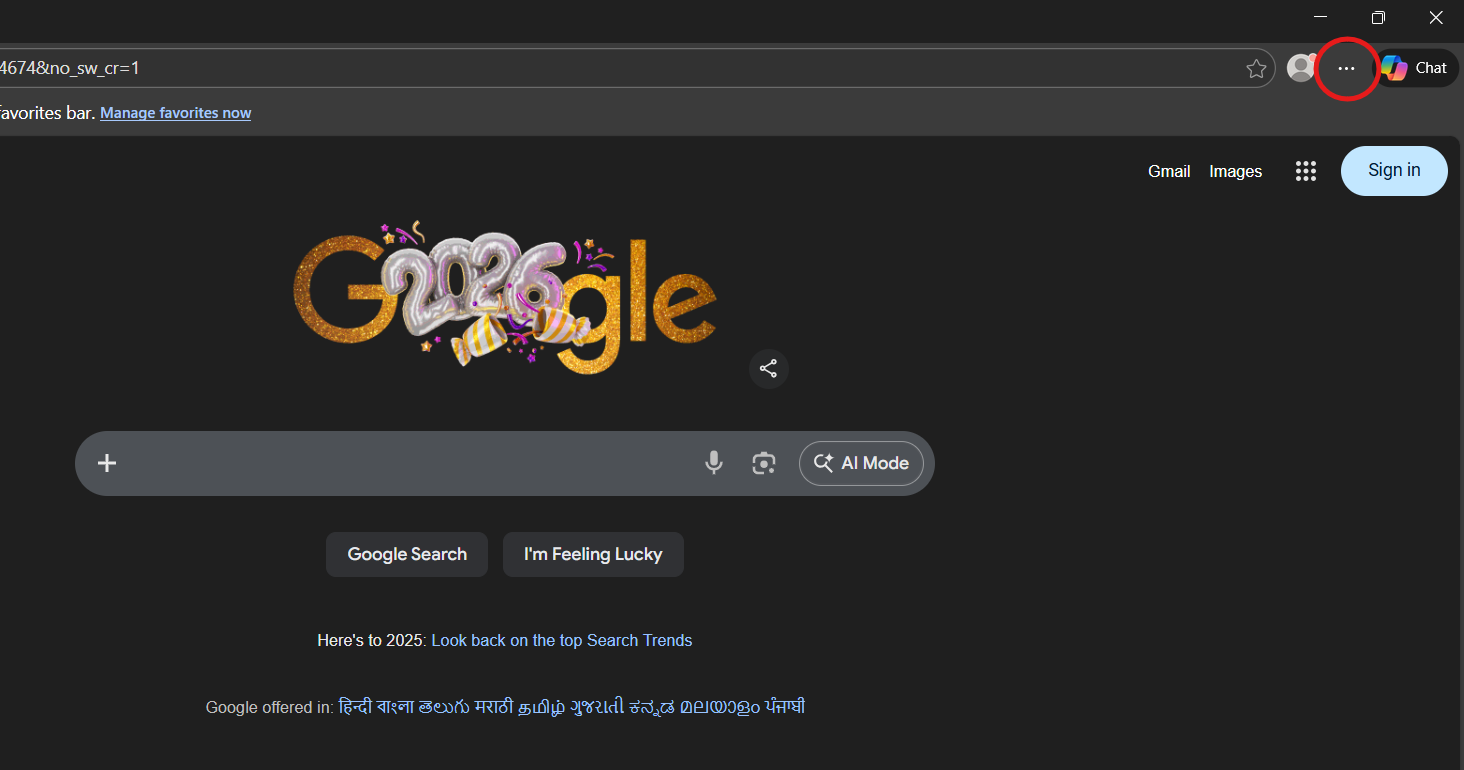
After Open Microsoft Edge Click on 3 dots
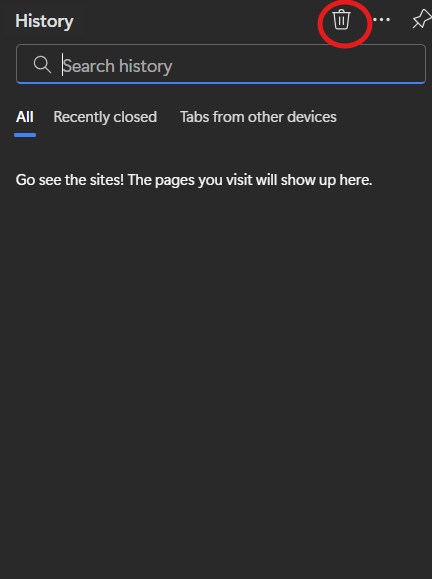
3. Click on History
4. Top of the right side Delete icon showing click on it.
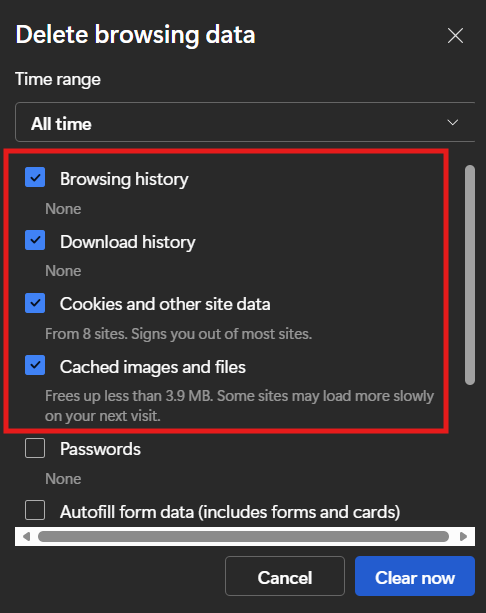
After open popup Select this option
Browsing History
Cookies and site data
Cached image and files
Click on Time Range and select All Time
Click on Clear now
This will not delete saved passwords unless selected.
Step 6: Reset Network Using Command Prompt
This fixes hidden DNS and socket issues.
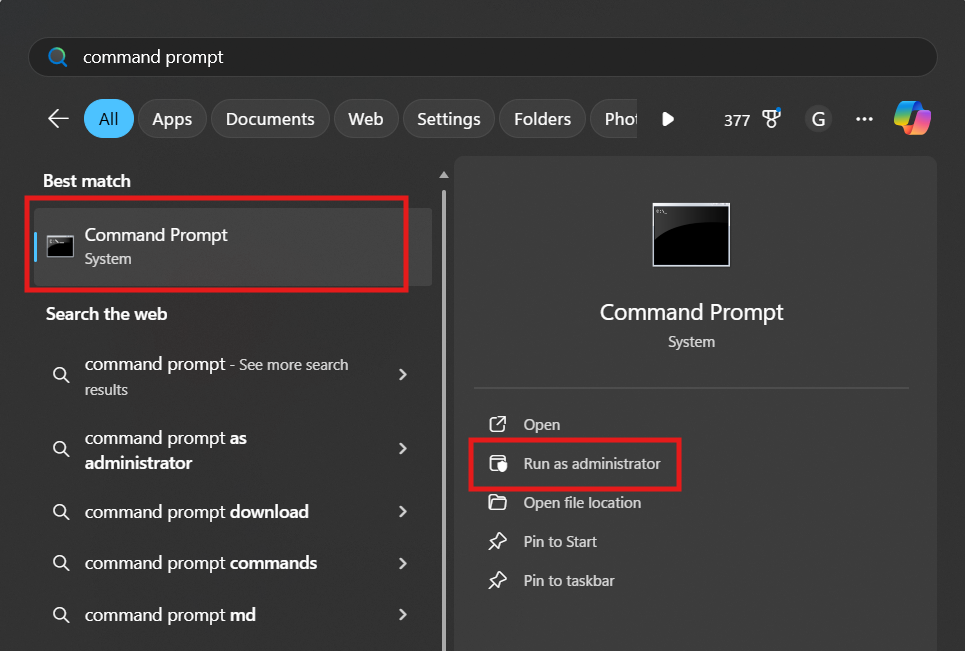
Open Windows Search type CMD
Right-click → Run as Administrator
3. Enter commands one by one:
ipconfig /flushdns→ hit Enter
ipconfig /release→ hit Enter
ipconfig /renew→ hit Enter
netshwinsock reset→ hit Enter
Restart your PC
Why This Works: It refreshes DNS cache, IP address, and Windows network stack.
Step 7: Change DNS to Google DNS
ISP DNS servers are often slow or unstable.
Open windows 11 Setting click Start Menu& Click on Setting icon setting is open
After setting open click on Network & Internet
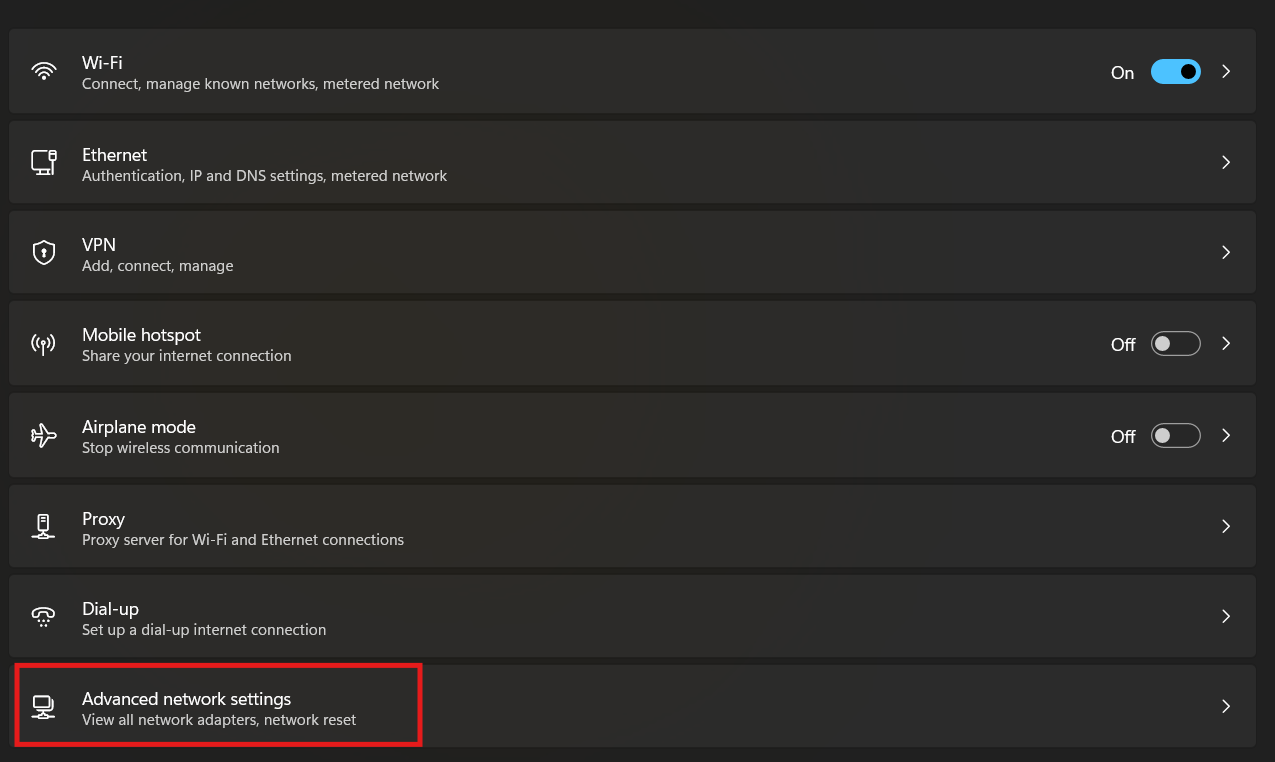
Click on Advanced network setting
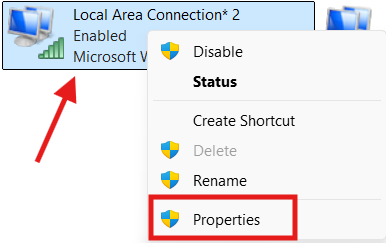
4. Click on Change adapter options
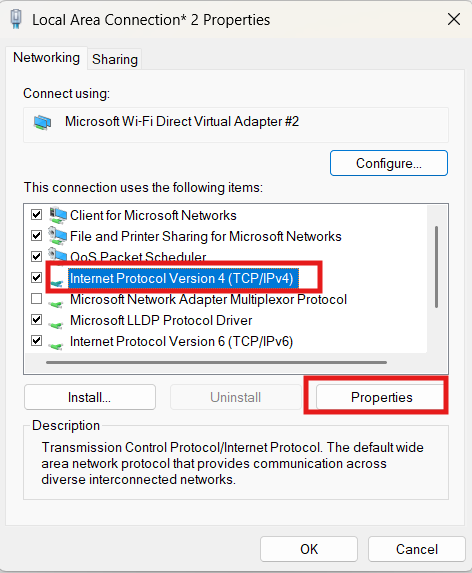
5. Right-click your active Network clickon Properties
6. And select Internet Protocol Version 4 (TCP/IPv4) click on Proptery
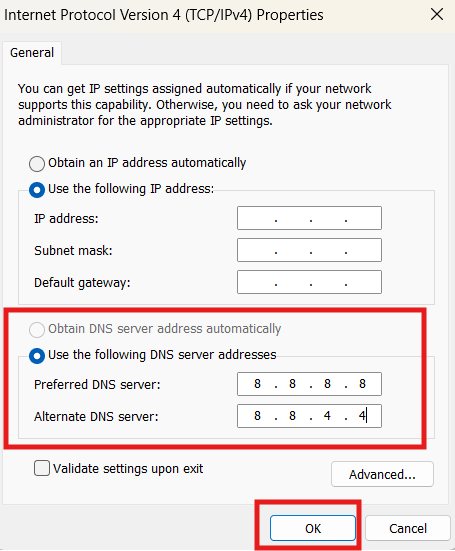
You can see this option use the following DNS server addresses
Preferred DNS server: 8.8.8.8
Alternate DNS server: 8.8.4.4
Click OK and restart Microsoft Edge.
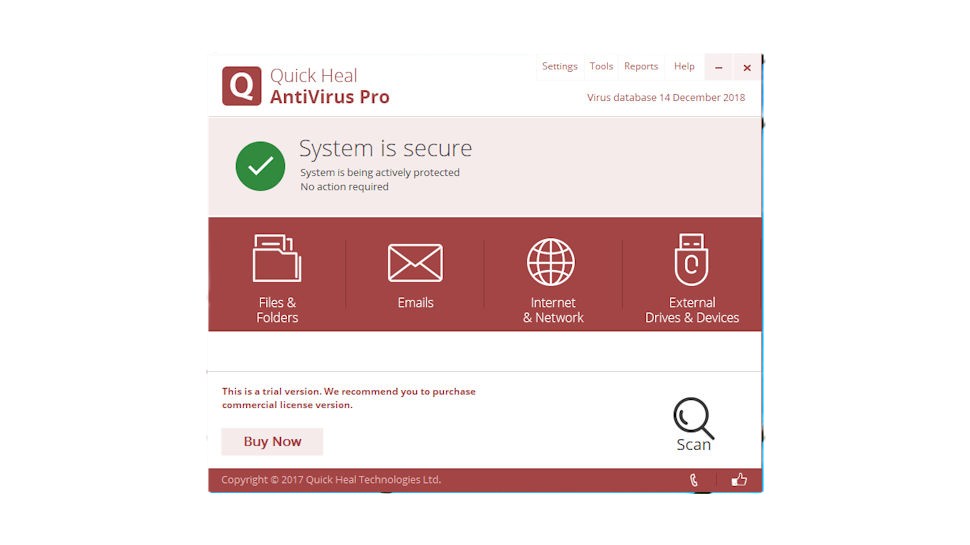
Step 8: Disable Antivirus and Firewall Temporarily
Some security tools block Edge mistakenly.
Temporarily disable antivirus
Open Edge and test
If fixed, add Edge to allowed apps
Re-enable antivirus after testing.
Step 9: Check Date and Time Settings
Incorrect system time can break secure connections.
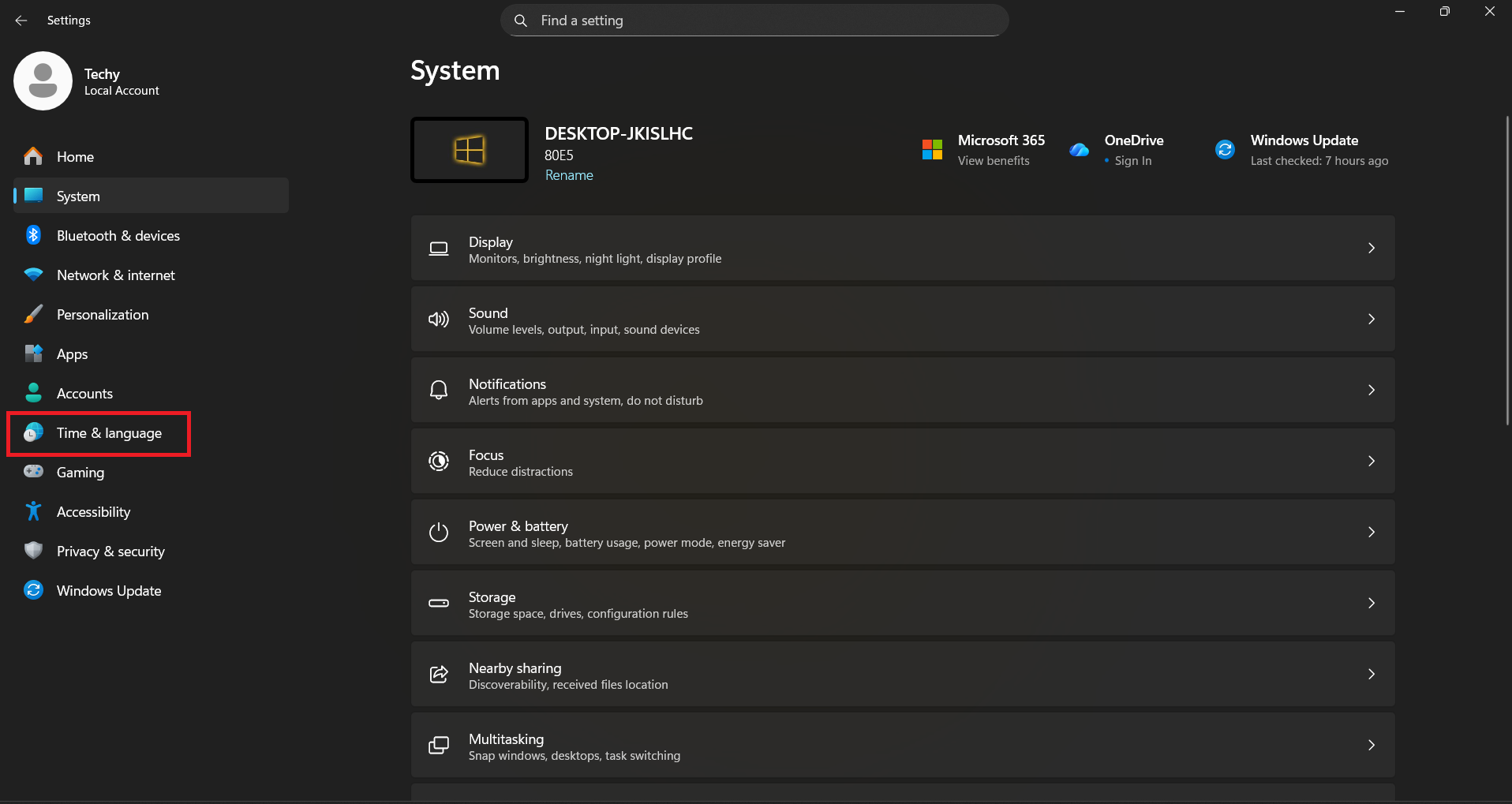
Open Windows 11 Setting click on Start Menu and click on Setting
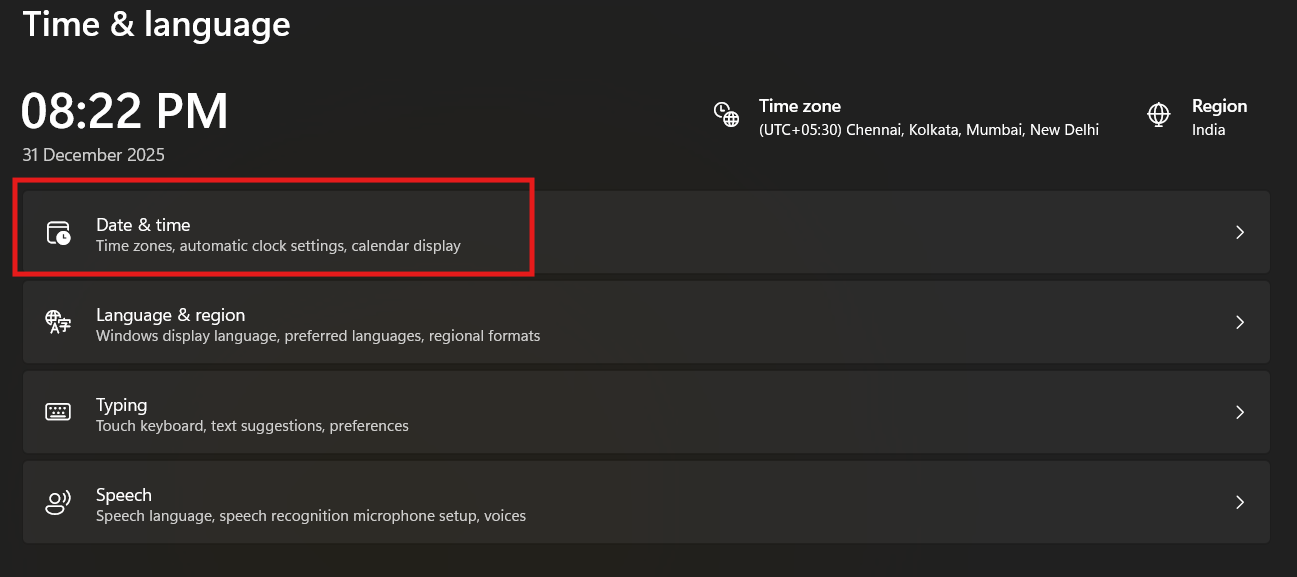
Left of the panel Click on Date & Language
3. Click on Date & time
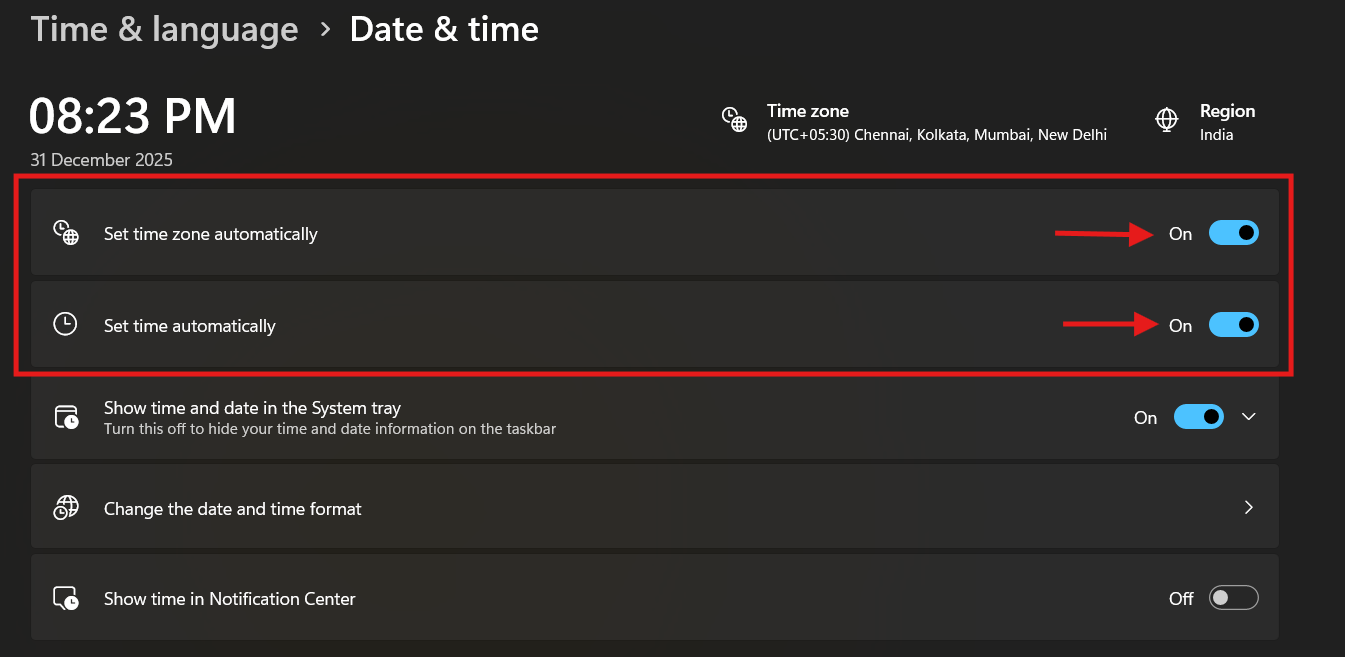
Enable this option:
Set time automatically
Set time zone automatically
Step 10: Update Microsoft Edge
Old versions may contain network bugs.
Open Microsoft Edge
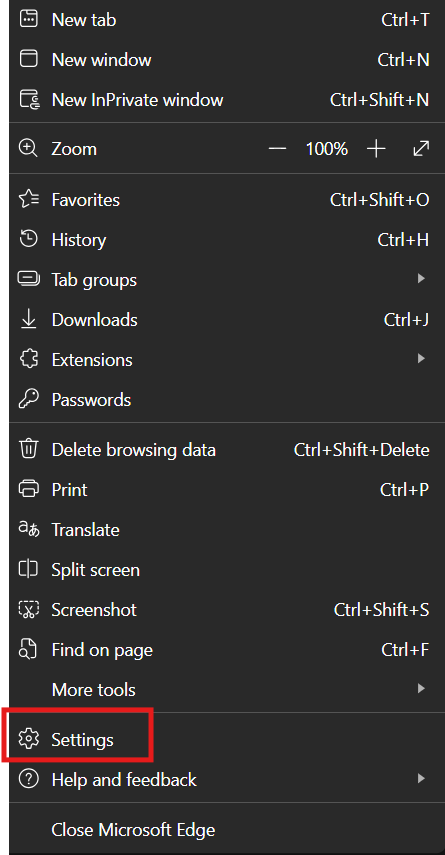
Click on 3 Dots
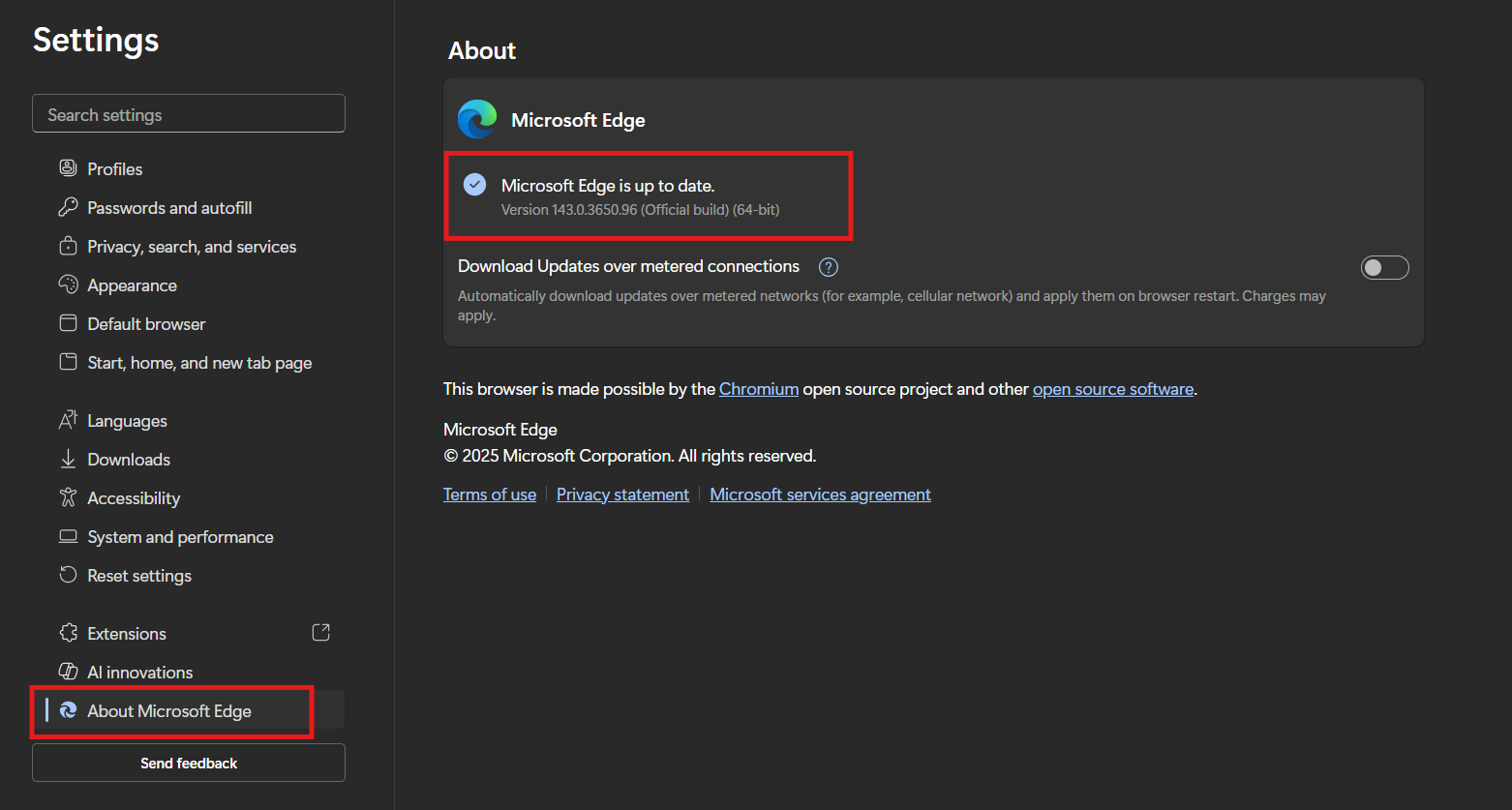
3. Click on Settings
4. Click on About Microsoft EdgeAllow Edge to update automatically
Always keep Edge updated for stability.
Step 11: Reset Microsoft Edge Settings
If nothing works, reset Edge.
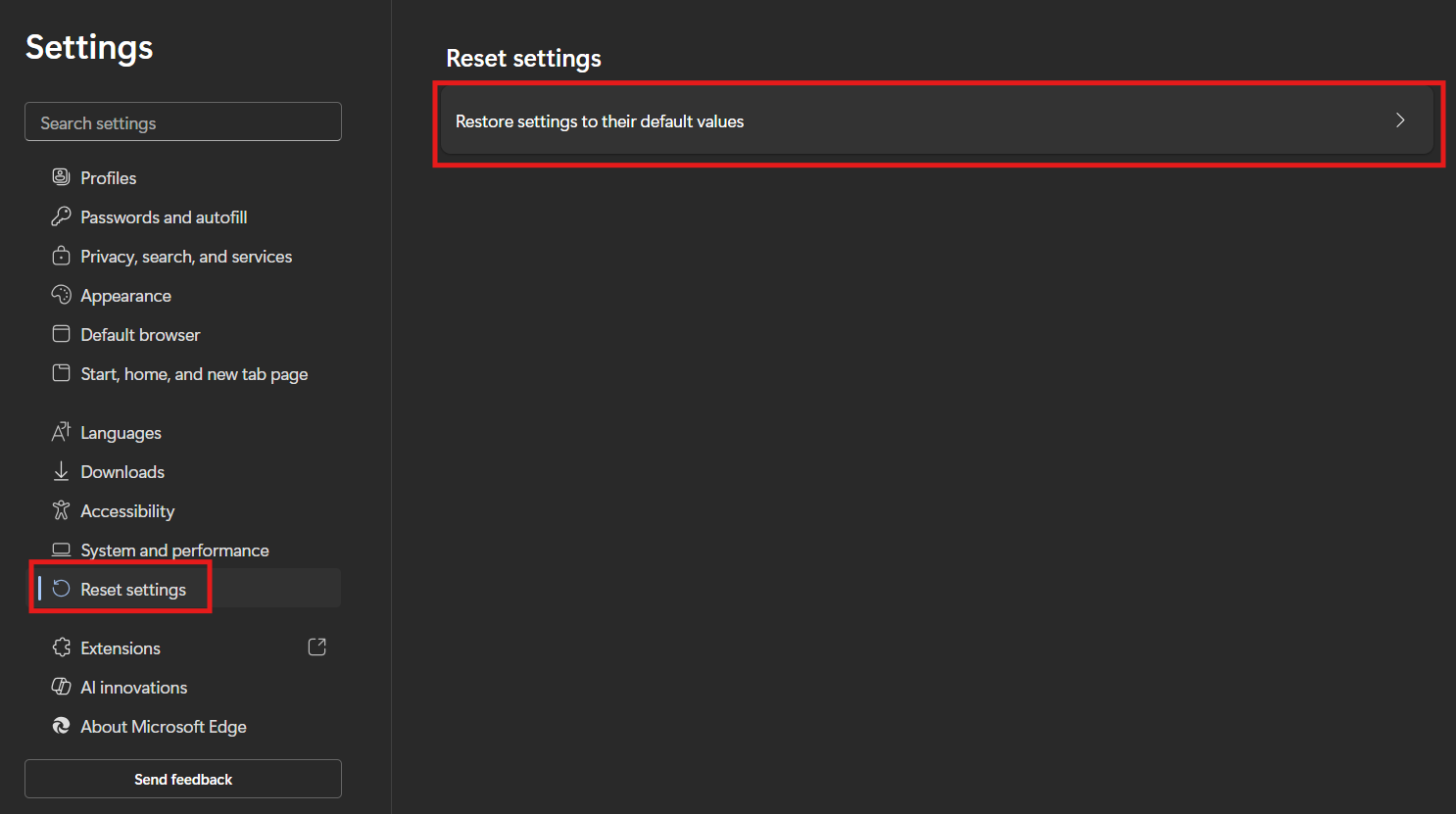
Open Microsoft Edge settings
Go to Reset settings
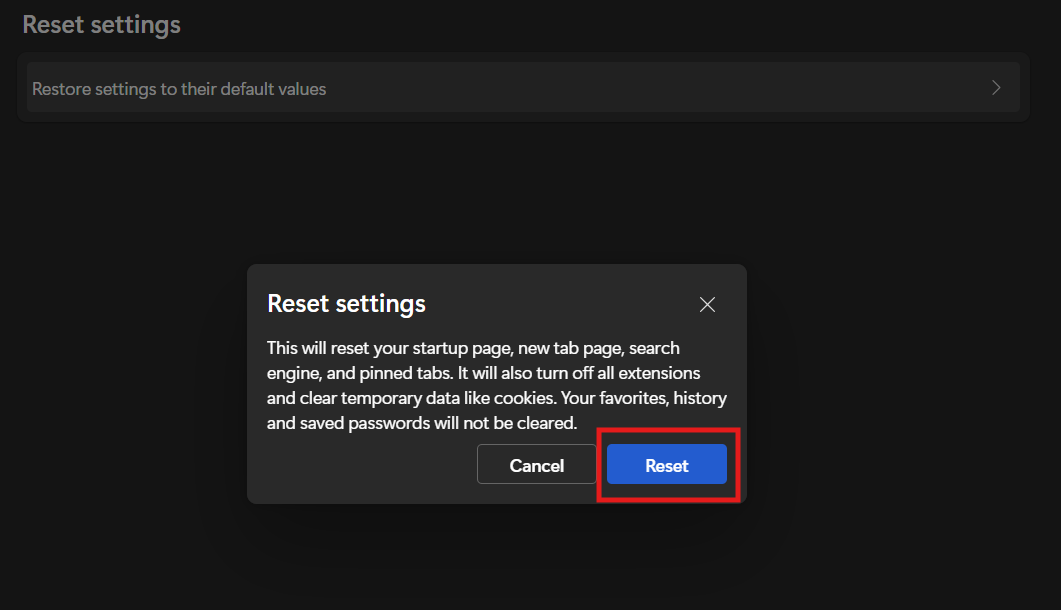
3. Click on Restore settings to default and again Reset
This fixes misconfigurations without uninstalling Edge.
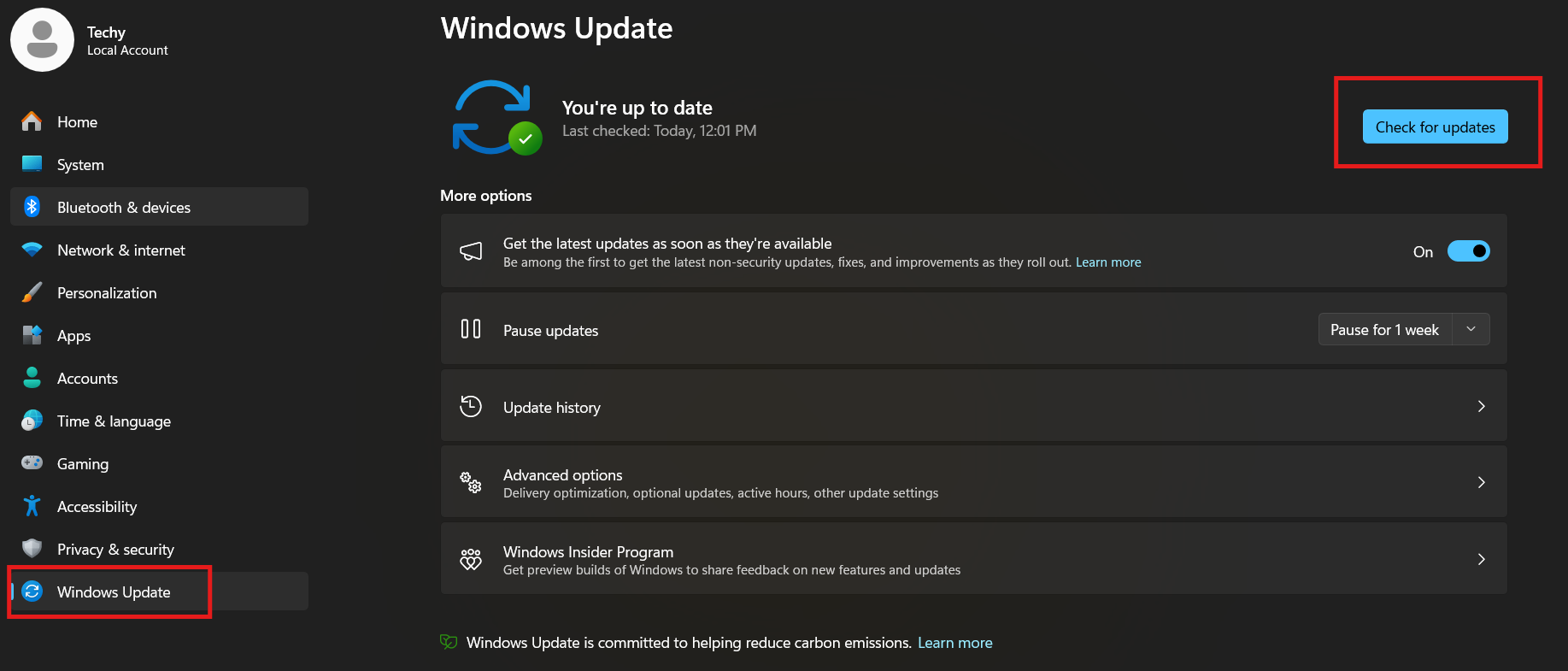
Step 12: Check Windows Updates
Windows bugs can affect browsers.
Open Windows 11 Setting
Click on Windows Update and Check if windows update available or Not Available click on Update
Q1. Why does Microsoft Edge say You’re Not Connect but internet works?
This happens due to DNS, proxy, VPN, or browser cache issues.
Q2. Is this error dangerous?
No. It’s a configuration issue, not a virus.
Q3. Will resetting Edge delete my data?
No. Bookmarks and passwords stay safe.
Q4. Can antivirus cause this issue?
Yes. Some antivirus tools block Edge traffic.
Q5. Is Google DNS safe?
Yes. It’s fast, secure, and globally trusted.
Final Conclusion (From Experience)
Error is You’re Not Connect error in Microsoft Edge may look serious, but in reality, it’s usually caused by small configuration problems. By following this guide step by step, you can fix the issue permanently without reinstalling Windows or losing data.
These solutions are tested on multiple Windows systems and work reliably even for beginners.
1 thought on “How to Fix You’re Not Connect Error in Microsoft Edge 2026”


Pingback: Fix Wi-Fi Not Connecting Problem in Android Smart TV