
Windows 11 Keyboard Shortcut Keys

What Is Windows 11?
Why Windows 11 Was Introduced?
Microsoft launched Windows 11 to:
- Improve speed and performance
- Enhance security
- Support new hardware
Provide modern UI design
Key Features of Windows 11
New Modern Design
- Centered Start Menu
- Rounded corners
Clean and professional look
Better Performance
Optimized background appsSnap Layouts
- Easily split screen
- Multitasking made simple
- Best for office and creators
Virtual Desktops
- Separate workspaces
- Work + browsing + editing independently
Better Security
- TPM 2.0 support
- Secure Boot
- Built-in antivirus
Who Should Use Windows 11?
Windows 11 is best for:
- Students
- Office workers
- Content creators
- Normal home users
- Professionals
❌ Not recommended for very old computers.
Windows 11 vs Windows 10 (Simple)
| Feature | Windows 10 | Windows 11 |
| Design | Classic | Modern |
| Speed | Good | Better |
| Security | Good | Advanced |
| Multitasking | Normal | Excellent |
Is Windows 11 Shortcut Keys Basic to Advanced Good for Beginners?
Windows 11 is:
- Easy to use
- Beginner-friendly
- Visually clean
- Future-proof
Table of Contents
Introduction
Windows 11 is a modern, powerful, and productivity-focused operating system developed by Microsoft. While most users heavily use mouse or touchpad, professional and experienced users know that keyboard shortcut keys are the real secret to speed, efficiency, and smarter workflow.
Learning basic to advanced Windows 11 shortcut keys:
- Work faster
- Save time
- Improve multitasking
- Reduce mouse usage
- Become a power user
This detailed guide covers Windows 11 shortcut keys from beginner level to advanced level, explained in a simple and practical way so that anyone can understand and use them easily.
What Are Shortcut Keys?
Shortcut keys are combinations of two or more keys that perform a specific task instantly. Instead of clicking multiple menus with a mouse, you can complete tasks in seconds using shortcut keys.
For example:
- Copying text using mouse: Right-click → Copy
- Copying text using shortcut: Ctrl + C
This small difference saves time, especially when you use a computer daily for Office Work, Editing & Internet usage.
Benefits of Using Windows 11 Shortcut Keys
Before learning shortcuts, it is important to understand why they matter.
1. Increase Productivity
Shortcut keys reduce task completion time, especially for office work, editing, browsing, and multitasking.
2. Save Time
Actions that normally take multiple clicks can be done in one second.
3. Better Multitasking
Windows 11 introduces advanced multitasking shortcuts like Snap Layouts and Virtual Desktops.
4. Professional Skills
Knowing shortcuts makes you look more confident and professional in front of others.
Basic Windows 11 Shortcut Keys (Beginner Level)
These shortcut keys are essential for every Windows user. If you are a beginner, start with these.
Common Editing Shortcut Keys
- Ctrl + C – Copy selected text or file
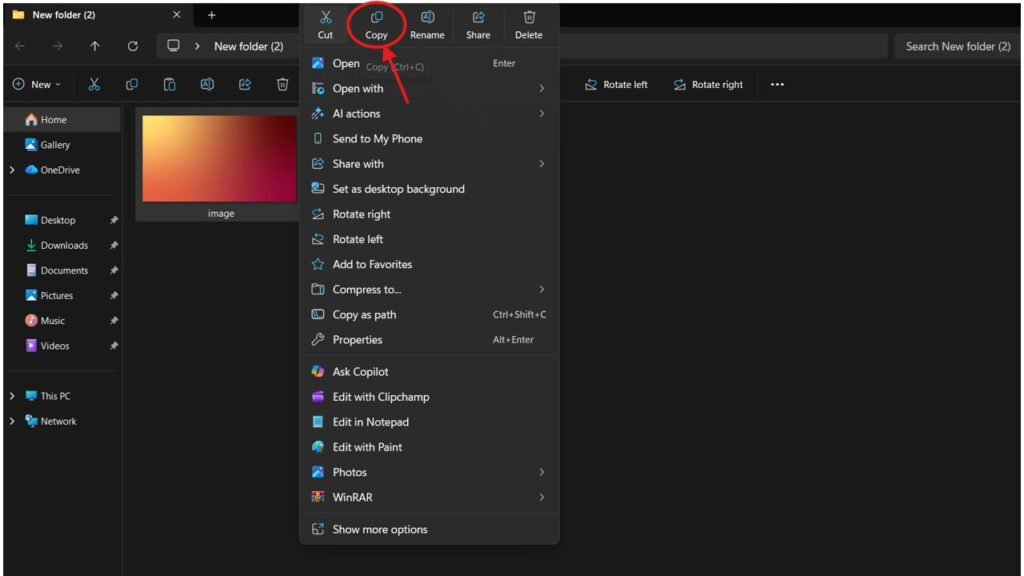
2. Ctrl + V – Paste copied content
3. Ctrl + X – Cut selected content
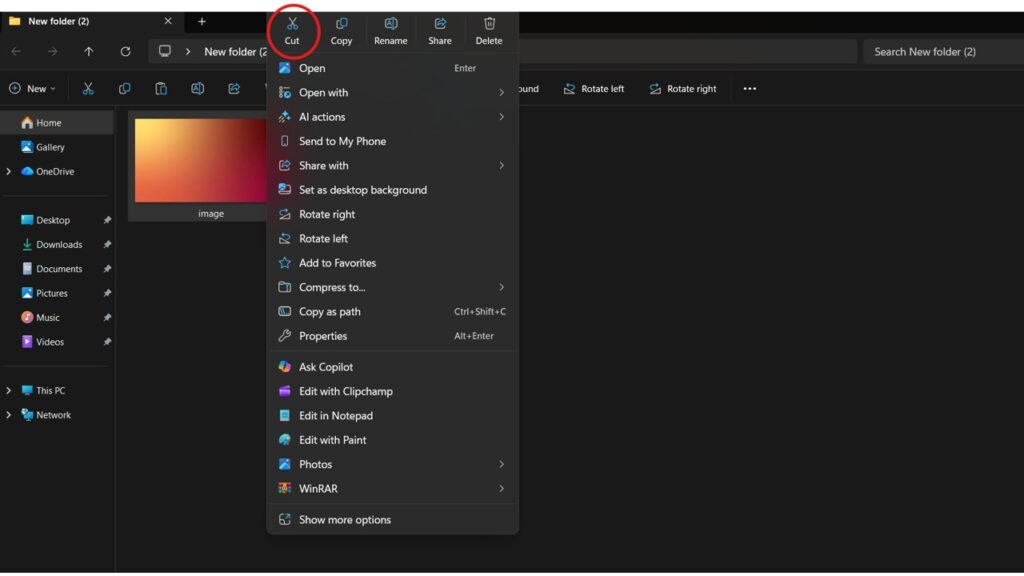
4. Ctrl + Z – Undo last action
5. Ctrl + Y – Redo last undone action
6. Ctrl + A – Select all content
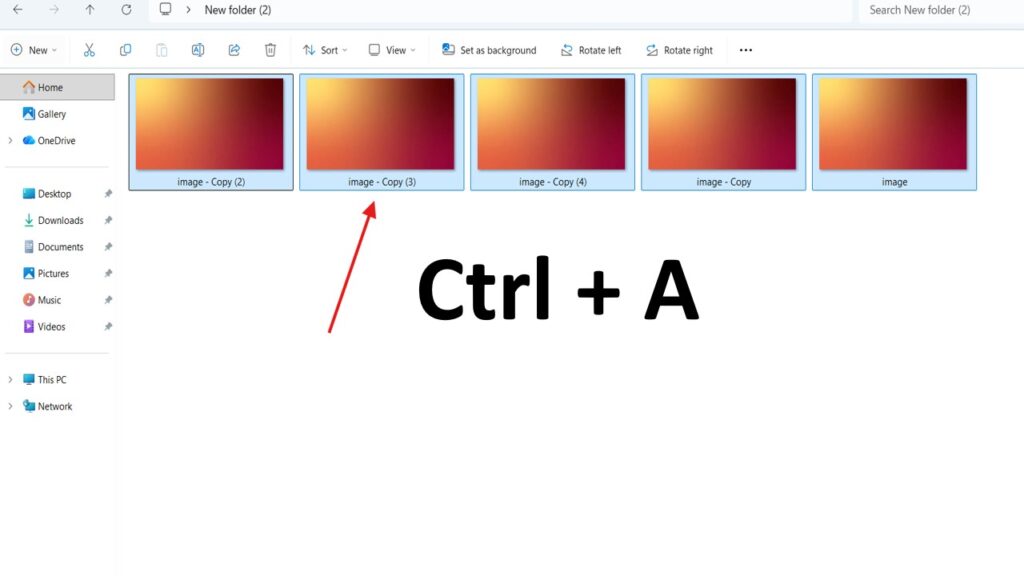
These shortcuts work in almost every application like Word, Excel, browser, and File Explorer.
Basic File and Window Shortcut Keys
- Ctrl + S – Save file
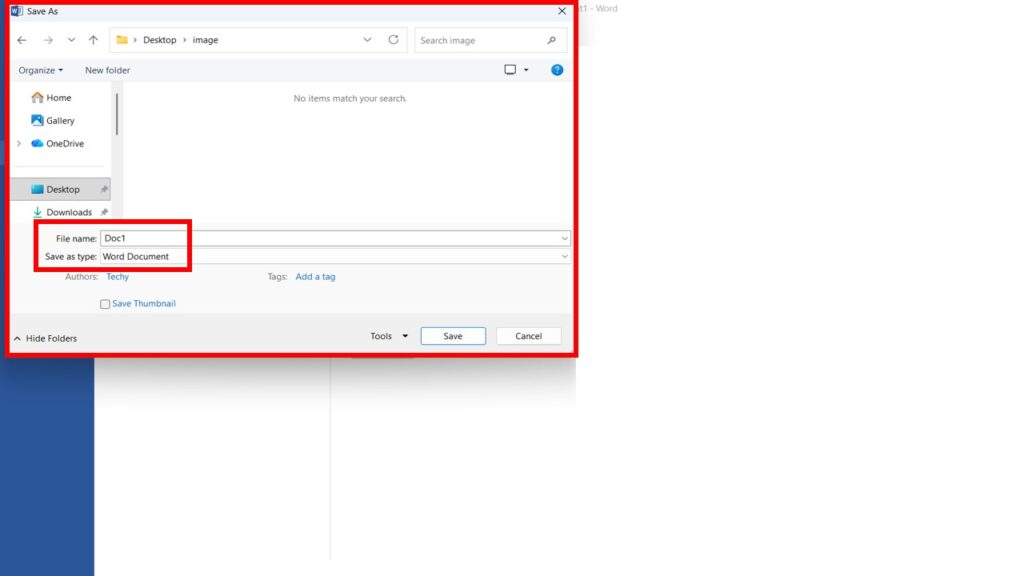
2. Ctrl + P – Print document
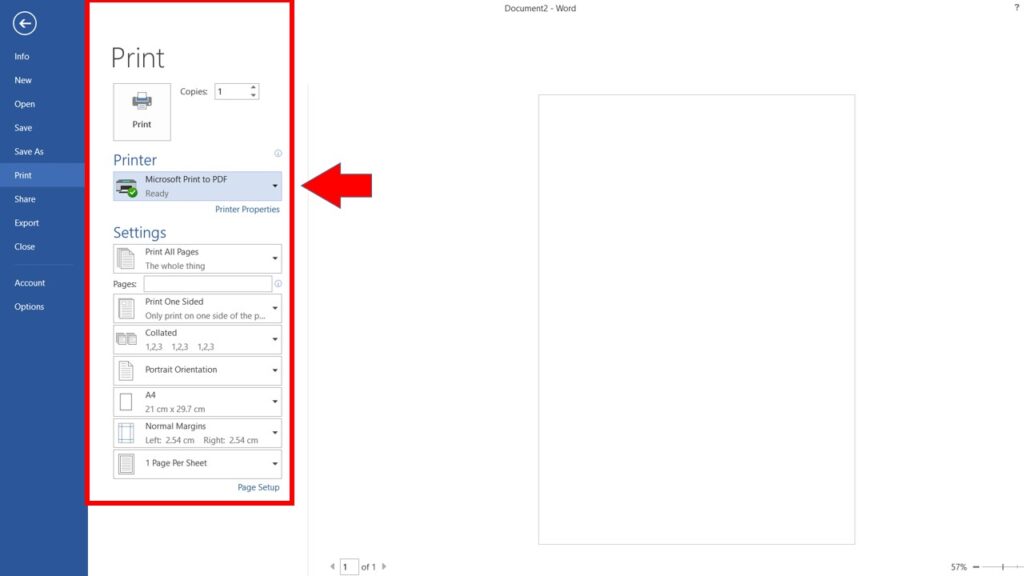
3. Alt + F4 – Close active window
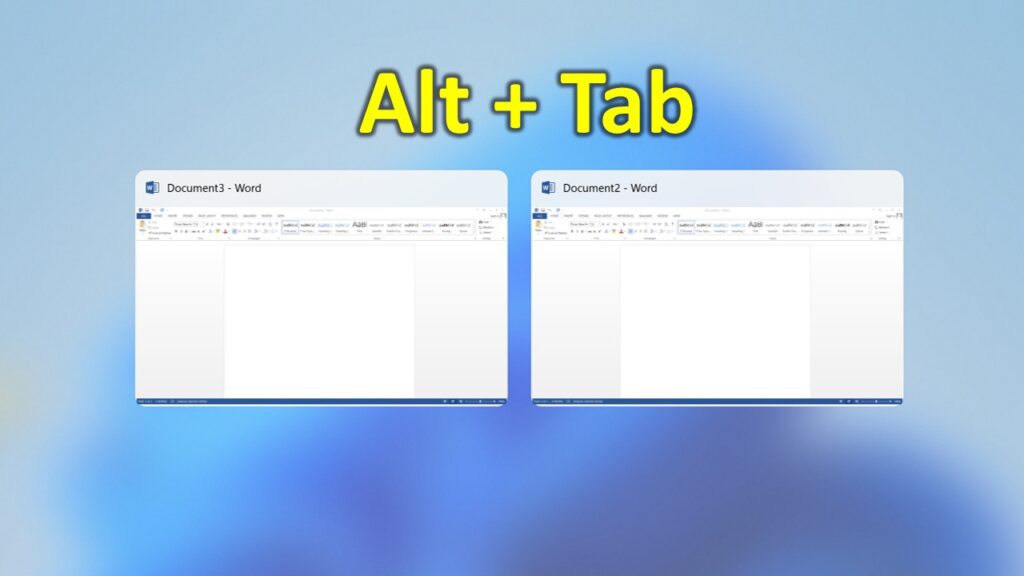
4. Alt + Tab – Switch between open apps
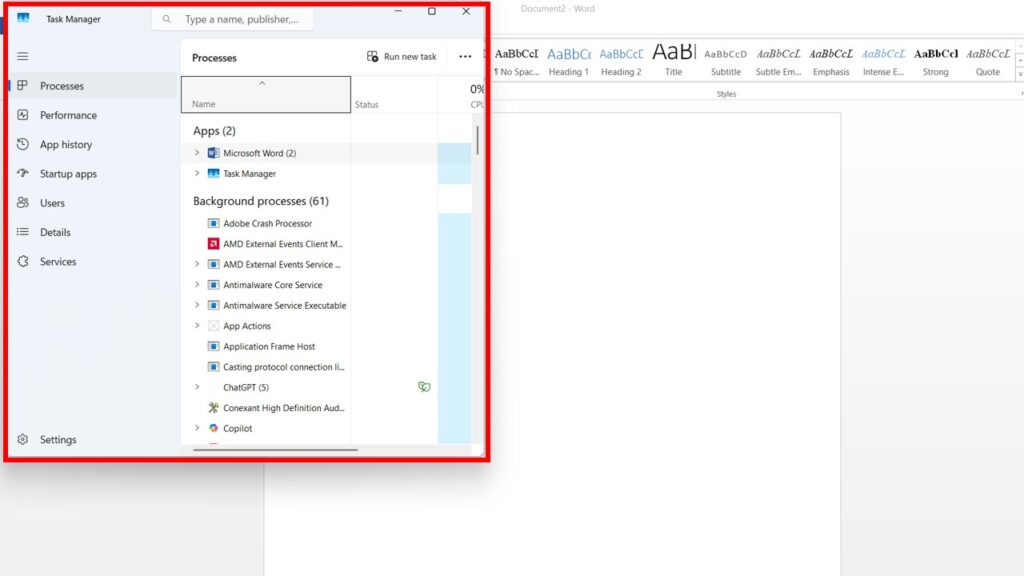
5. Ctrl + Shift + Esc – Open Task Manager
These shortcuts help in daily computer usage and basic troubleshooting.
Windows Key Shortcut Keys (Essential Level)
The Windows key is the most powerful key in Windows 11.
Important Windows Key Shortcuts
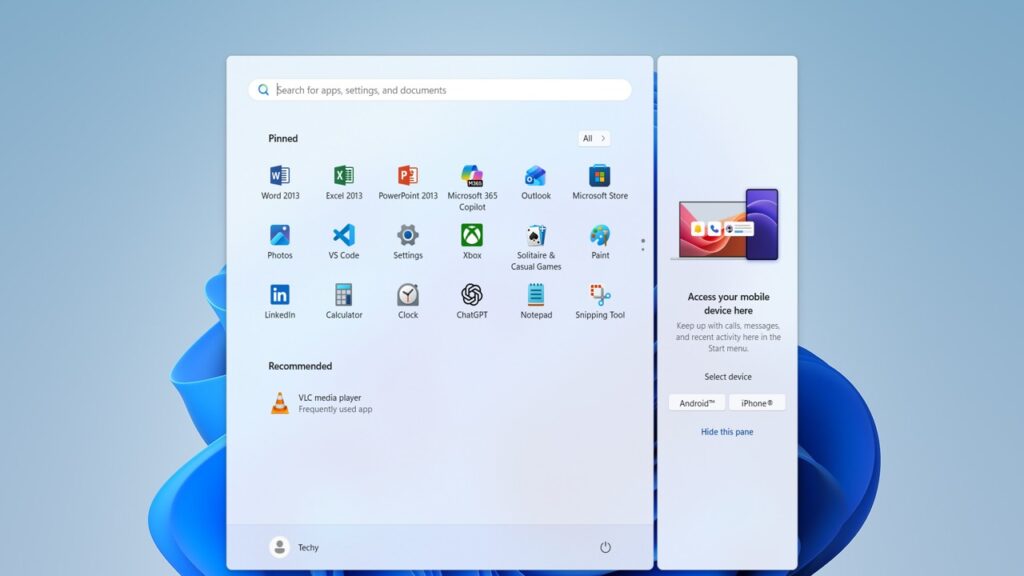
- Win – Open Start Menu
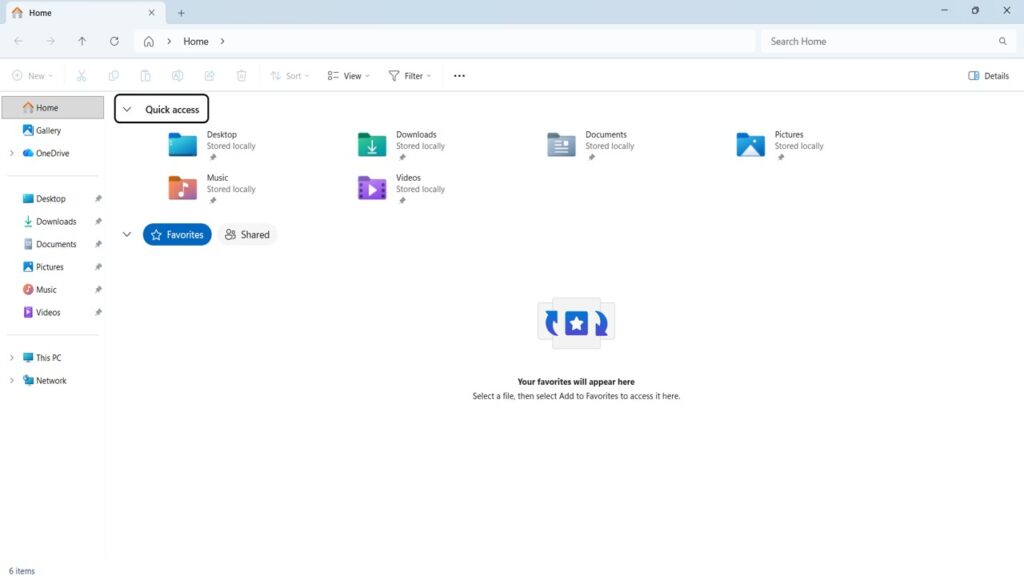
2. Win + E – Open File Explorer
3. Win + D – Show or hide desktop
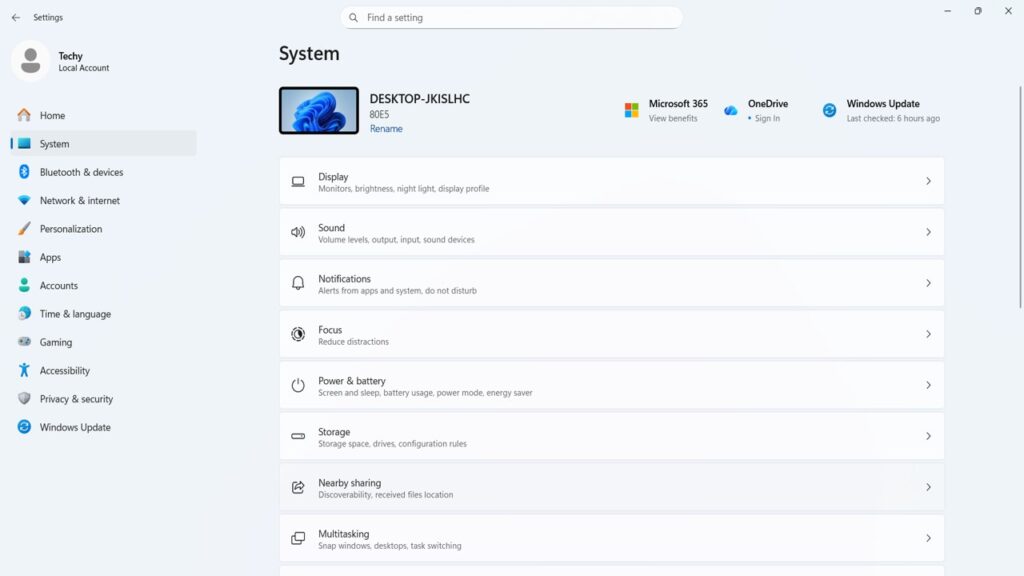
4. Win + I – Open Settings
5. Win + L – Lock your PC
6. Win + R – Open Run dialog box

These shortcuts provide instant access to system features.
File Explorer Shortcut Keys (Intermediate Level)
File Explorer shortcuts make file management faster and easier.
Common File Explorer Shortcuts
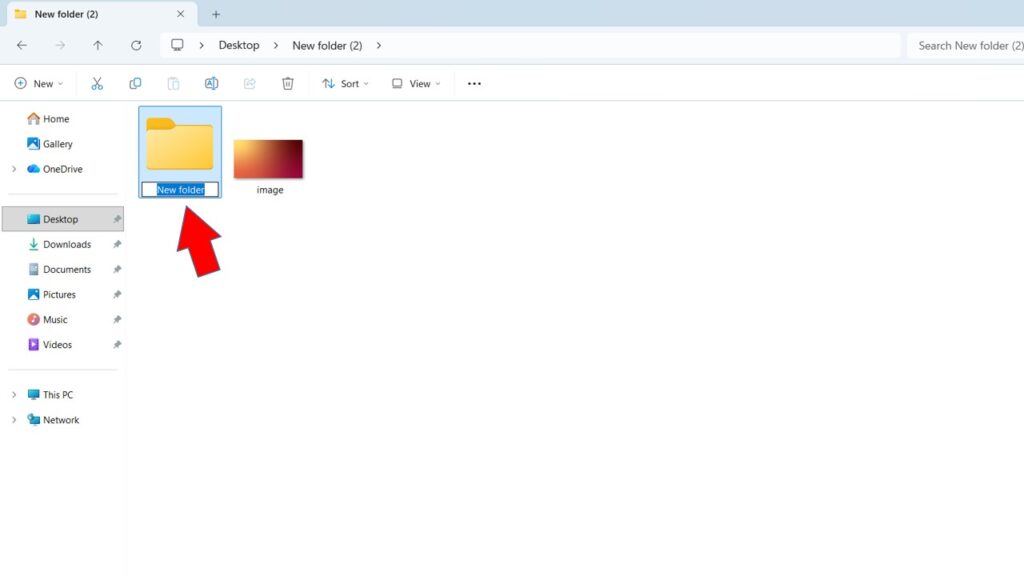
- Ctrl + Shift + N – Create a new folder
2. Alt + Enter – Open file properties
3. Backspace – Go to previous folder
4. Alt + Left Arrow – Go back
5. Alt + Right Arrow – Go forward
6. Ctrl + N – Open new File Explorer window
Using these shortcuts saves a lot of time when managing files and folders.
Browser Shortcut Keys (Intermediate Level)
These shortcuts work in Microsoft Edge, Google Chrome, and Mozilla Firefox.
Essential Browser Shortcuts
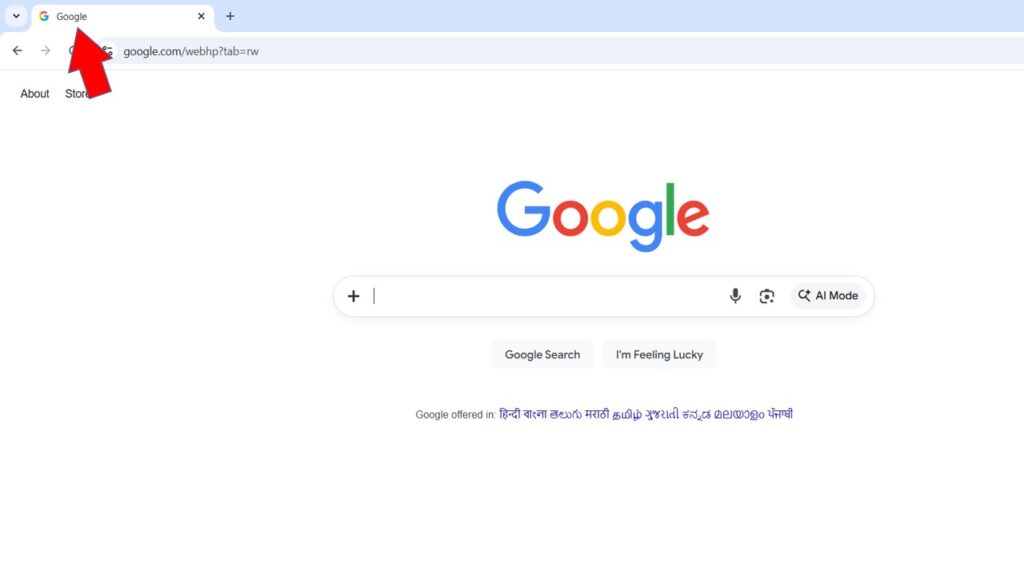
- Ctrl + T – Open new tab
2. Ctrl + W – Close current tab
3. Ctrl + Shift + T – Reopen closed tab
4. Ctrl + Tab – Switch to next tab
5. Ctrl + Shift + Tab – Switch to previous tab
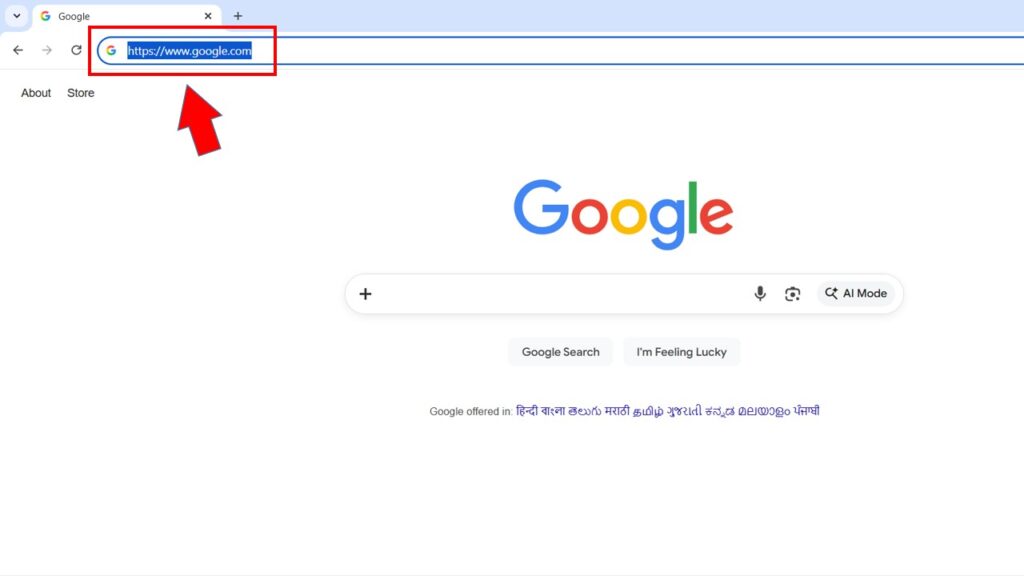
6. Ctrl + L – Select address bar
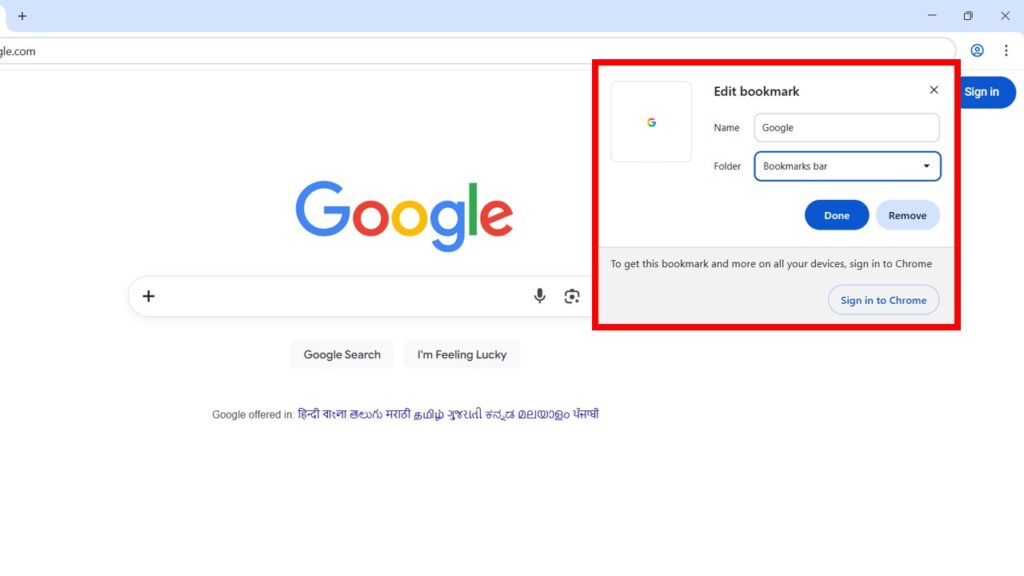
7. Ctrl + D – Bookmark current page
These shortcuts are extremely useful for browsing, research, and online work.
Windows 11 Snap Layout Shortcut Keys (Advanced Level)
Windows 11 introduces Snap Layouts to improve multitasking.
Snap Layout Shortcuts Keys
- Win + Z – Open Snap Layout menu
- Win + Left Arrow – Snap window to left
- Win + Right Arrow – Snap window to right
- Win + Up Arrow – Maximize window
- Win + Down Arrow – Minimize or restore window
Snap Layouts allow you to work with multiple apps on the same screen efficiently.
Virtual Desktop Shortcut Keys (Advanced Level)
Virtual Desktops help you organize your work.
Virtual Desktop Shortcuts Keys
- Win + Tab – Open Task View
- Win + Ctrl + D – Create new virtual desktop
- Win + Ctrl + Left Arrow – Switch to previous desktop
- Win + Ctrl + Right Arrow – Switch to next desktop
- Win + Ctrl + F4 – Close current desktop
Virtual desktops are very useful for multitasking and productivity.
System and Settings Shortcut Keys (Advanced Level)
These shortcuts provide quick access to system features.
Important System Shortcuts Keys
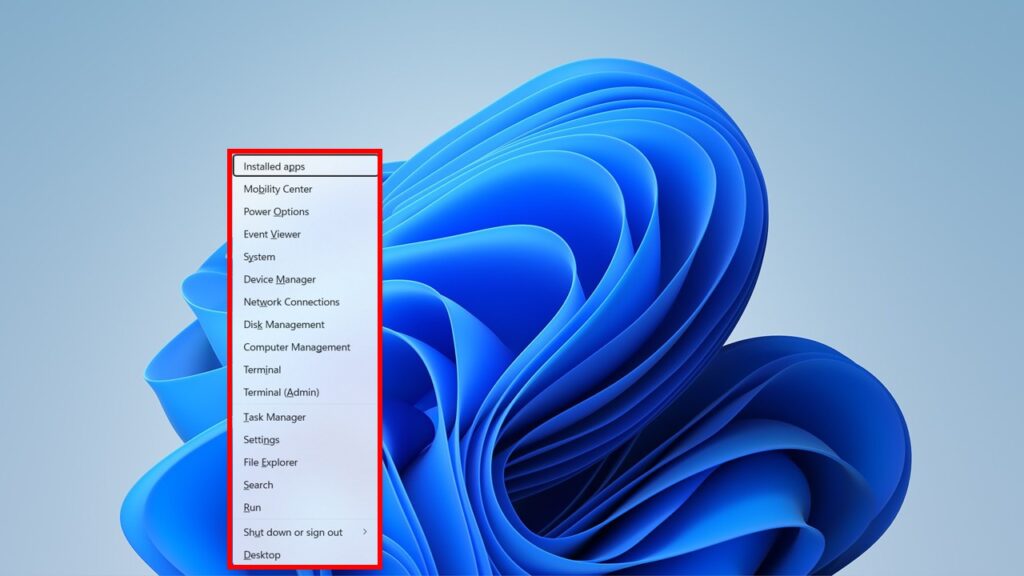
- Win + X – Power User Menu
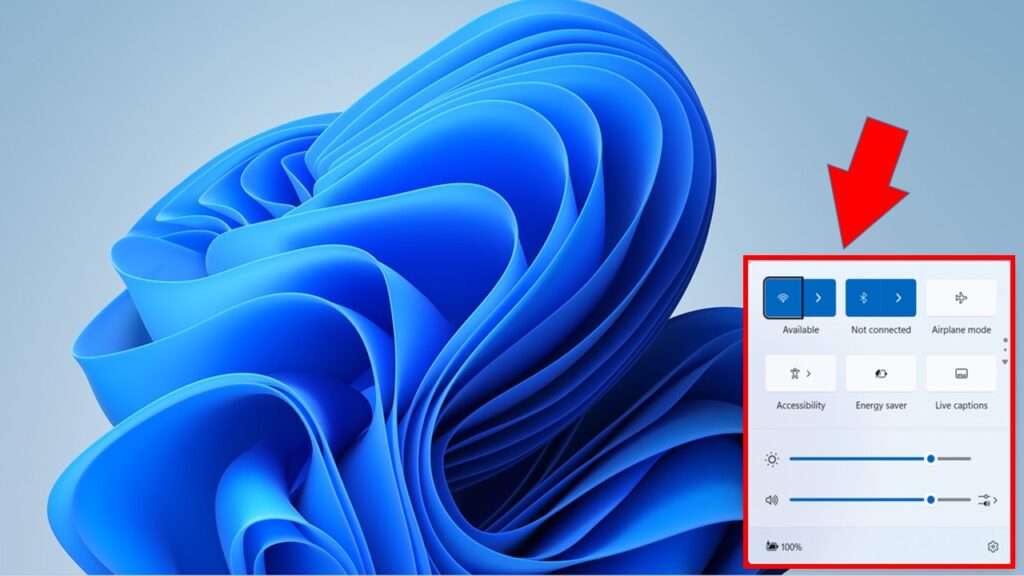
2. Win + A – Open Quick Settings
3. Win + N – Open Notification Center
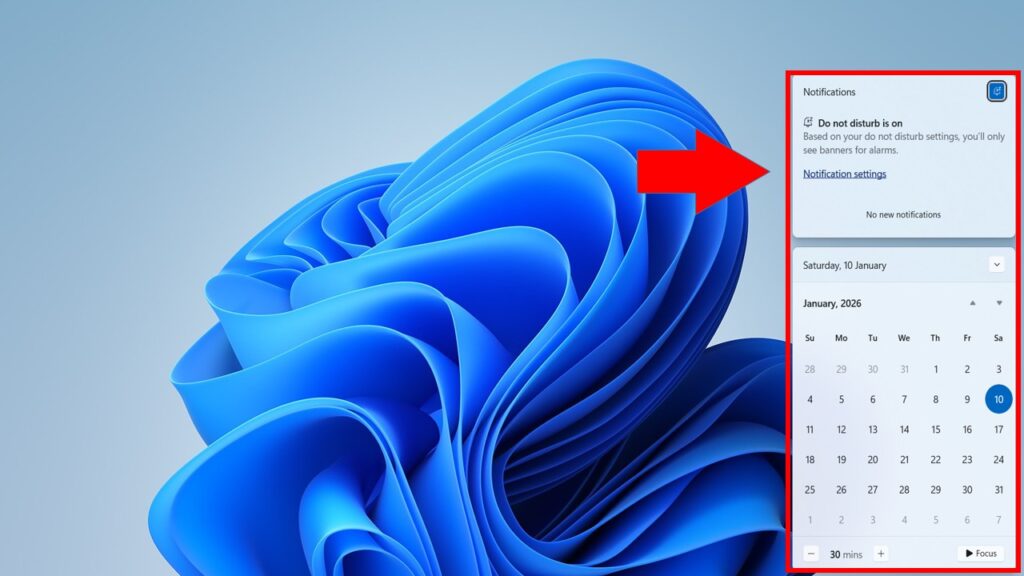
4. Win + Pause – System information
5. Ctrl + Alt + Delete – Security options
These shortcuts are useful for troubleshooting and system control.
Accessibility Shortcut Keys (Advanced Level)
Windows 11 includes accessibility features for all users.
Accessibility Shortcuts
- Win + U – Accessibility settings
- Win + Plus (+) – Turn on Magnifier
- Win + Esc – Turn off Magnifier
- Win + Ctrl + Enter – Turn Narrator on/off
These shortcuts are helpful not only for special needs users but also for presentations and reading.
Command Prompt and Run Shortcut Keys (Power User Level)
Run and Command Shortcuts
- Win + R – Open Run dialog
- Ctrl + Shift + Enter – Run command as administrator
- Ctrl + C – Stop running command
- F7 – View command history
These shortcuts are mostly used by IT professionals and advanced users.
Advanced Windows 11 Shortcut Keys (Expert Level)
These shortcuts are lesser known but extremely powerful.
Expert Shortcut Keys
- Win + Ctrl + Shift + B – Restart graphics driver
- Alt + Space – Open window control menu
- Win + P – Project display options
- Win + K – Connect to wireless display
These shortcuts are useful in system issues, display problems, and advanced workflows.
Tips to Learn Shortcut Keys Faster
- Start with basic shortcuts and practice daily
- Use shortcuts during regular work
- Focus on shortcuts related to your work
- Practice repeatedly until they become habit
Frequently Asked Questions (FAQ)
What are the most useful Windows 11 shortcut keys?
The most useful shortcuts include Win + E, Win + D, Ctrl + C, Ctrl + V, Alt + Tab, and Win + Z.
Are Windows 10 and Windows 11 shortcut keys the same?
Most shortcuts are the same, but Windows 11 includes new shortcuts like Snap Layouts and Quick Settings.
Can I customize Windows 11 shortcut keys?
Yes, some shortcuts can be customized using third-party tools and system settings.
Do shortcut keys really improve productivity?
Yes, shortcut keys significantly reduce time and increase work efficiency.
Conclusion
Learning basic to advanced Windows 11 shortcut keys is one of the best ways to become faster and more productive on your computer. Whether you are a student, office worker, content creator, or professional, these shortcuts can save hours of work every week. Start using a few shortcuts daily, and slowly add more to your routine. Over time, you will notice a huge improvement in your speed and confidence while using Windows 11.
Subscribe to My YouTube Channel Tech Legacy
Pingback: Learn Microsoft Word Beginner to Advanced
Pingback: Microsoft Word Keyboard Shortcut Keys You Must Know in 2026
Pingback: How to Fix Zoom Stuck on Connection in Windows 11