
If your computer feels slow, freezes often, or takes too long to start, this complete guide on 25 Best Ways to Speed Up Windows 11 will help you fix all major performance issues.
Windows 11 is powerful, modern, and visually advanced—but without proper optimization, it can become slow over time.
You will learn step-by-step methods to improve boot speed, reduce lag, increase system responsiveness, and make Windows 11 faster on both low-end and high-end PCs.

What Is Windows 11?
Windows 11 is the latest operating system developed by Microsoft, designed to deliver a modern user interface, better performance, and stronger security compared to previous versions like Windows 10. It was officially released to provide a smoother, cleaner, and more productive computing experience for laptops, desktops, and tablets.
Windows 11 is not just a visual update—it brings major improvements in speed, multitasking, gaming, and system security, especially for modern hardware.
Table of Contents
Key Purpose of Windows 11
The main goal of Windows 11 is to:
- Make computers faster and more responsive
- Improve productivity and multitasking
- Enhance security against modern threats
- Provide a clean and modern design
- Optimize performance for new-generation hardware
Main Features of Windows 11 Explained
1. Modern User Interface (UI)
Windows 11 comes with a redesigned interface:
- Centered Start Menu
- Rounded corners
- New icons and animations
- Cleaner taskbar layout
This design reduces visual clutter and helps users focus better.
2. Improved Performance
Windows 11 is optimized to:
- Boot faster
- Use RAM more efficiently
- Prioritize active applications
- Reduce background resource usage
That’s why many users look for ways to speed up Windows 11 even further with proper optimization.
3. Better Multitasking (Snap Layouts)
Windows 11 introduces Snap Layouts and Snap Groups, which allow you to:
- Arrange multiple apps on the screen easily
- Switch between tasks faster
- Improve workflow for work and study
This feature is especially useful for students, professionals, and content creators.
4. Stronger Security
Security is one of the biggest upgrades in Windows 11.
Key security features include:
- TPM 2.0 requirement
- Secure Boot
- Built-in ransomware protection
- Improved Windows Defender
These features protect your data from malware, viruses, and hacking attempts.
5. Gaming Enhancements
Windows 11 is built with gamers in mind:
- Auto HDR for better visuals
- DirectStorage for faster game loading
- Better GPU and CPU utilization
This makes Windows 11 the best Windows version for gaming so far.
6. Better Support for Modern Hardware
Windows 11 works best with:
- SSD storage
- New Intel and AMD processors
- More RAM (8GB or higher recommended)
This allows the operating system to deliver smoother performance and faster response times.
System Requirements of Windows 11 (Brief)
To run Windows 11 smoothly, your PC should have:
- Minimum 4GB RAM (8GB recommended)
- SSD storage
- TPM 2.0
- Compatible 64-bit processor
If your system meets these requirements, Windows 11 can perform very well with proper optimization.
Is Windows 11 Better Than Windows 10?
Yes, Windows 11 is better than Windows 10 in many ways:
- Faster performance on modern PCs
- Improved design and usability
- Better security
- Enhanced multitasking
- Superior gaming experience
However, without optimization, it may feel slow on low-end systems—this is why performance tuning is important.
Who Should Use Windows 11?
Windows 11 is ideal for:
- Students
- Office workers
- Gamers
- Content creators
- Home users
- Professionals
Anyone who wants a modern, secure, and efficient operating system can benefit from Windows 11.
Why Windows 11 Becomes Slow Over Time?
Common Reasons
- Too many startup apps
- Background services running constantly
- Low RAM or HDD storage
- Visual effects and animations
- Malware or unwanted software
Understanding these issues helps you fix them correctly.
25 Best Ways to Speed Up Windows 11 (Step-by-Step Guide)
1. Restart Your PC Regularly
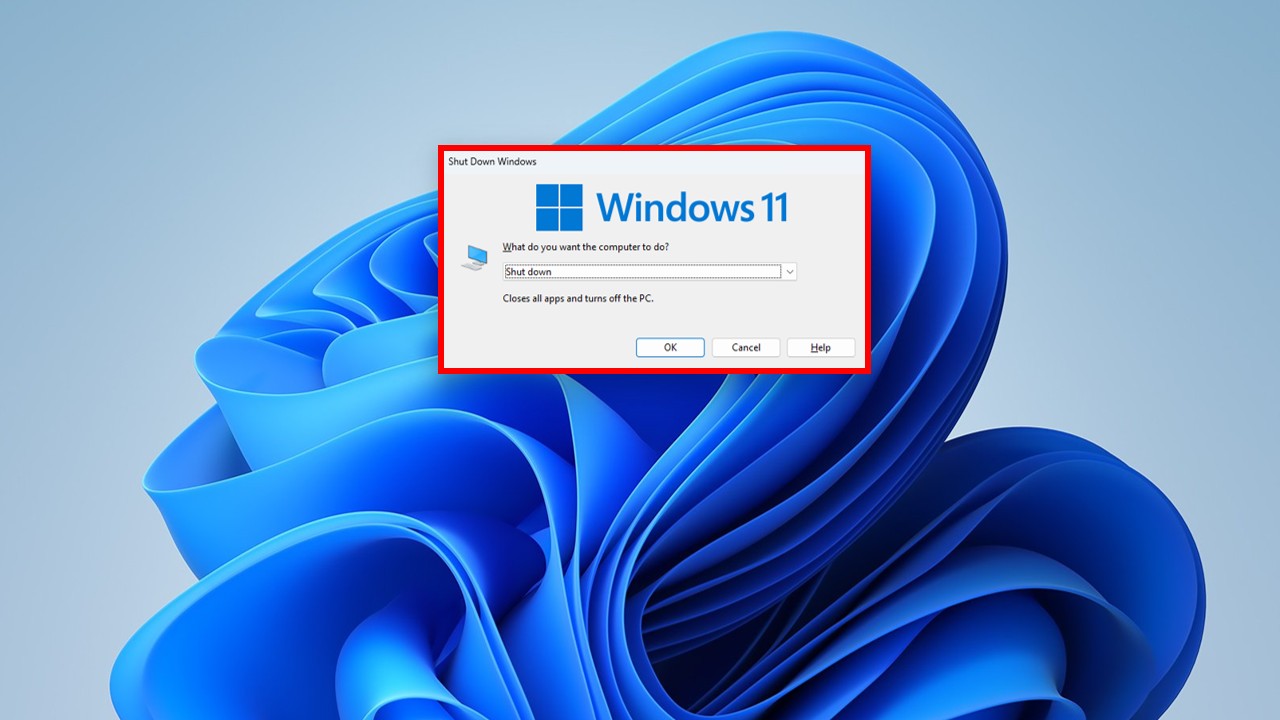
Restarting clears temporary memory, refreshes system processes, and removes stuck background tasks.
Why it helps:
Improves RAM efficiency and system stability.
2. Disable Startup Programs
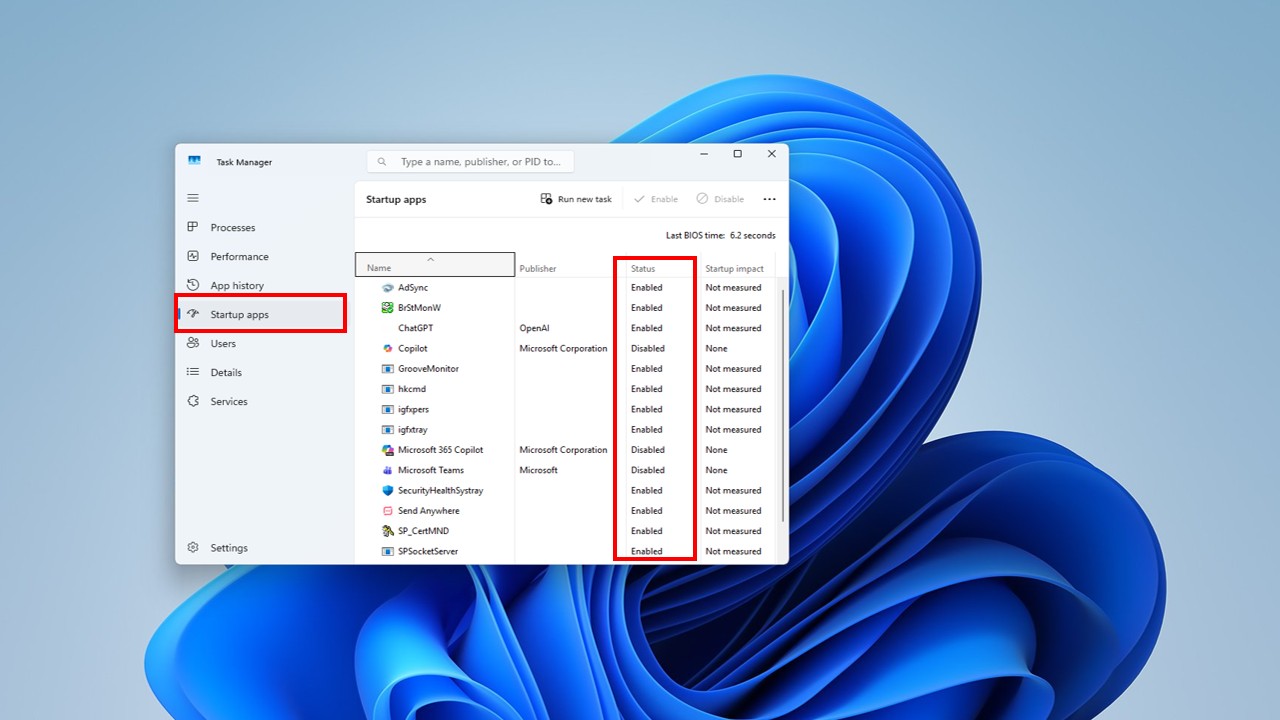
Startup apps slow down boot time.
Steps:
- Press Ctrl + Shift + Esc
- Open Startup Apps
- Disable apps you don’t need
3. Uninstall Unused Software
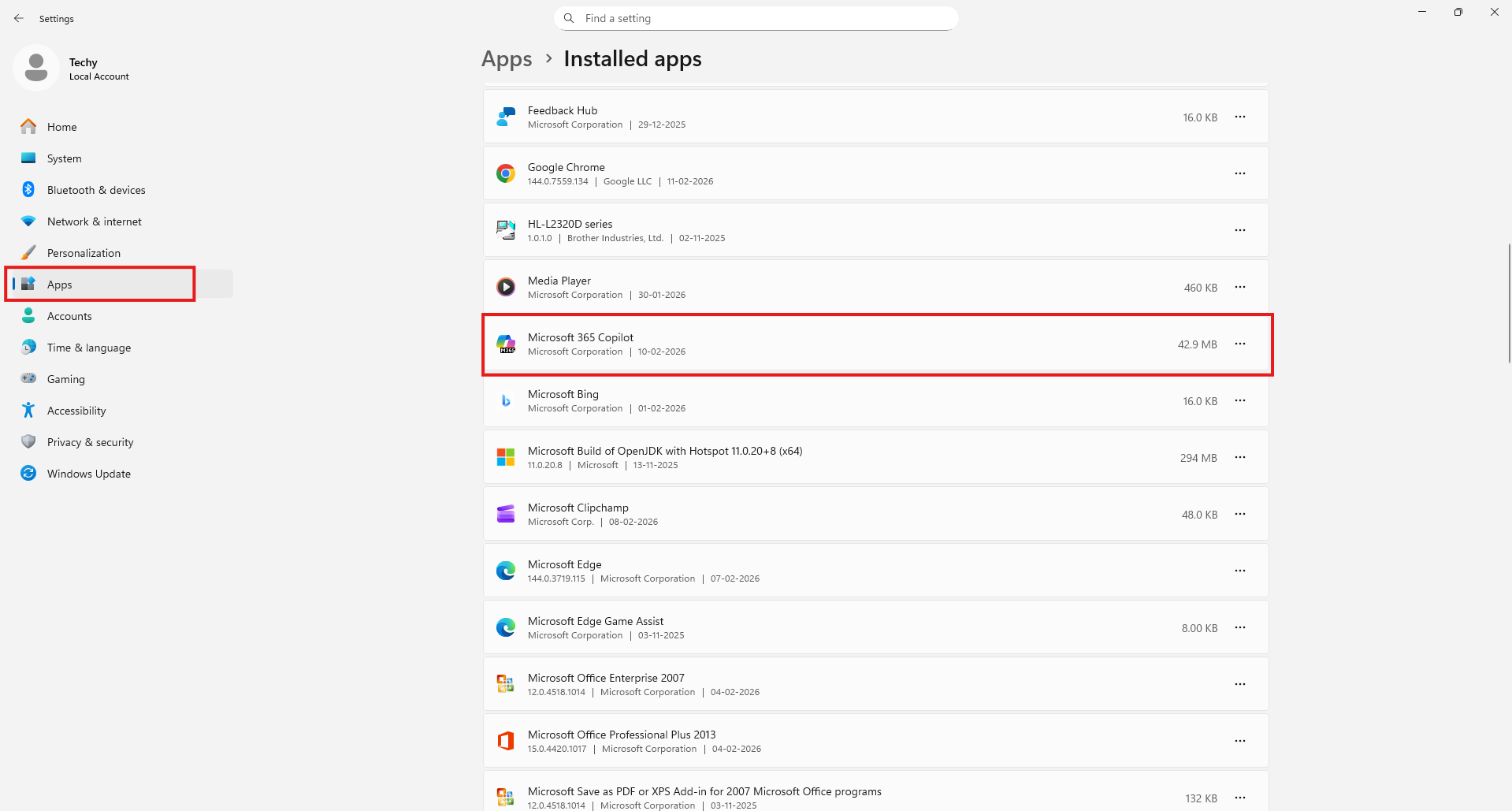
Unused apps consume storage and background resources.
Steps:
- Settings → Apps → Installed Apps
- Uninstall unnecessary programs
4. Enable Storage Sense
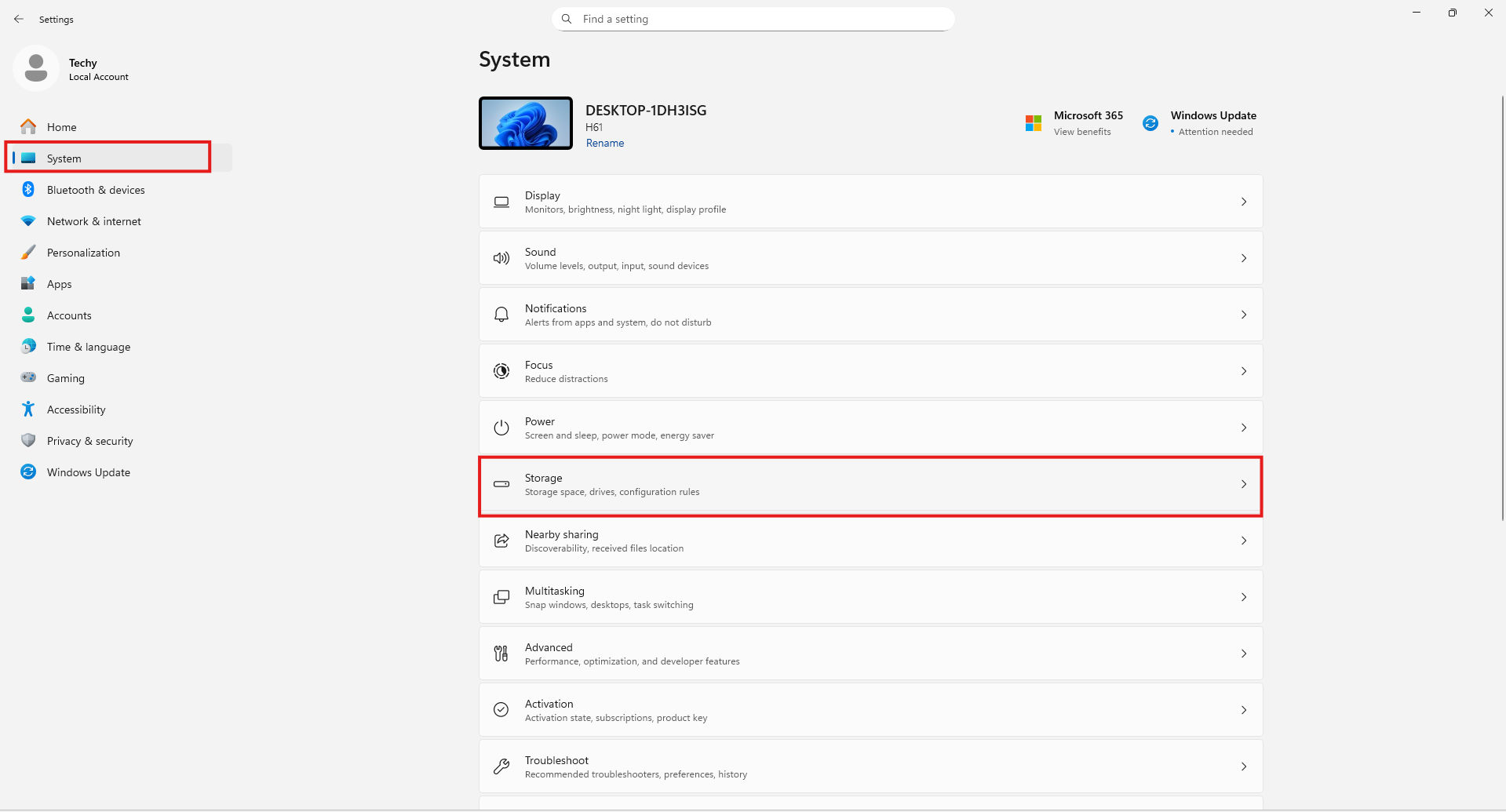
Storage Sense automatically cleans junk files.
Steps:
- Settings → System → Storage
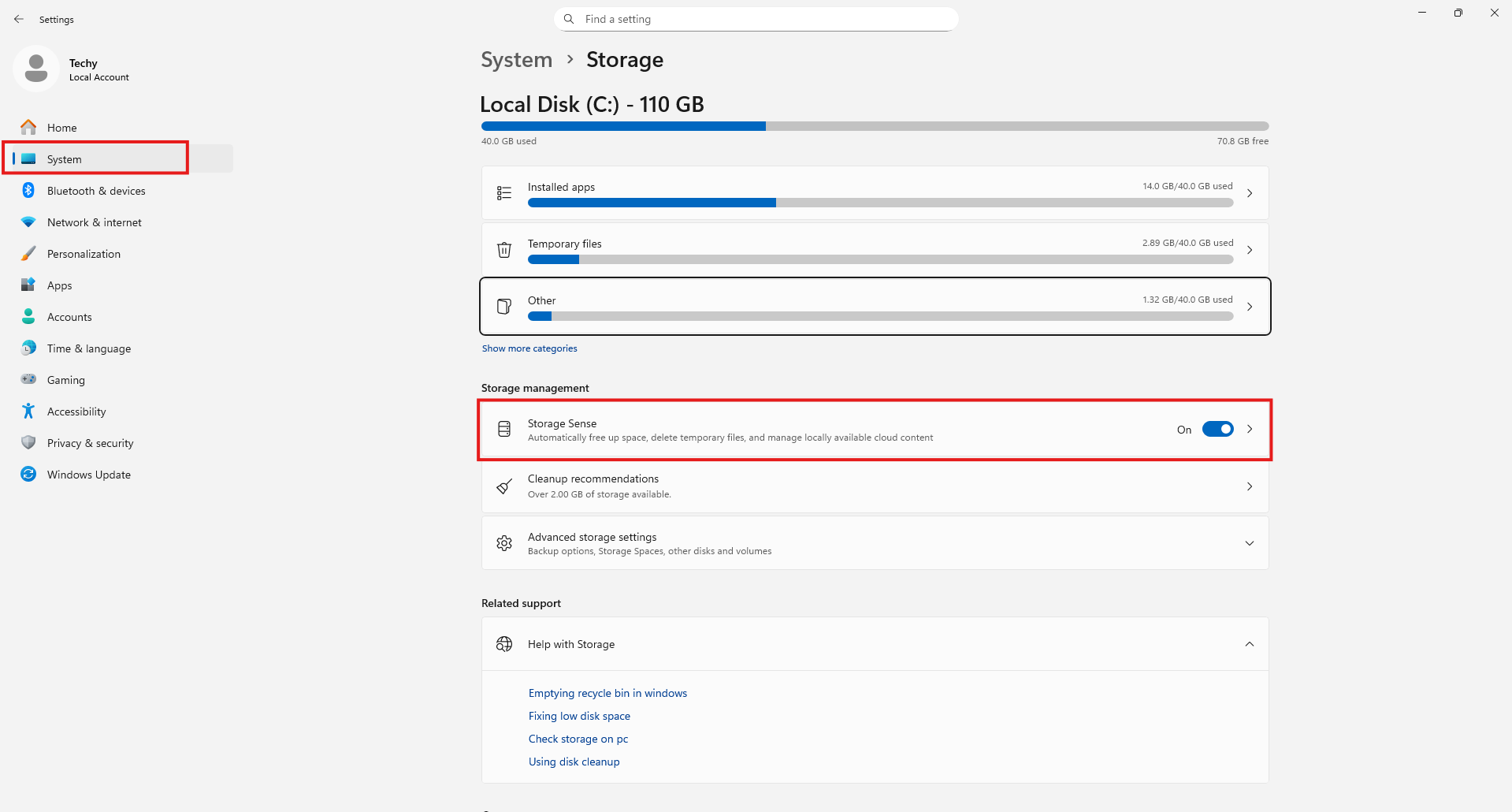
2. Turn ON Storage Sense
5. Use Best Performance Power Mode
Power settings affect speed.
Steps:
- Settings → System → Power & Battery
- Select Best Performance
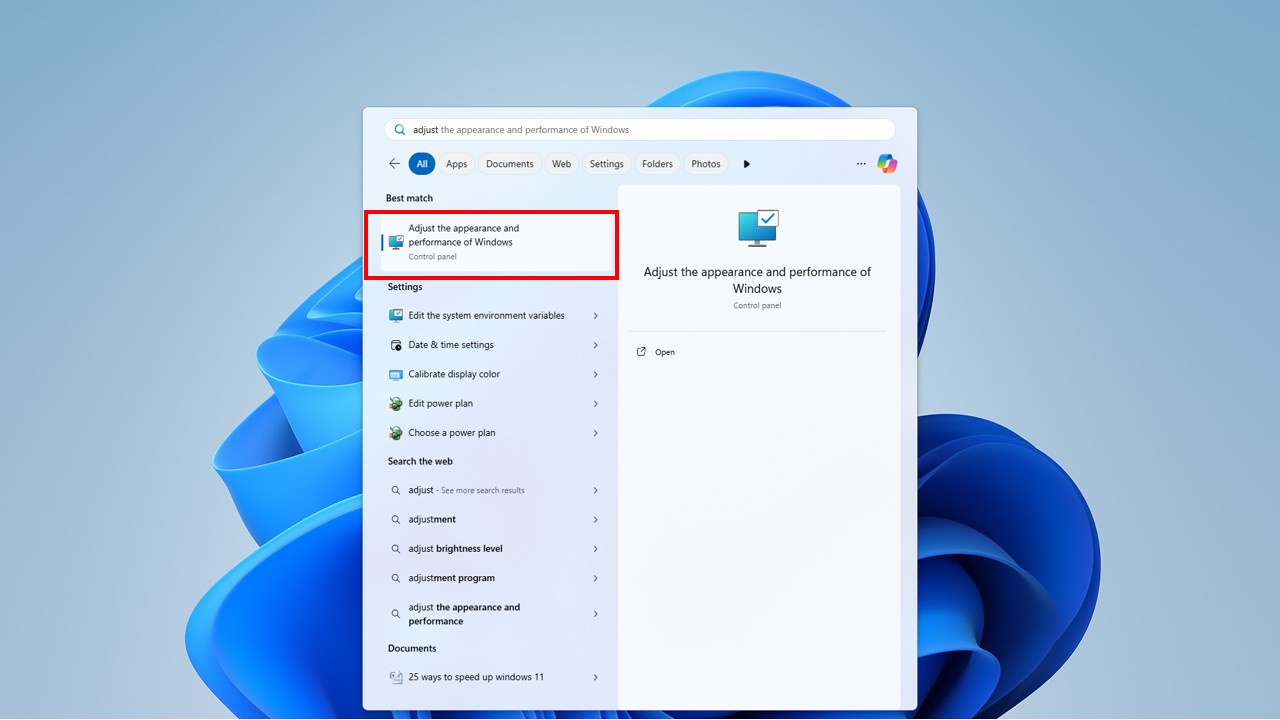
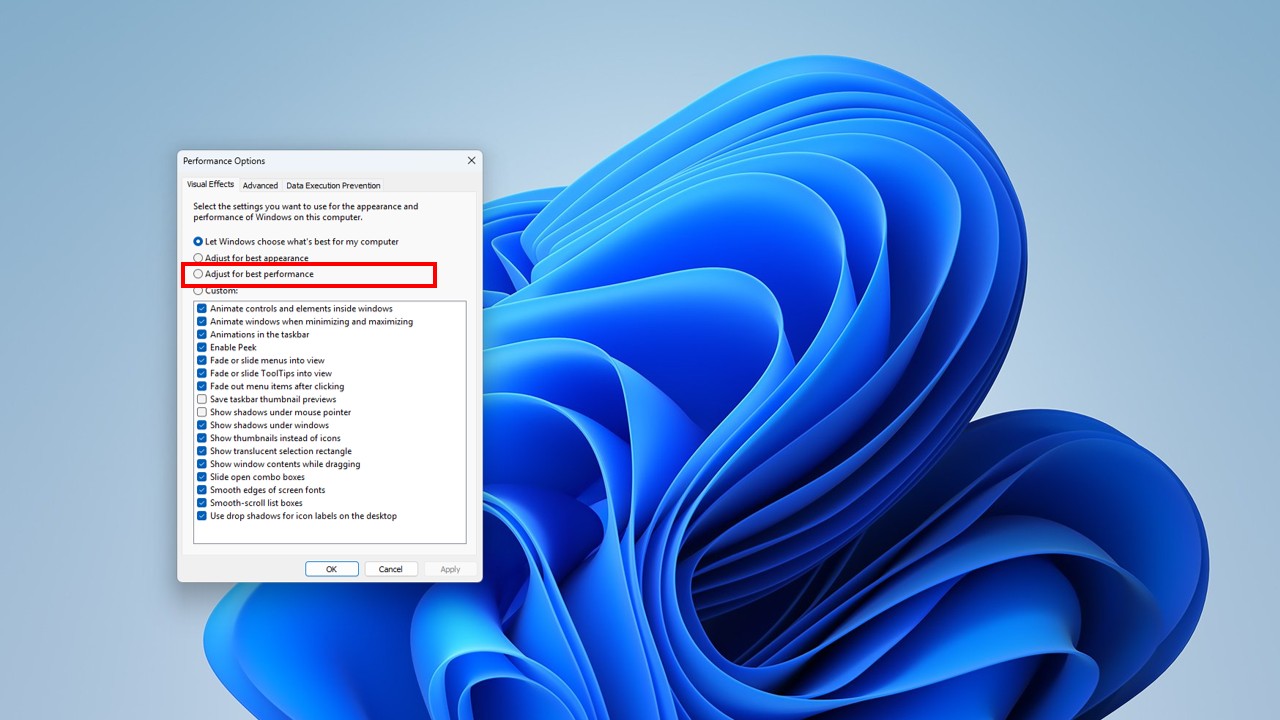
6. Disable Visual Effects
Animations look good but reduce speed.
Steps:
- Search Performance
- Click Adjust the appearance
3. Choose Adjust for best performance
7. Update Windows 11 Regularly
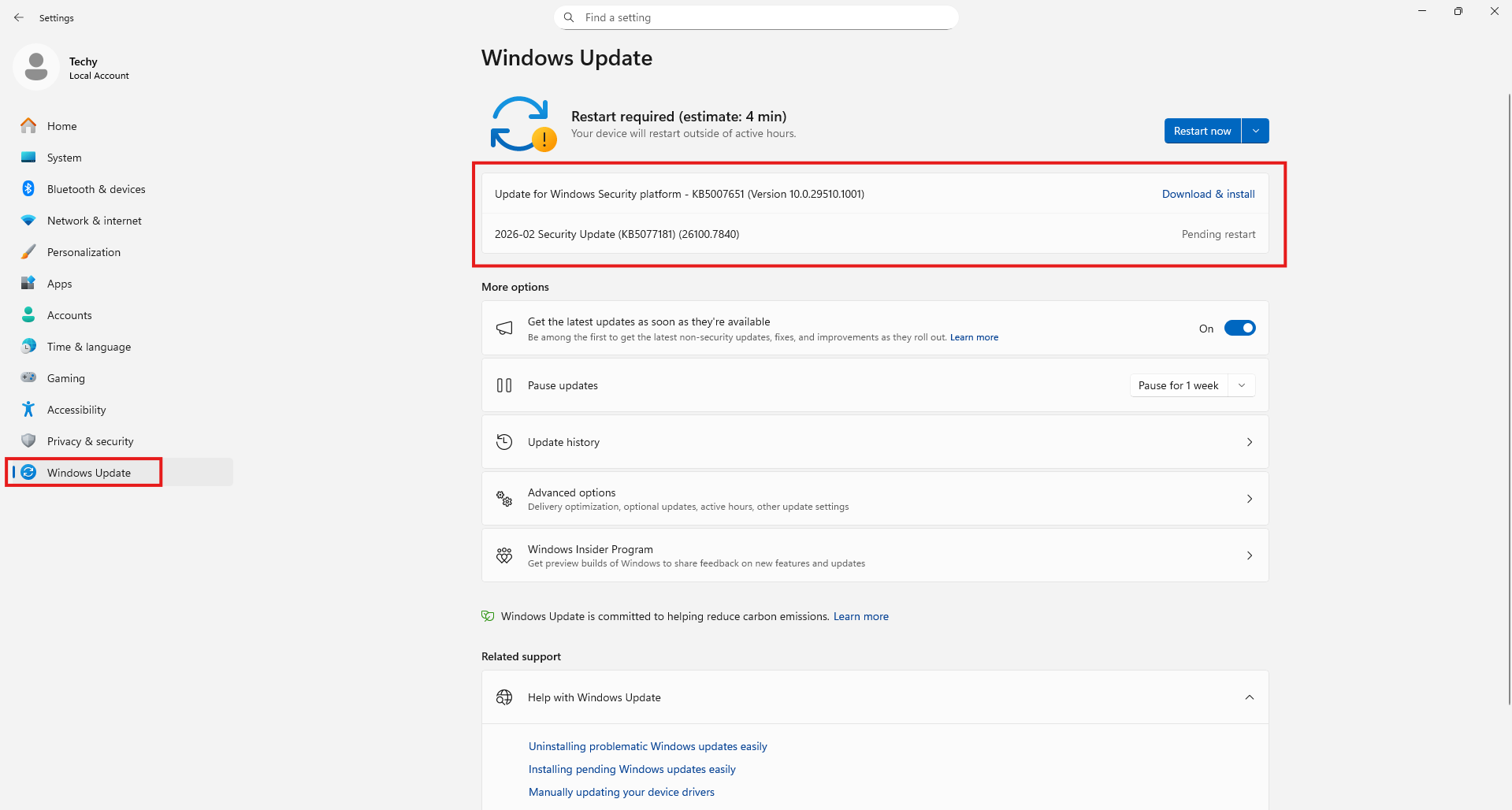
Updates fix bugs and performance issues.
Steps:
- Settings → Windows Update → Check for updates
8. Update Device Drivers
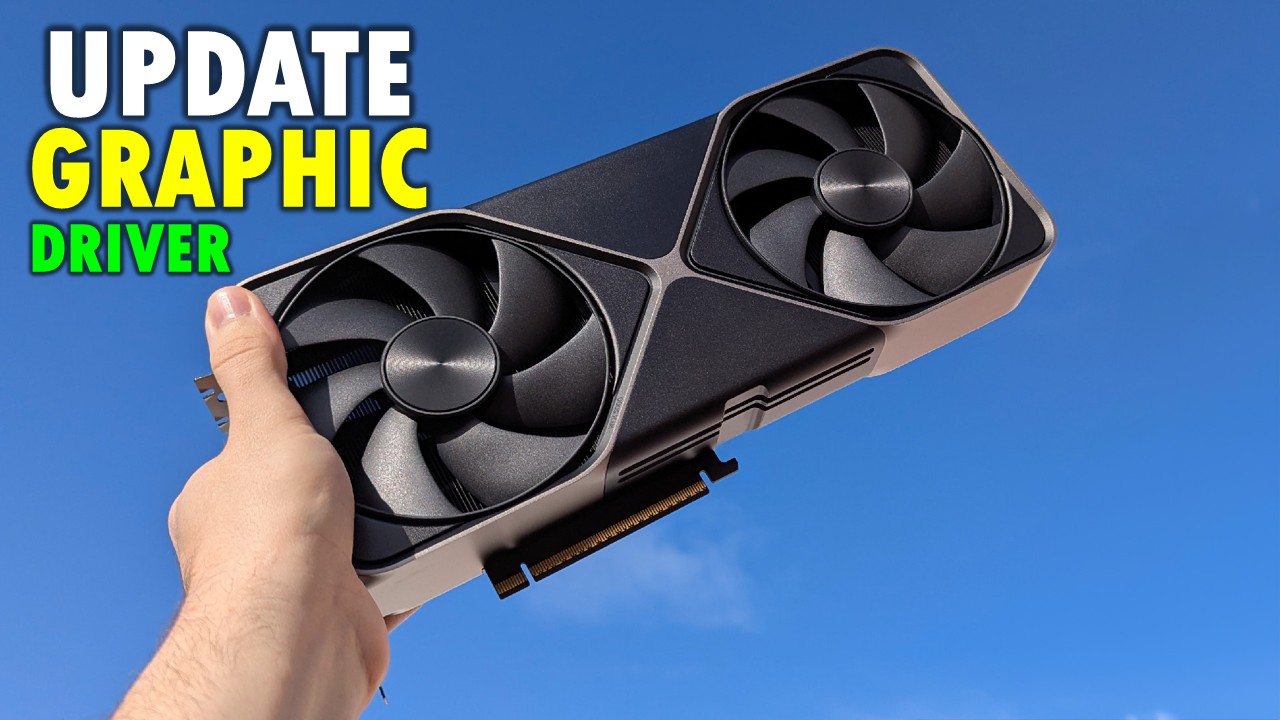
Old drivers cause lag and crashes.
- Update graphics, network, and chipset drivers
9. Delete Temporary Files
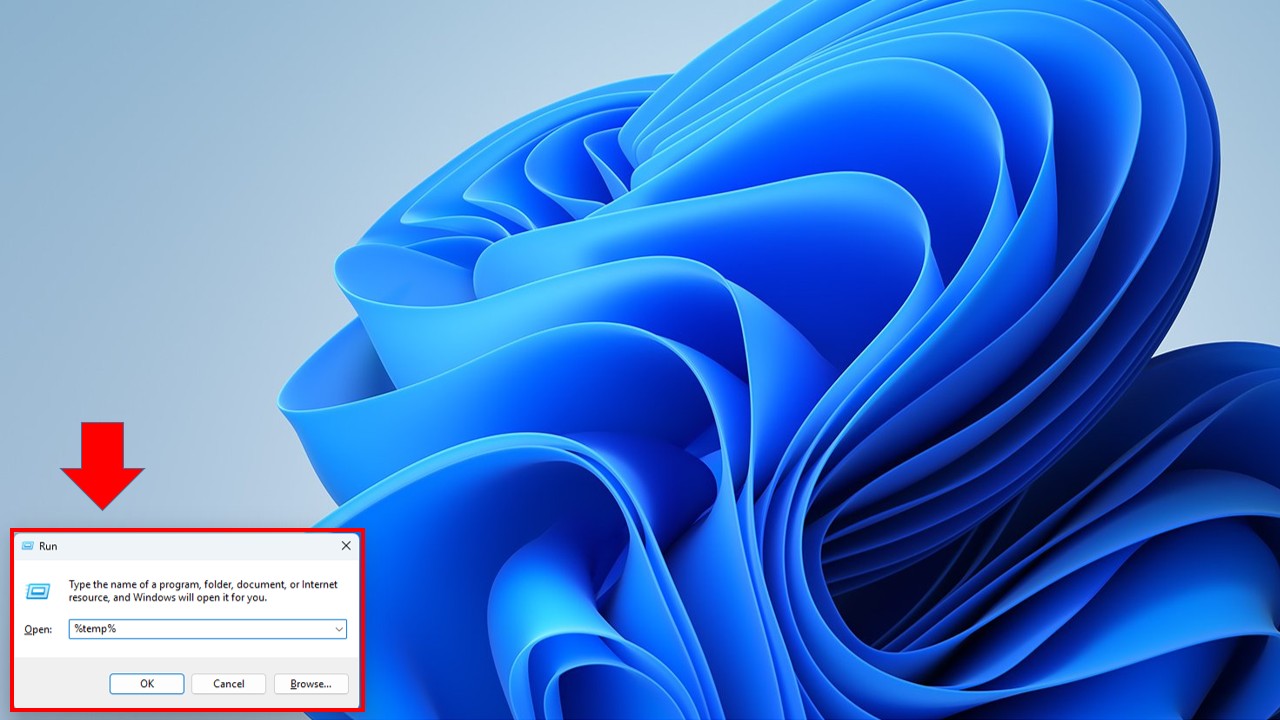
Temporary files slow storage performance.
Steps:
- Press Win + R
- Type %temp%
- Delete all files
10. Disable Background Apps
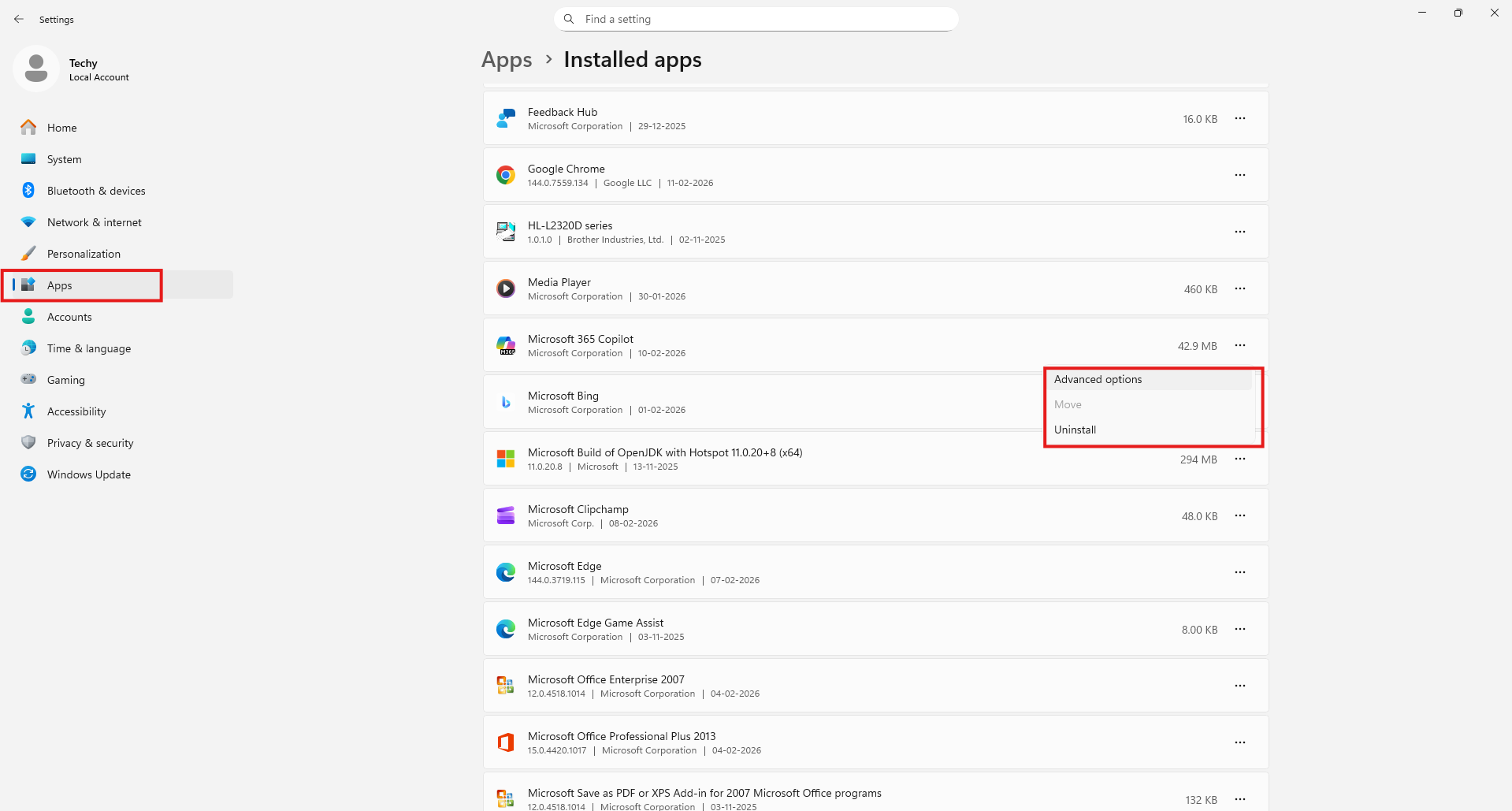
Background apps consume RAM.
Steps:
- Settings → Apps → Installed Apps
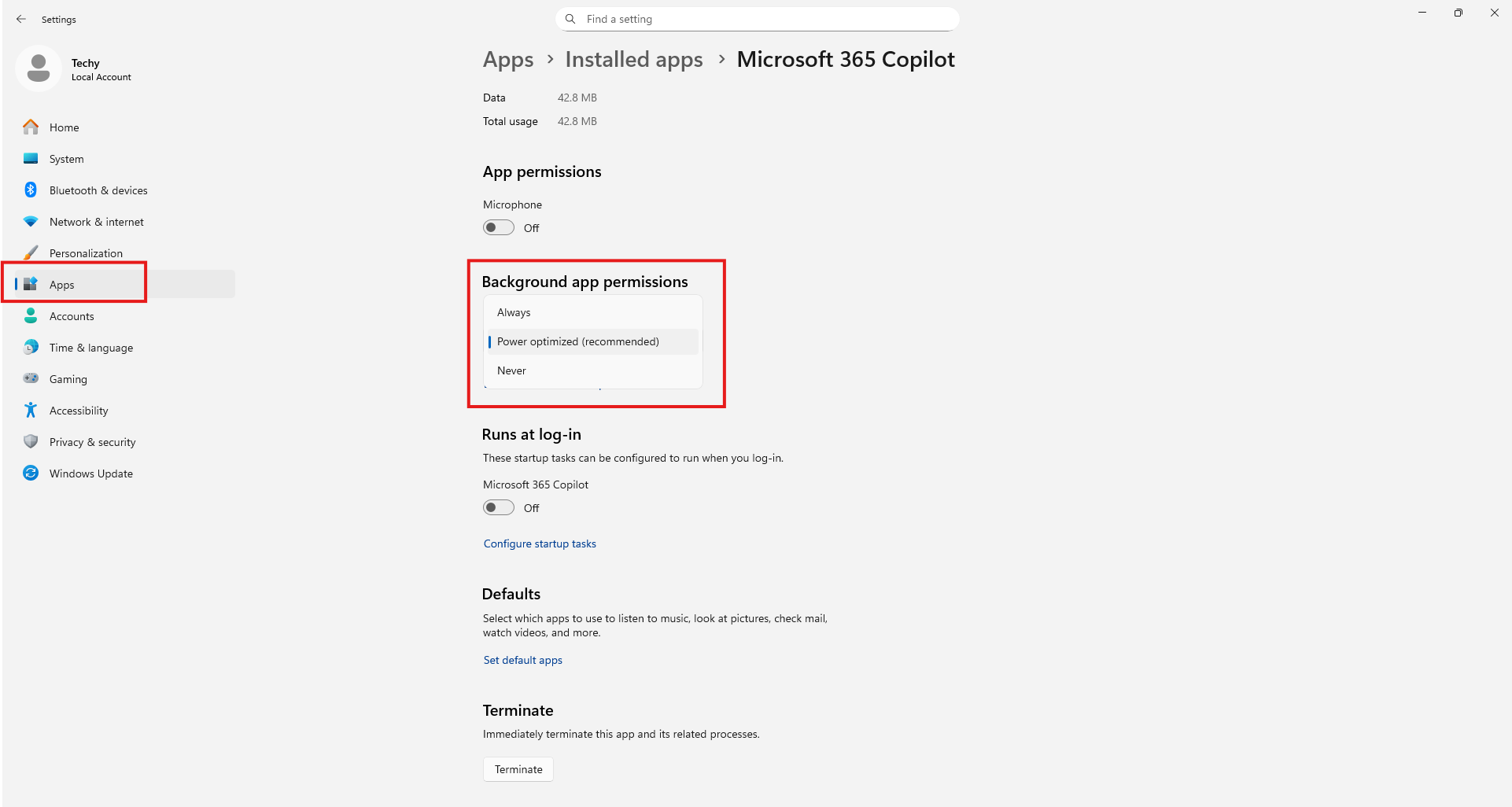
2. Change background permissions to Never
11. Switch from HDD to SSD
SSDs dramatically improve Windows 11 speed.
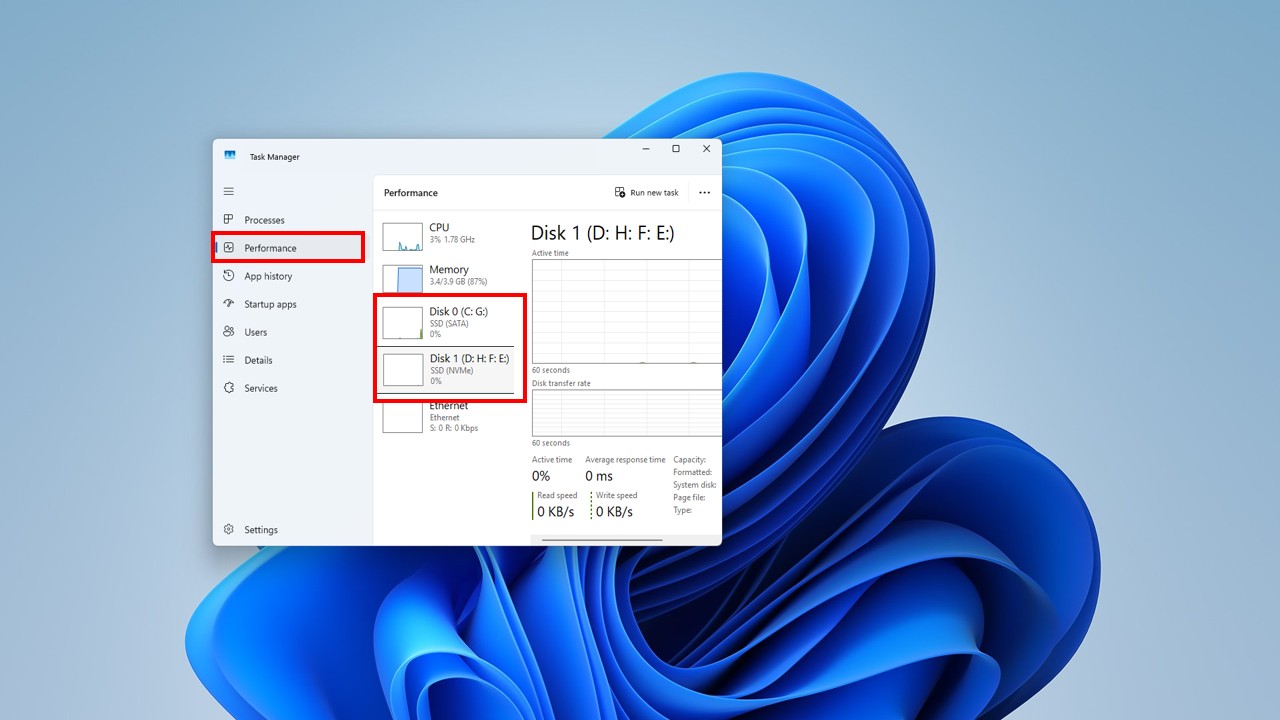
Benefit:
- Faster boot
- Faster app loading
- Better multitasking
12. Turn Off Widgets If Not Needed
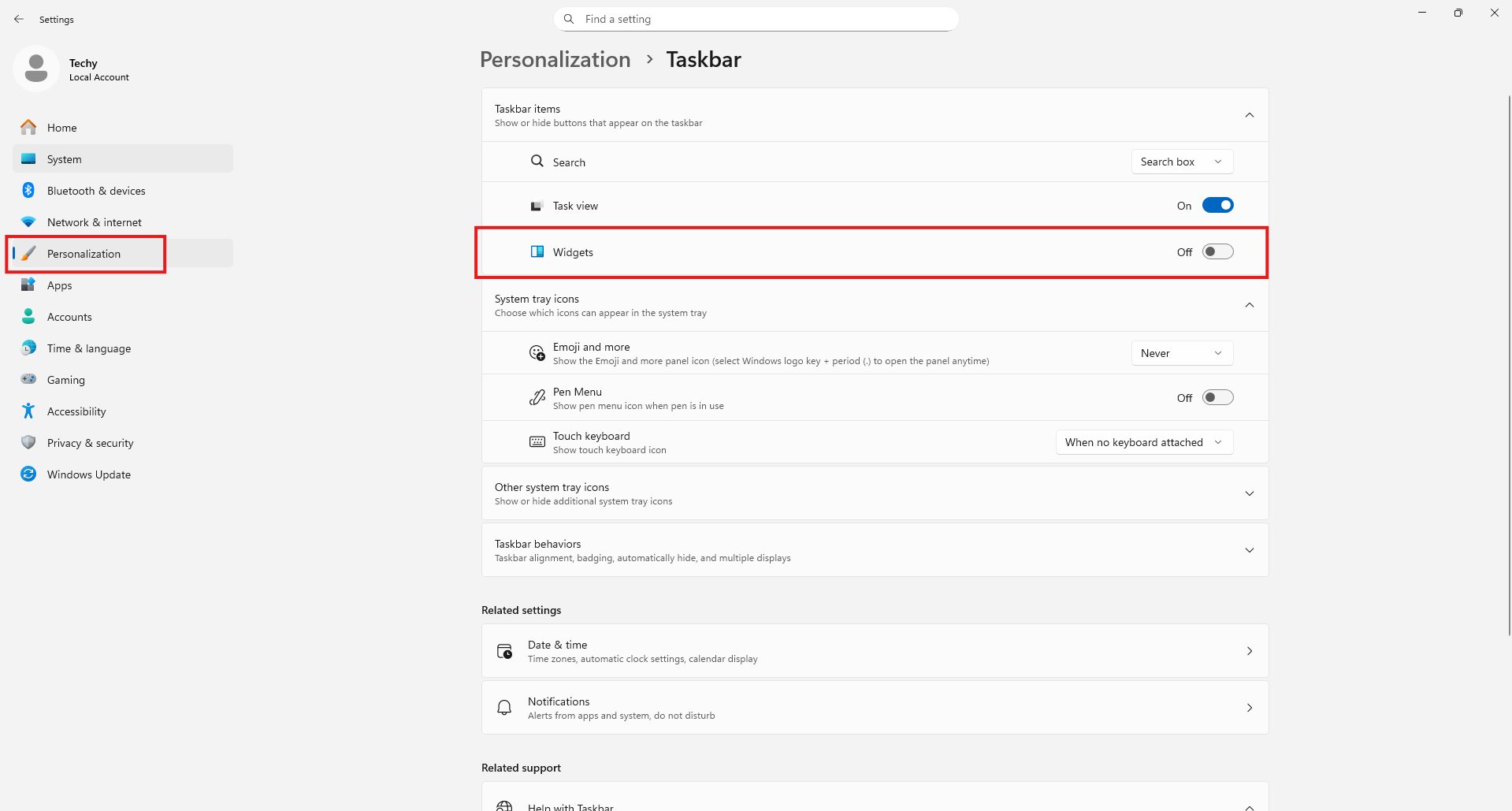
Widgets run background services.
Steps:
- Right-click Taskbar → Taskbar Settings
- Disable Widgets
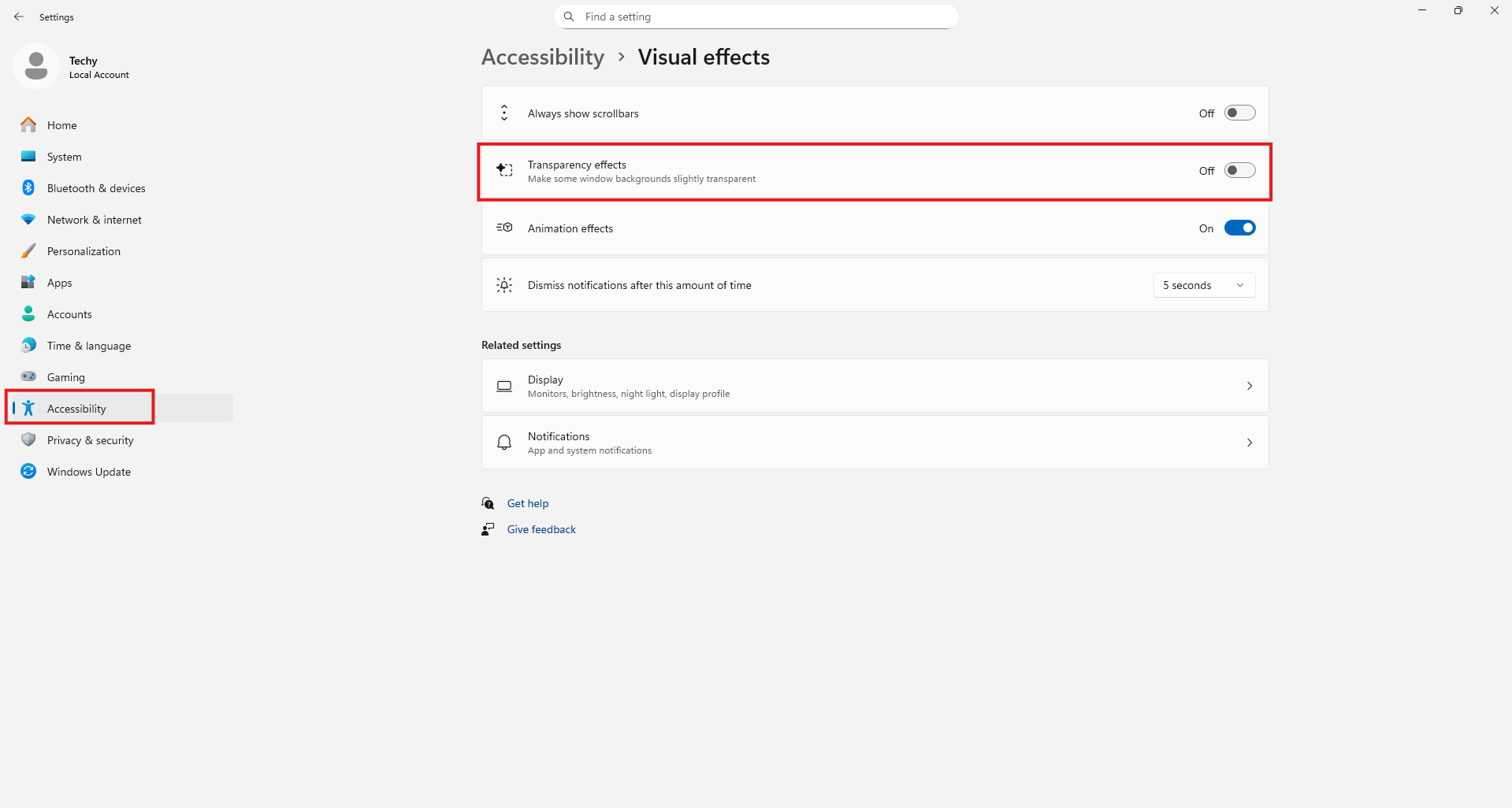
13. Disable Transparency Effects
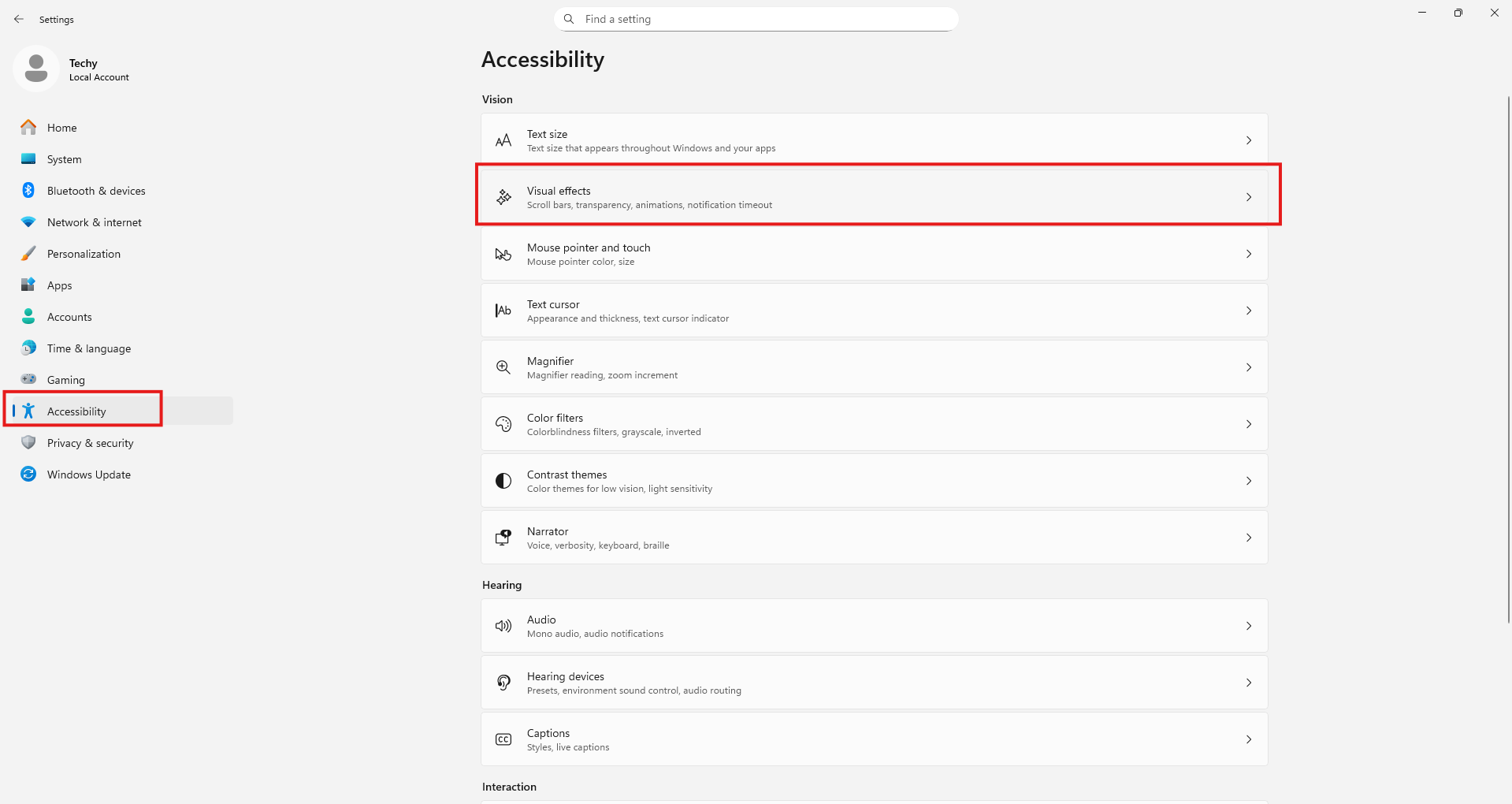
Transparency consumes GPU resources.
Steps:
- Settings → Accessibility → Visual Effects
- Turn OFF Transparency
14. Scan for Malware & Viruses
Malware slows down PCs.
Use Windows Security or trusted antivirus software.
15. Increase Virtual Memory
Virtual memory helps low-RAM systems.
Steps:
- Advanced System Settings
- Performance → Settings
- Virtual Memory → Change
16. Disable OneDrive Sync

Continuous syncing slows performance.
Disable if you don’t use cloud backup.
17. Clean Browser Cache
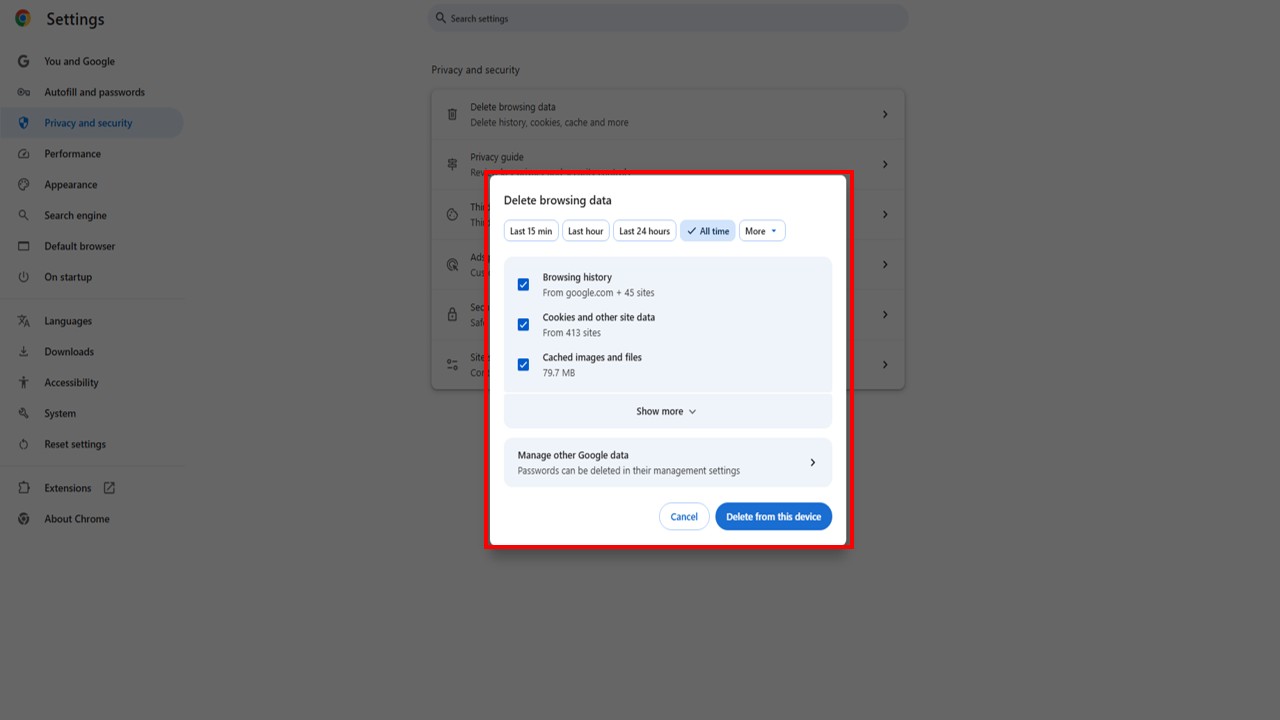
Heavy browsers impact system speed.
Clear cache regularly.
18. Reduce Notifications
Too many notifications affect background performance.
19. Use Disk Cleanup Tool
Built-in Windows tool for cleaning junk.
20. Disable Search Indexing (Advanced)
Helps older PCs perform faster.
21. Keep Desktop Icons Minimal
Too many icons slow startup.
22. Reset Power Plan
Fixes misconfigured settings.
23. Upgrade RAM
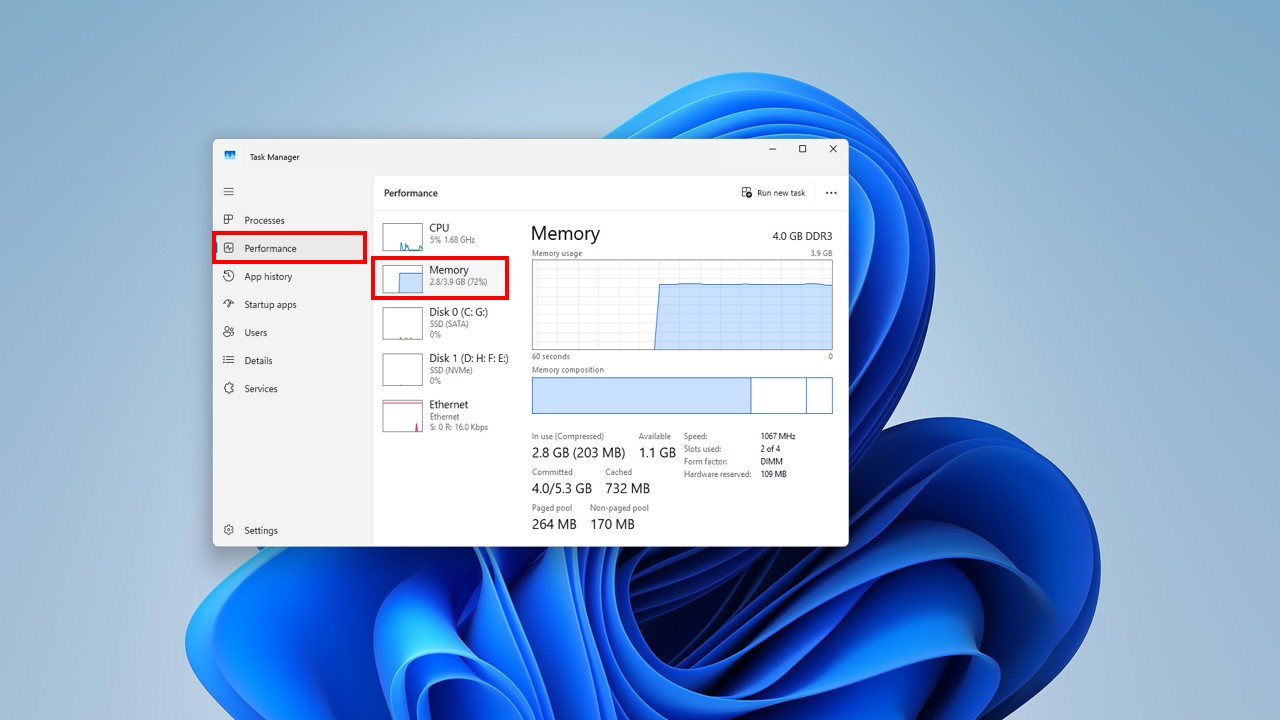
8GB RAM is ideal for Windows 11.
24. Reset Windows 11 (Last Option)
Use only if nothing works.
Subscribe to My YouTube Channel Tech Legacy
25. Watch the Tutorials
How to Install Windows 11
Read more Article
Text to QR Code Generator – Free Online QR Code Tool 2026
Fix Wi-Fi Not Showing & No Internet Error in Windows 11
- 25 best ways to speed up windows 11
- windows 11 performance optimization
- make windows 11 faster
- windows 11 lag fix
- windows 11 slow problem solution
Frequently Asked Questions (FAQ)
How can I speed up Windows 11 for free?
Use startup management, disable effects, and clean files.
Is Windows 11 slower on low-end PCs?
Without optimization, yes—but these tips fix it.
Does SSD really improve Windows 11 speed?
Yes, SSD gives massive performance boost.
How often should I optimize Windows 11?
Every 1–2 months.
Conclusion
By following these 25 Best Ways to Speed Up Windows 11, you can significantly improve performance, reduce lag, and extend your PC’s life.