
Introduction
If you are searching for How to Create Windows 11 25H2 Bootable USB Drive, this complete step-by-step guide will help you create a bootable USB easily using official and advanced methods.
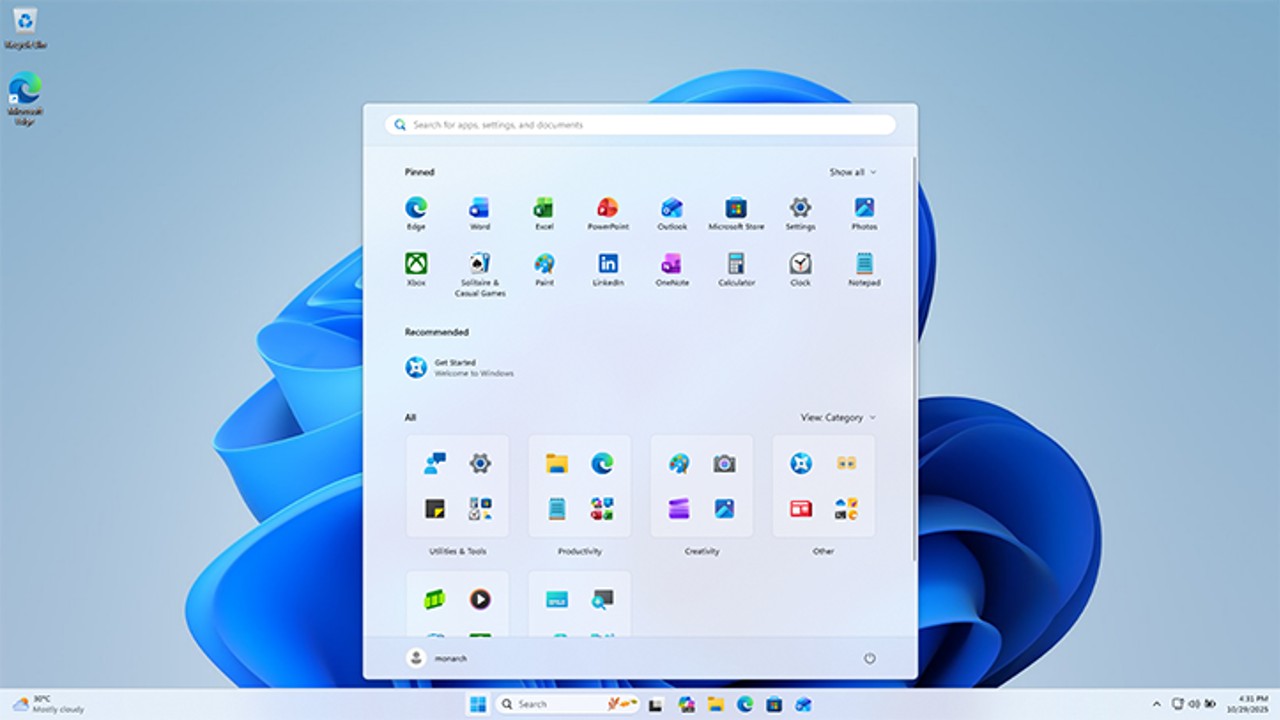
Creating a Windows 11 25H2 Bootable USB Drive is essential if:
- Your system is not booting
- You want a clean installation
- You are upgrading from Windows 10
- You want to fix corrupted Windows
- You want better performance
In this detailed tutorial, you will learn:
- Official Microsoft method
- Rufus advanced method
- BIOS configuration
- GPT vs MBR explained
- Windows 11 system requirements
- Common errors and fixes
Let’s begin.
Table of Contents
What is Windows 11 25H2?
Windows 11 25H2 is the latest feature update of Windows 11. It includes performance improvements, enhanced security patches, UI refinements, and better compatibility with modern hardware.
Windows 11 25H2 requires:
- TPM 2.0
- UEFI firmware
- Secure Boot enabled
- Minimum 8GB RAM recommended
- 64-bit processor
Why You Should Create Windows 11 25H2 Bootable USB Drive
Creating a Windows 11 25H2 Bootable USB Drive allows you to:
- Perform clean installation
- Remove malware completely
- Fix startup errors
- Upgrade system safely
- Install Windows on multiple PCs
Without a bootable USB, installation becomes difficult if Windows crashes.
System Requirements Before Creating Bootable USB
Before following the steps for How to Create Windows 11 25H2 Bootable USB Drive, ensure:
- 8GB or larger USB drive
- Stable internet connection
- Working computer
- Backup of important data
Method 1 – How to Create Windows 11 25H2 Bootable USB Drive Using Media Creation Tool
This is the official method.
Step 1 – Download Media Creation Tool
Visit official Microsoft download page:
🔗https://www.microsoft.com/software-download/windows11
Download Media Creation Tool.
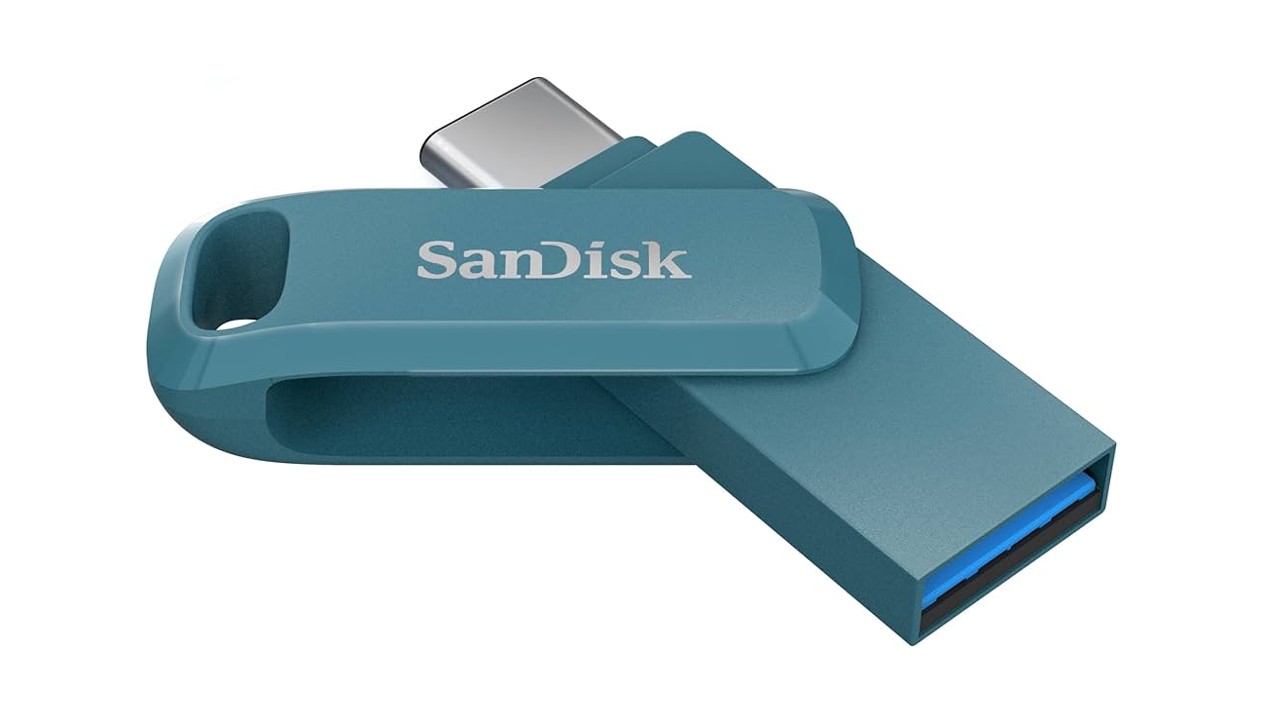
Step 2 – Insert USB Drive
- Insert 8GB USB
- Backup important files
- Format if necessary
Step 3 – Run Media Creation Tool
- Double-click tool
- Accept license agreement
- Select “Create installation media”
- Click Next
Step 4 – Select Language, Edition & Architecture
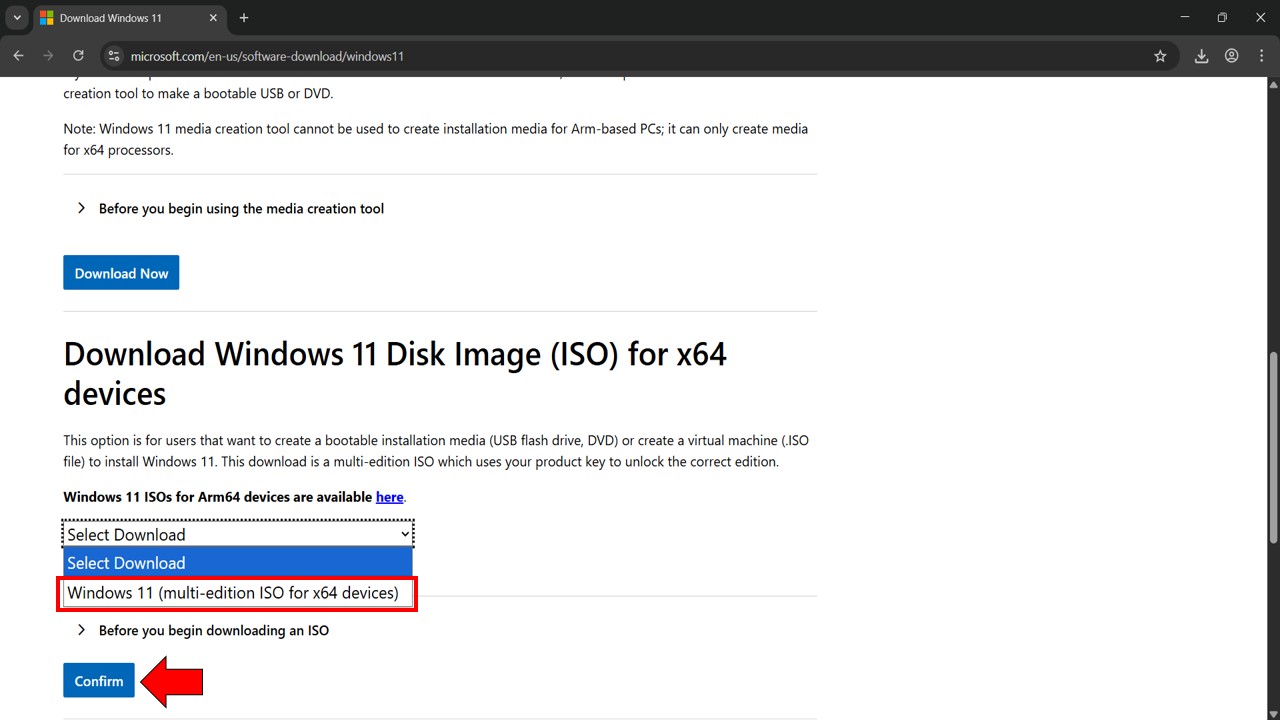
- Choose Language
- Select Windows 11
- Architecture: 64-bit (Recommended)
Click Next.
Step 5 – Choose USB Flash Drive
- Select USB device
- Click Next
- Wait for download (10–30 minutes)
After completion, your Windows 11 25H2 Bootable USB Drive is ready.
Method 2 – How to Create Windows 11 25H2 Bootable USB Drive Using Rufus
Rufus is an advanced tool preferred by professionals.
Step 1 – Download Windows 11 25H2 ISO
Download ISO file from official Microsoft website.
Step 2 – Download Rufus Tool
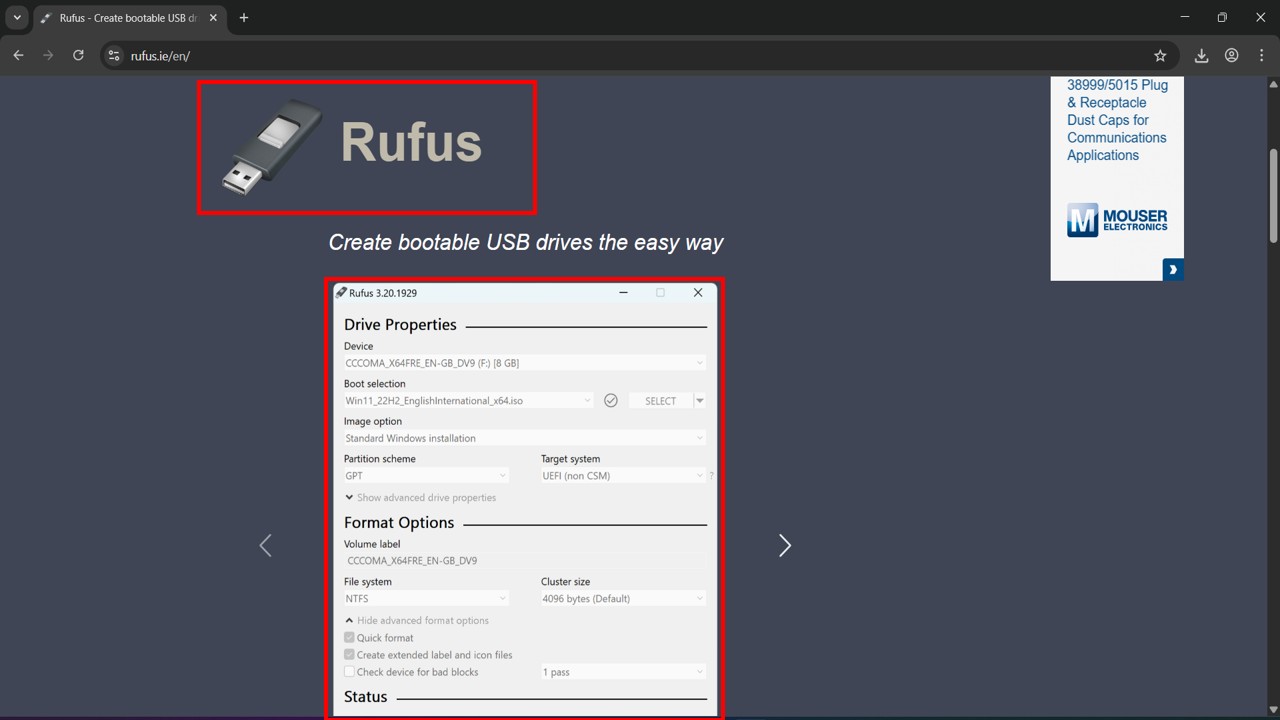
Install and open Rufus.
Step 3 – Configure Rufus Settings
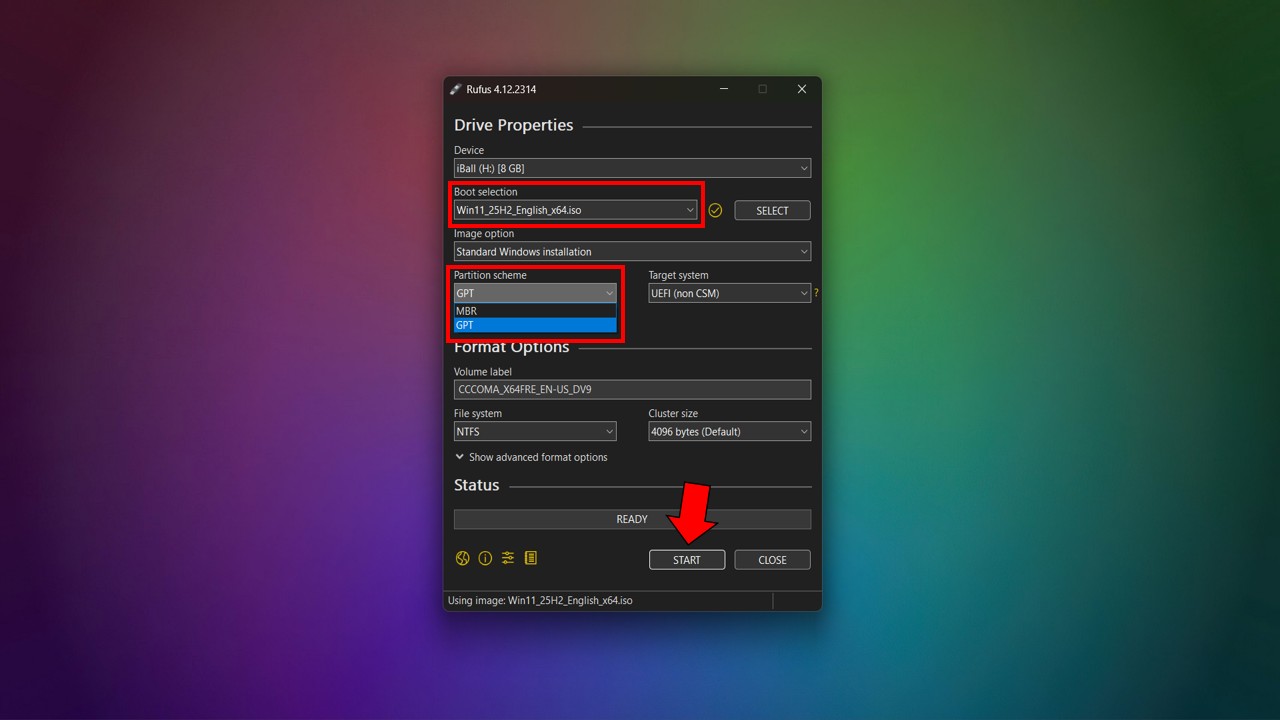
- Device: Select USB
- Boot Selection: Choose ISO
- Partition Scheme: GPT
- Target System: UEFI
- File System: NTFS
Click Start.
Within minutes, your Windows 11 25H2 Bootable USB Drive will be created.
GPT vs MBR – Important for Windows 11
| Feature | GPT | MBR |
| Required for Windows 11 | Yes | No |
| Supports UEFI | Yes | Limited |
| Modern PCs | Yes | Old Systems |
Always select GPT when creating Windows 11 25H2 Bootable USB Drive.
BIOS Settings to Boot from USB
After creating the Windows 11 25H2 Bootable USB Drive:
- Restart PC
- Press F2 / F12 / DEL
- Enter BIOS
- Enable UEFI
- Enable TPM
- Disable CSM
- Save & Exit
How to Install Windows 11 25H2 from Bootable USB
- Insert USB
- Restart PC
- Select USB in boot menu
- Click Install Now
- Enter product key (or skip)
- Choose Custom Installation
- Delete old partitions (for clean install)
- Click Next
Installation takes 15–25 minutes.
Common Errors & Troubleshooting
Error – This PC Can’t Run Windows 11
Fix:
- Enable TPM 2.0
- Enable Secure Boot
- Update BIOS
USB Not Showing in Boot Menu
Fix:
- Change USB port
- Enable UEFI
- Recreate bootable USB
Installation Stuck at 0%
Fix:
- Use fast USB 3.0
- Check internet
- Re-download ISO
Watch Video Tutorial
How to Create Windows 11 25H2 Bootable USB Drive
- Windows 11 25H2 ISO download
- Windows 11 bootable USB creation
- Create Windows 11 USB using Rufus
- Windows 11 clean install guide
- GPT vs MBR Windows 11
Frequently Asked Questions (FAQ)
Q1: What size USB is required for Windows 11 25H2?
Minimum 8GB, recommended 16GB.
Q2: Can I create Windows 11 25H2 Bootable USB Drive without formatting?
Yes, but backup is strongly recommended.
Q3: Is Rufus safe to use?
Yes, download only from official website.
Q4: How long does it take to create bootable USB?
Usually 10–30 minutes depending on internet speed.
Q5: Can I reuse the USB later?
Yes, format and reuse anytime.
Conclusion
How to Create Windows 11 25H2 Bootable USB Drive using both official and advanced methods.
Creating a Windows 11 25H2 Bootable USB Drive ensures you can:
- Install fresh Windows
- Repair damaged system
- Upgrade safely
- Improve performance
Follow the steps carefully, use official tools, and always backup important files. If this guide helped you, share it and subscribe to our YouTube channel for more Windows 11 tutorials.
Pingback: How to Fix Printer Error in Windows 11
Pingback: How to Fix Slow PC Startup in Windows 11