
Introduction
If you are searching for How to Fix Printer Error in Windows 11, you are not alone. Many users face printer problems after Windows updates, driver issues, or connection failures.
Printer errors in Windows 11 usually occur because of:
- Outdated or corrupted drivers
- Print Spooler service problems
- Network connectivity issues
- Incorrect printer settings
- Pending Windows updates
In this detailed guide, you will learn How to Fix Printer Error in Windows 11 step by step using beginner-friendly methods.
Common Printer Errors in Windows 11
Before we fix the issue, let’s understand the common errors:
- Printer showing Offline
- Printer in Error State
- Printer driver unavailable
- Print jobs stuck in queue
- Cannot connect to network printer
- USB printer not detected
Understanding the cause helps you apply the correct solution.
Table of Contents
Method 1: Restart Printer and Computer
Why Restarting Works
Temporary system glitches can block communication between Windows 11 and your printer.
Steps:
- Turn OFF your printer.
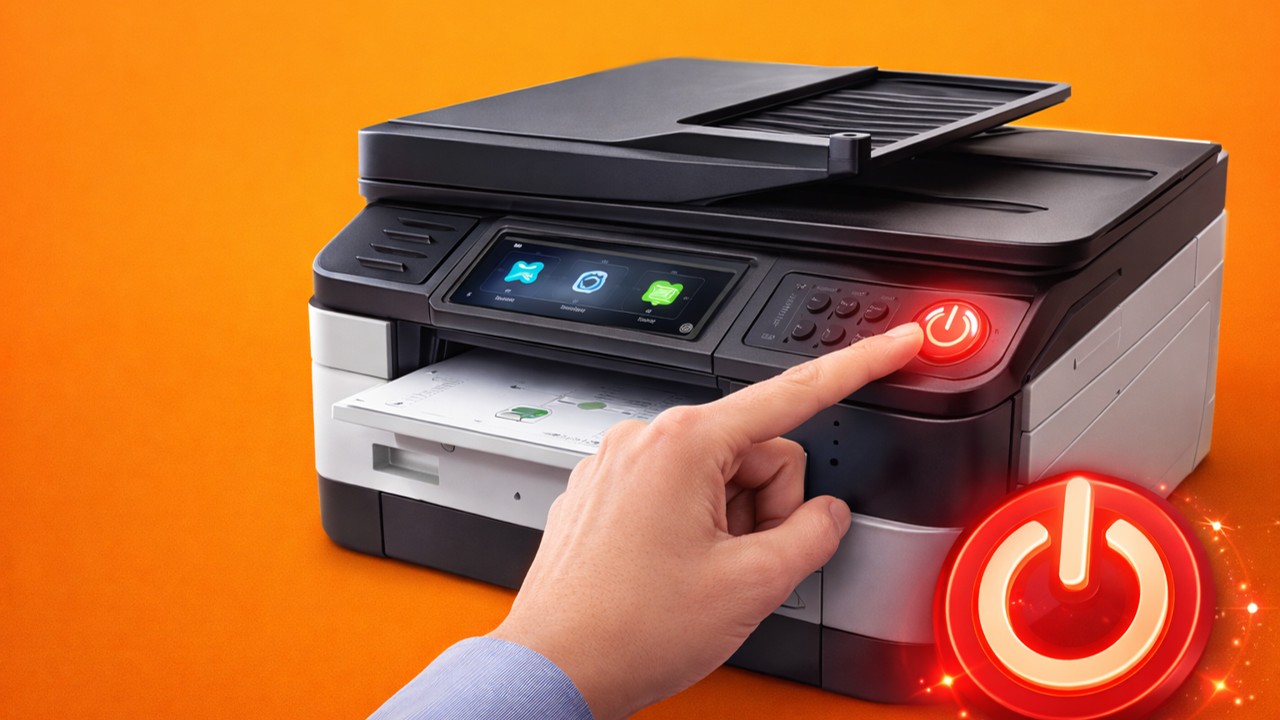
2. Unplug power cable for 2–3 minutes.
3. Restart your Windows 11 PC.
4. Plug printer back in and turn it ON.
5. Try printing a test page.
Method 2: Run Windows 11 Printer Troubleshooter
Windows 11 includes an automatic troubleshooting tool.
Steps:
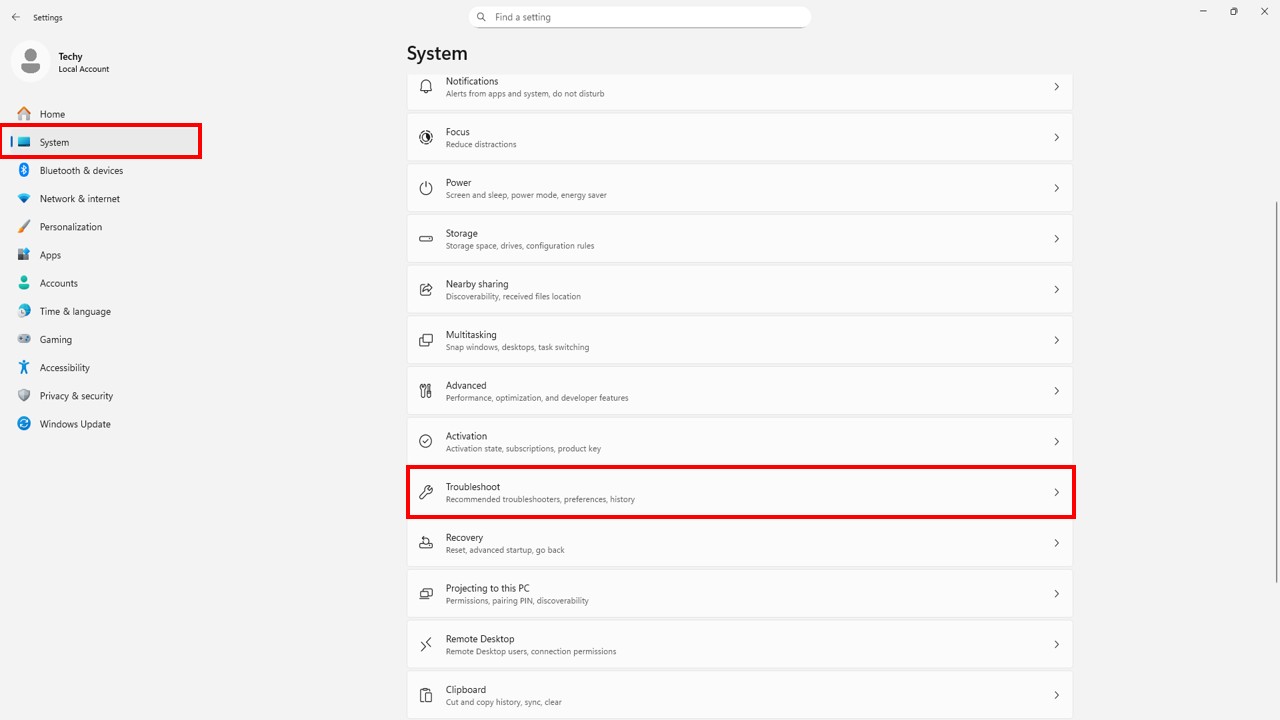
- Press Windows + I
- Click System
- Select Troubleshoot
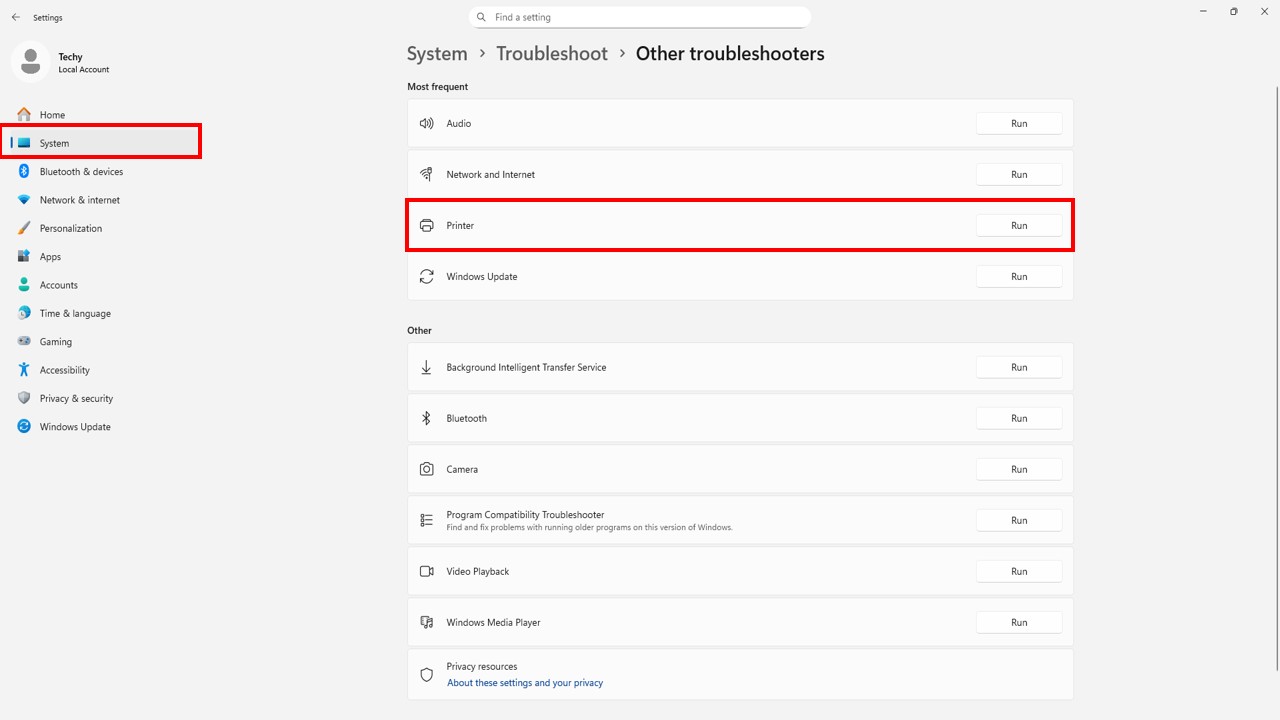
4. Click Other troubleshooters
5. Find Printer
6. Click Run
The troubleshooter will automatically detect and fix common problems.
Method 3: Restart Print Spooler Service
The Print Spooler manages print jobs. If it stops working, printing fails.
Steps:
- Press Windows + R
- Type services.msc
- Press Enter
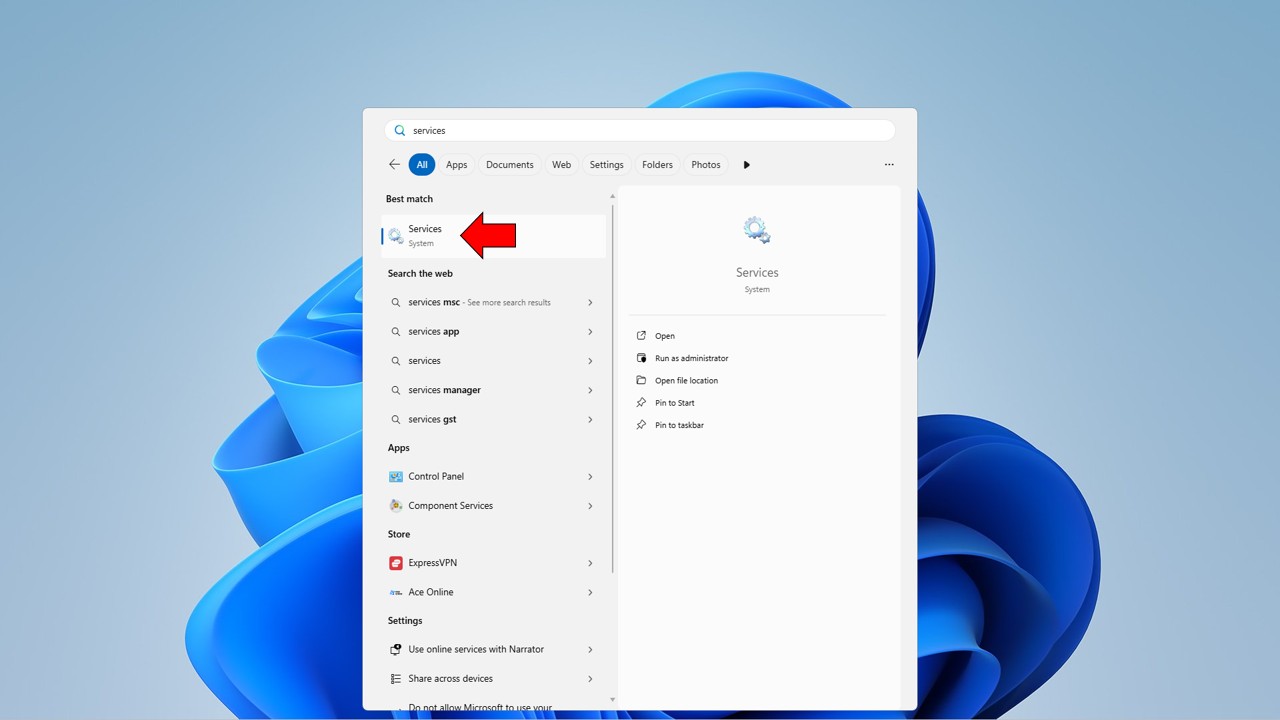
4. Find Print Spooler
5. Right-click → Restart
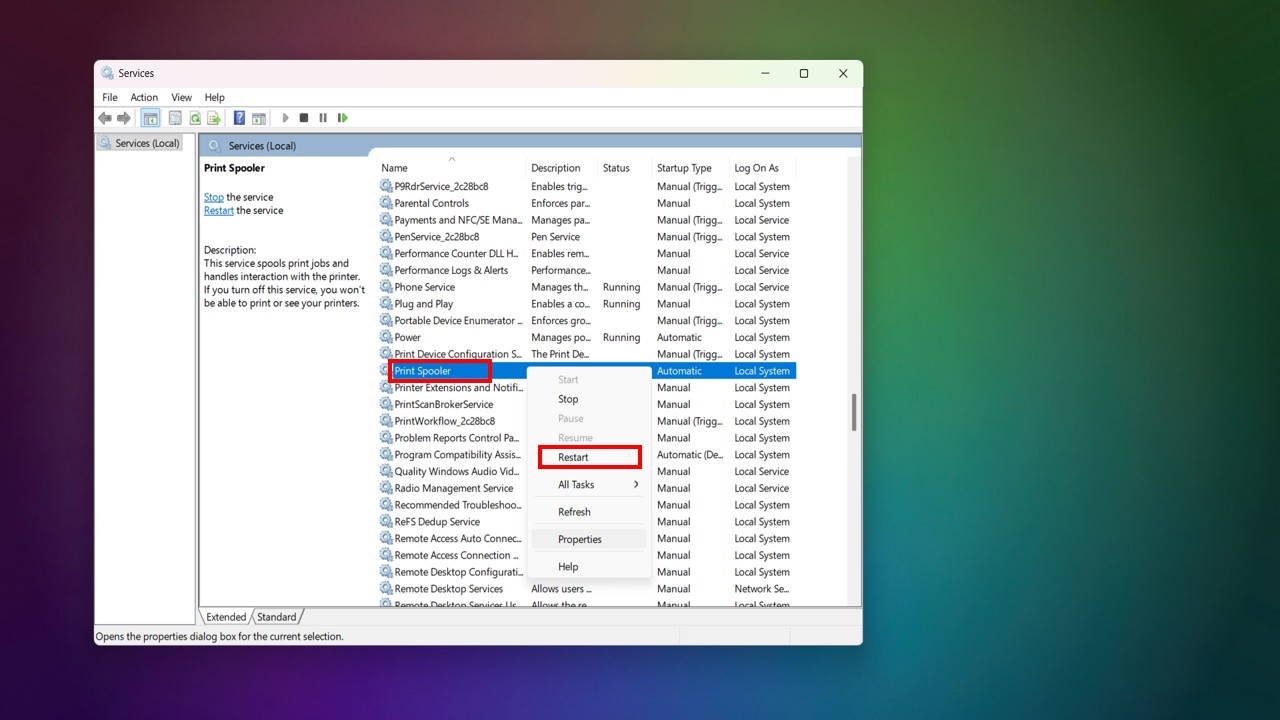
If restart option is disabled:
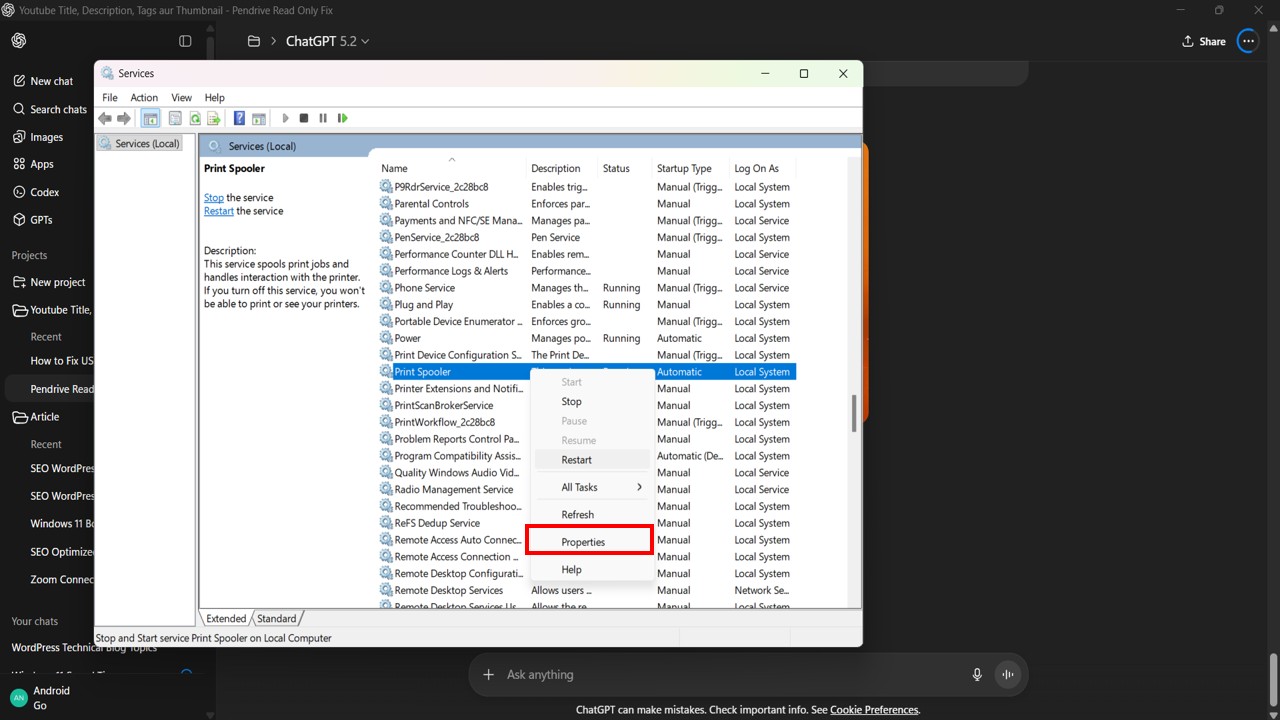
- Right-click → Properties
- Set Startup Type to Automatic
- Click Start
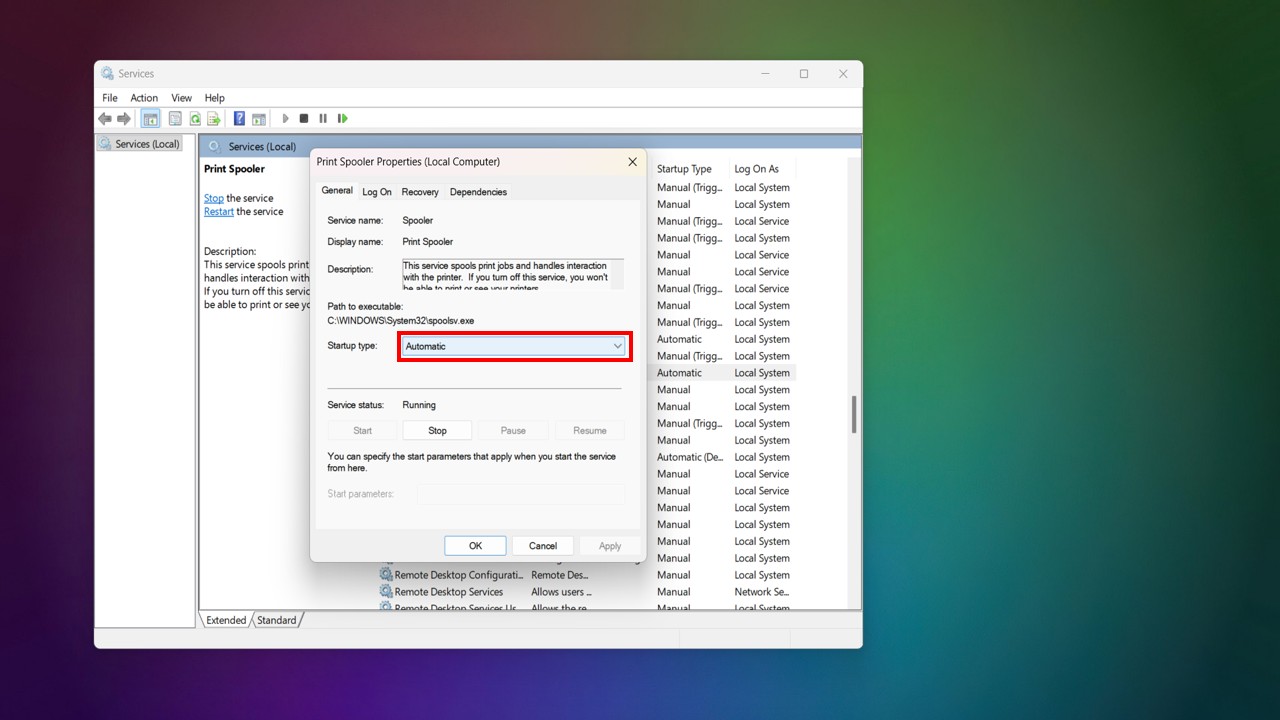
This method fixes many “Printer in Error State” problems.
Method 4: Clear Stuck Print Queue
A stuck print job can block new documents.
Steps:
- Open Control Panel
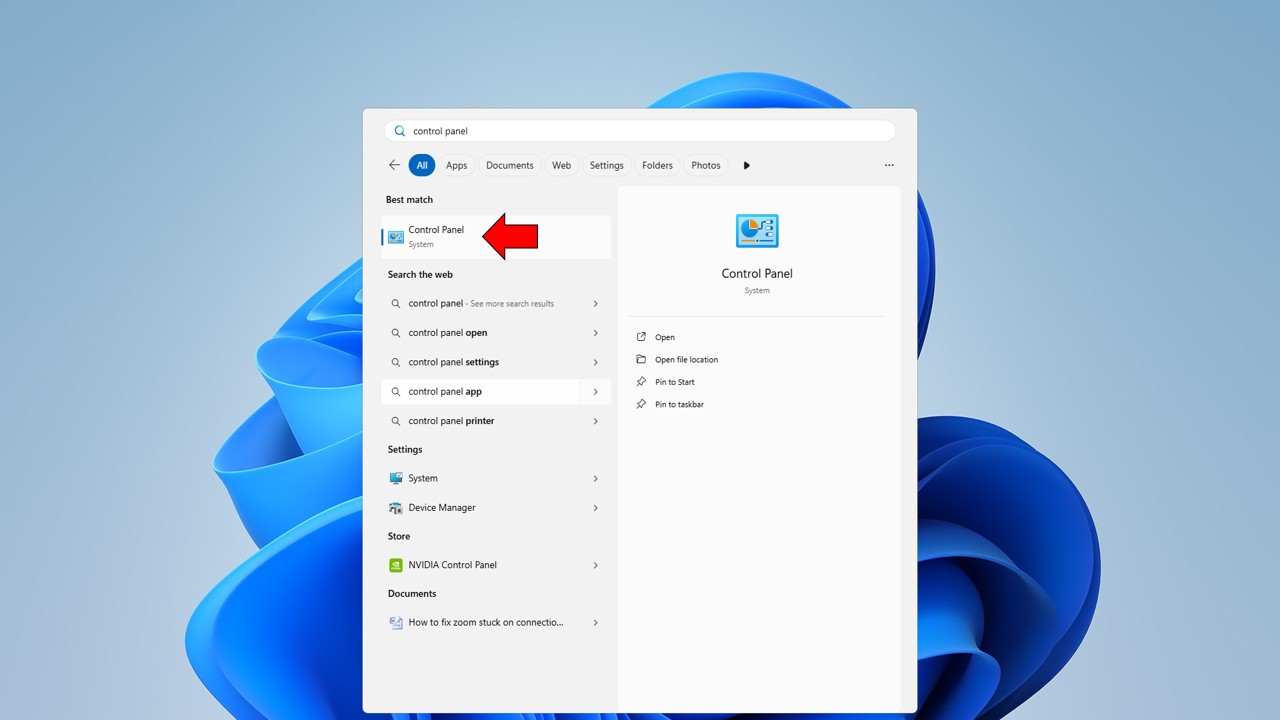
2. Click Devices and Printers
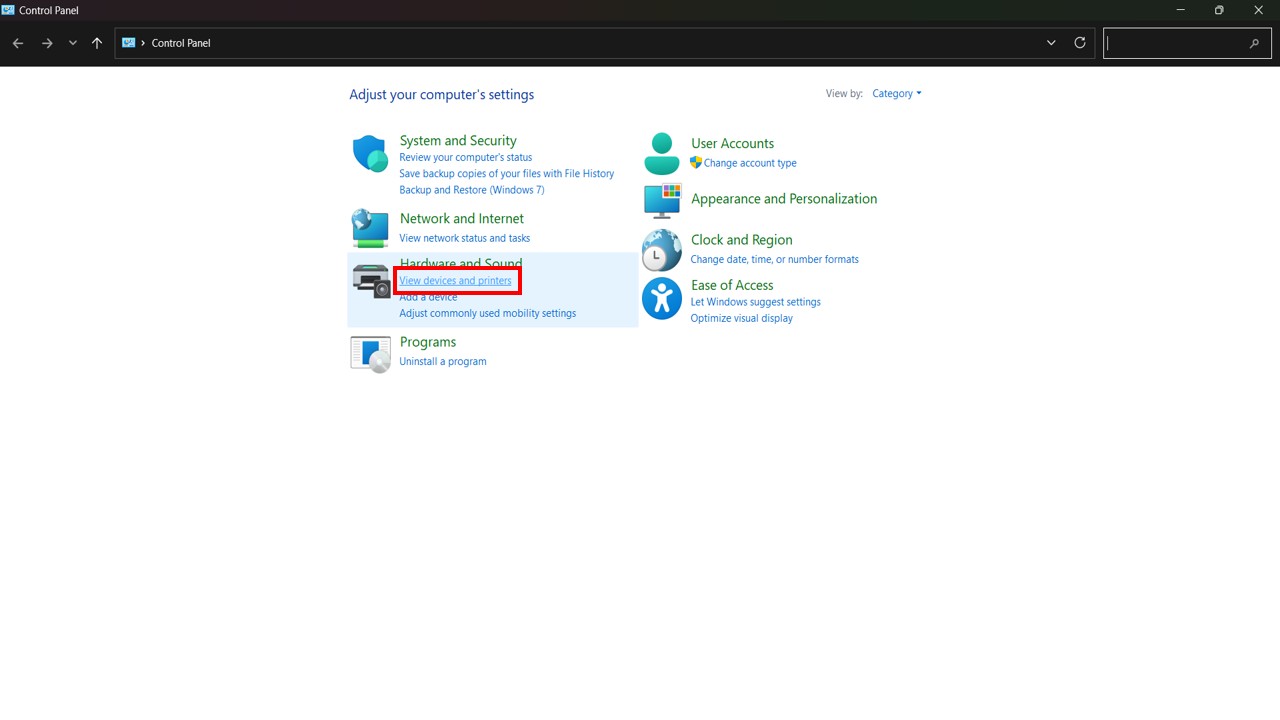
3. Right-click your printer
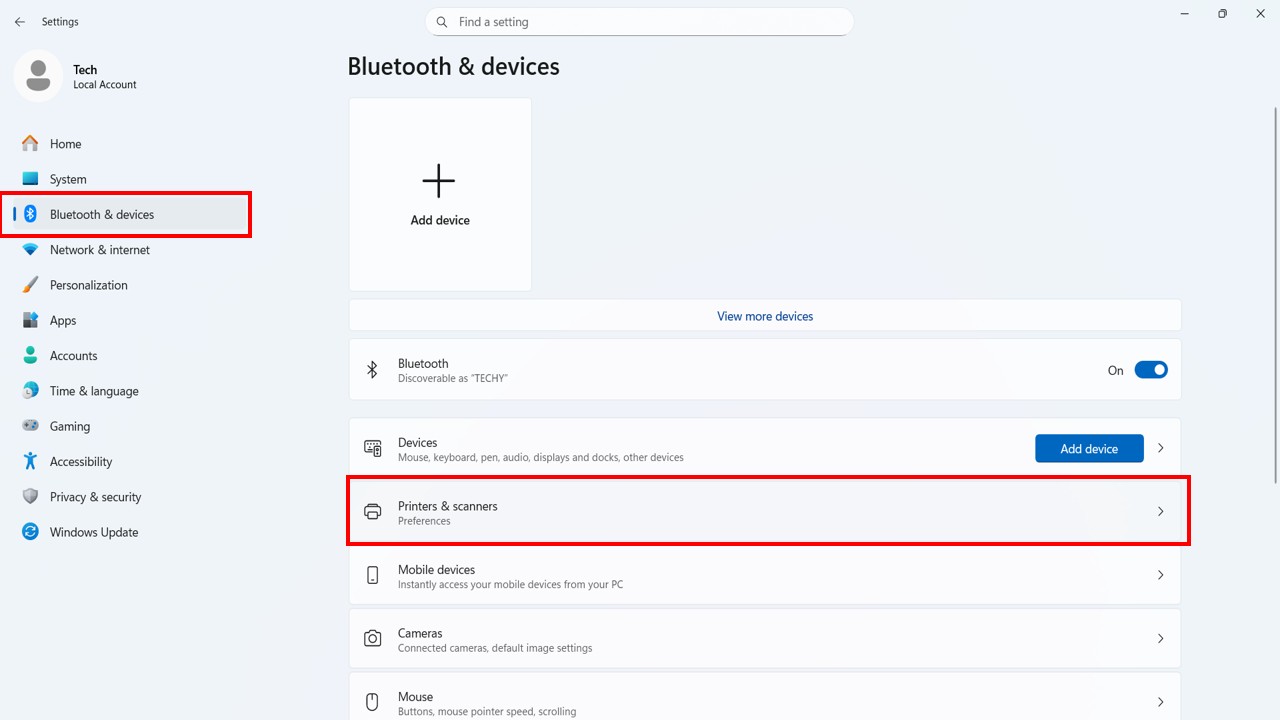
4. Click See what’s printing
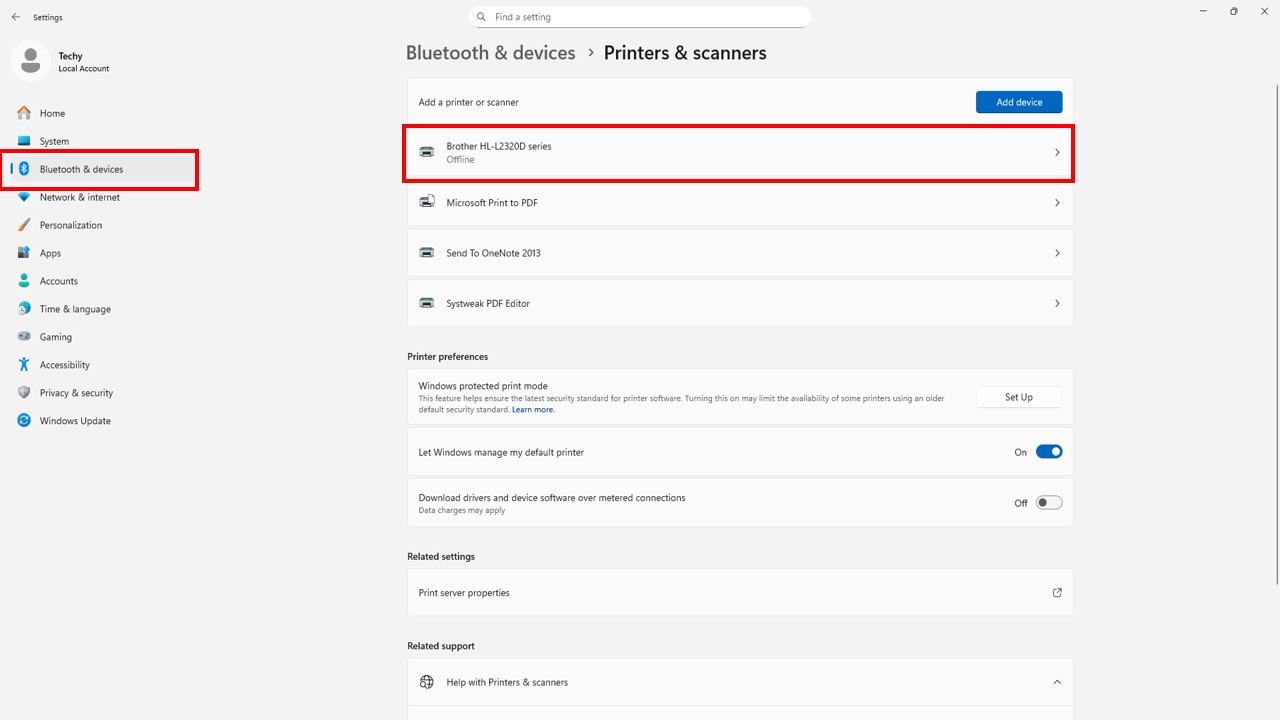
5. Cancel all documents
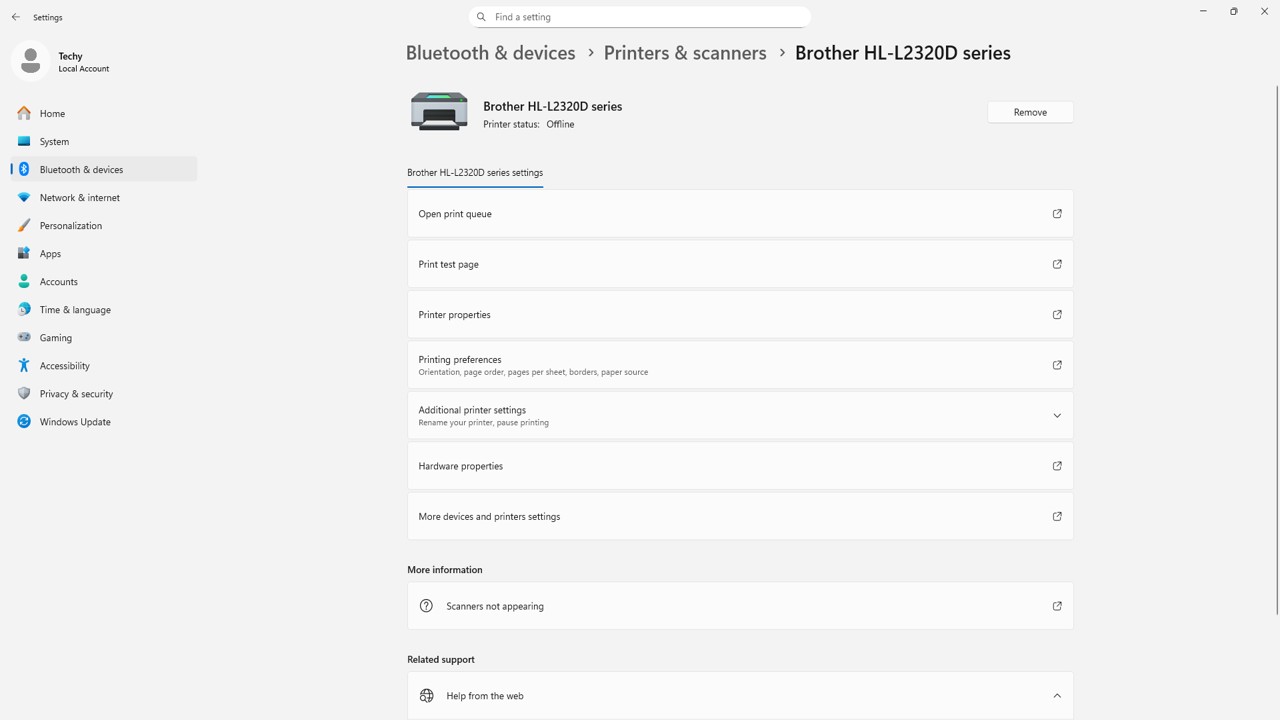
After clearing queue, restart printer again.
Method 5: Update Printer Driver
Outdated drivers are a major cause of printer errors in Windows 11.
Steps:
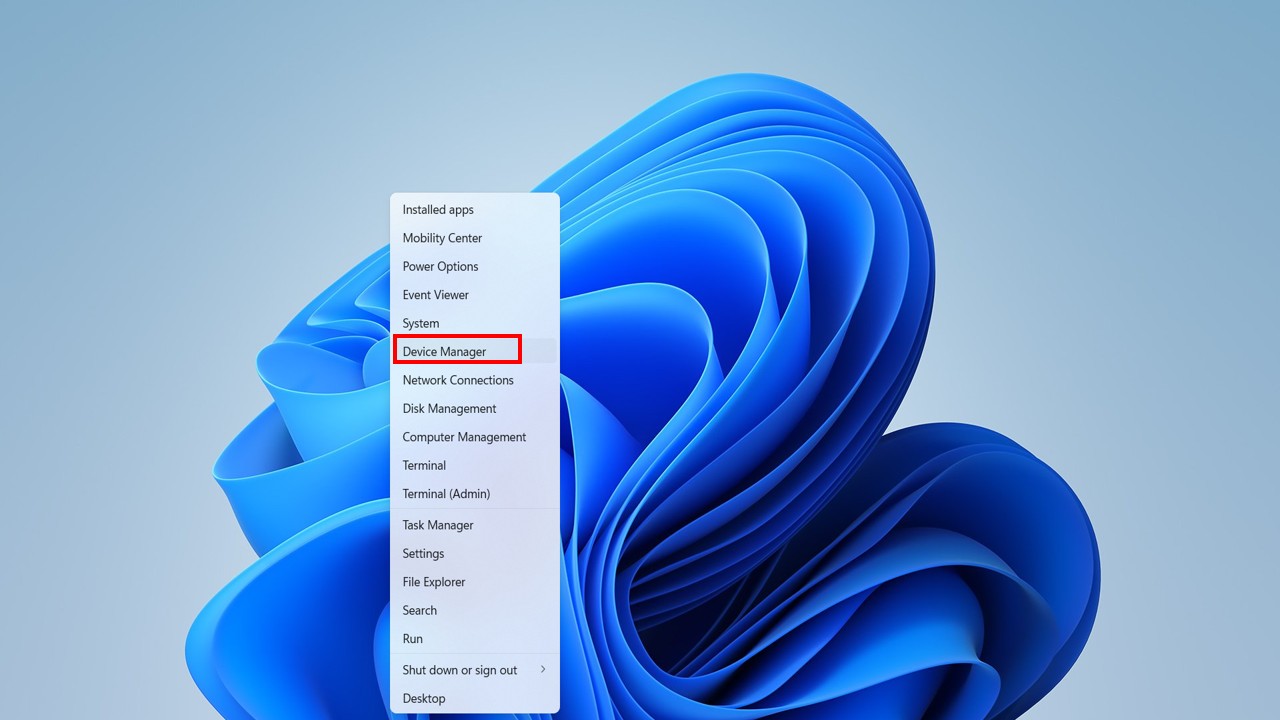
- Right-click Start Menu
- Select Device Manager
3. Expand Printers
4. Expand Printers
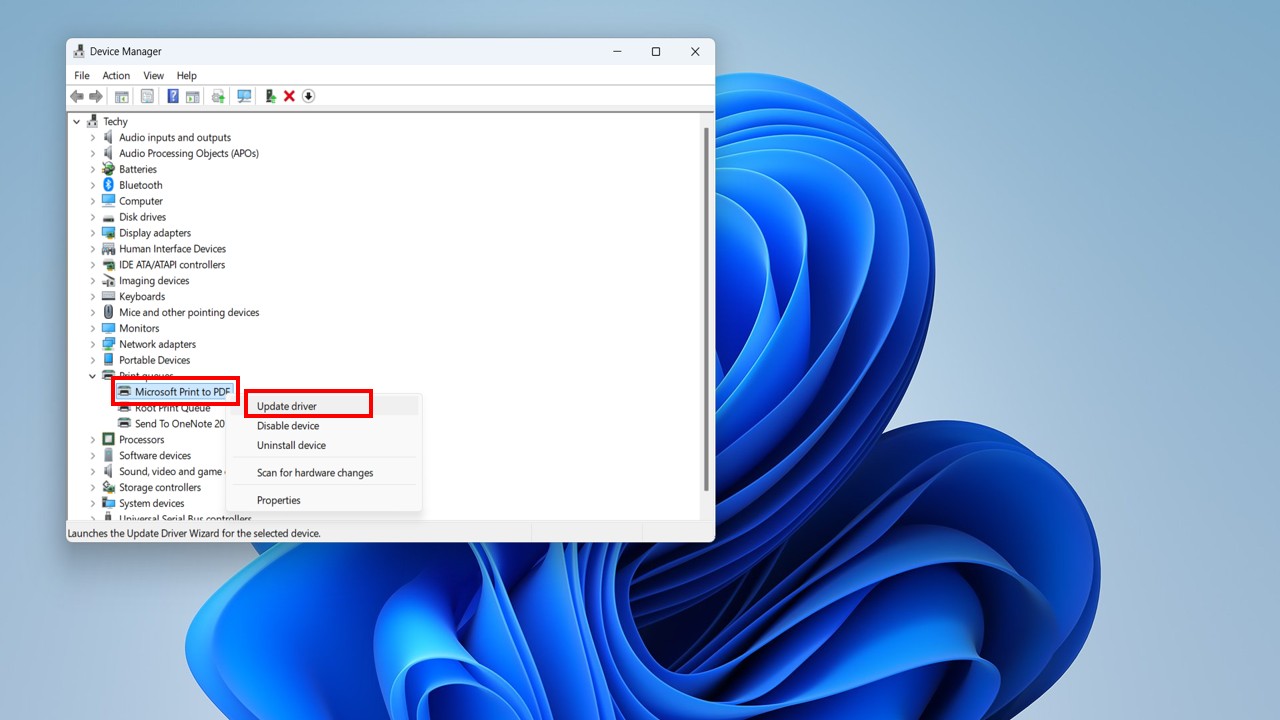
5. Click Update Driver
6. Choose Search automatically
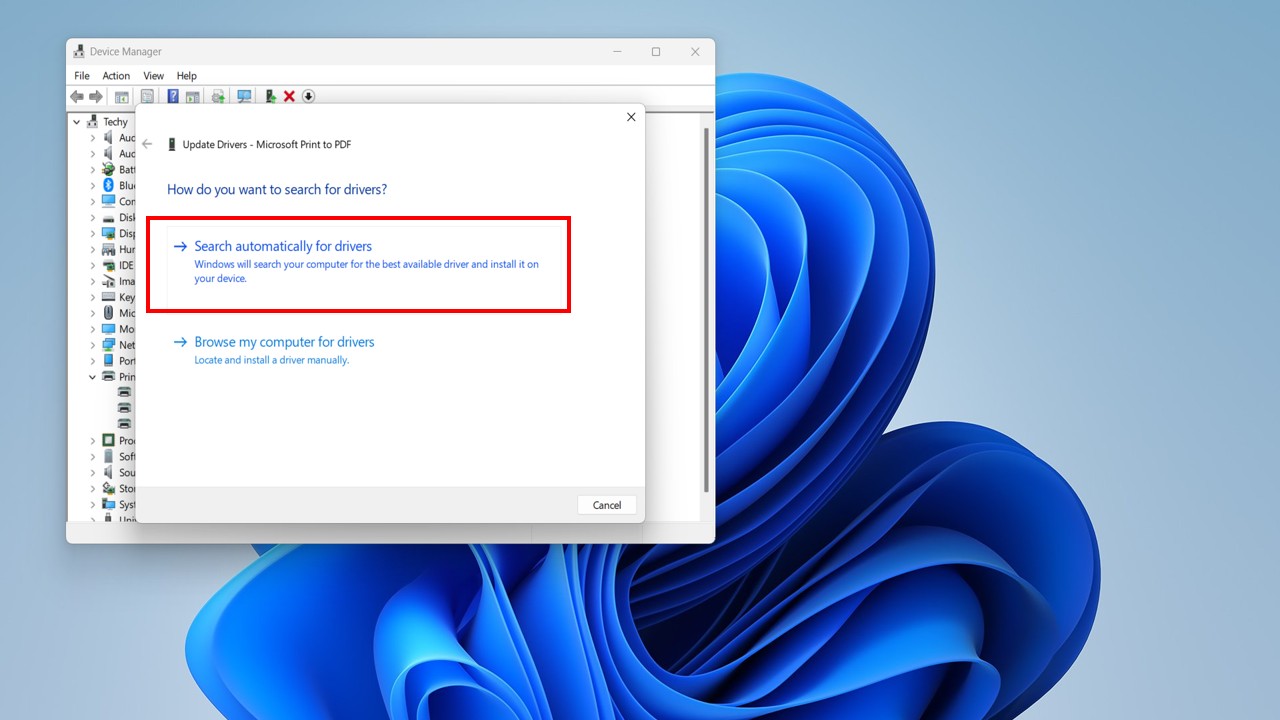
Updating drivers often solves compatibility issues.
Method 6: Set Printer as Default
Sometimes Windows selects another printer as default.
Steps:
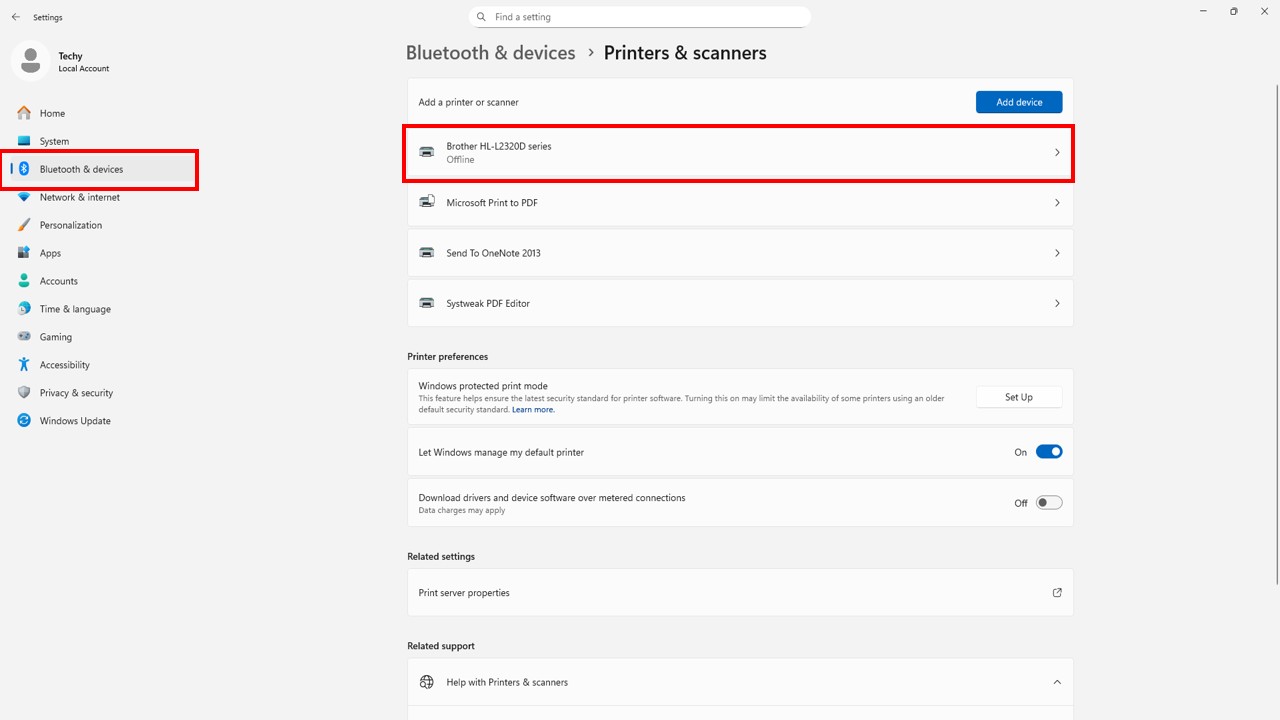
- Open Settings
- Go to Bluetooth & Devices
- Click Printers & Scanners
- Select your printer
- Click Set as Default
Method 7: Fix Network Printer Problems
If your printer is connected via WiFi
Check These Things:
- Printer and PC connected to same Wi-Fi network
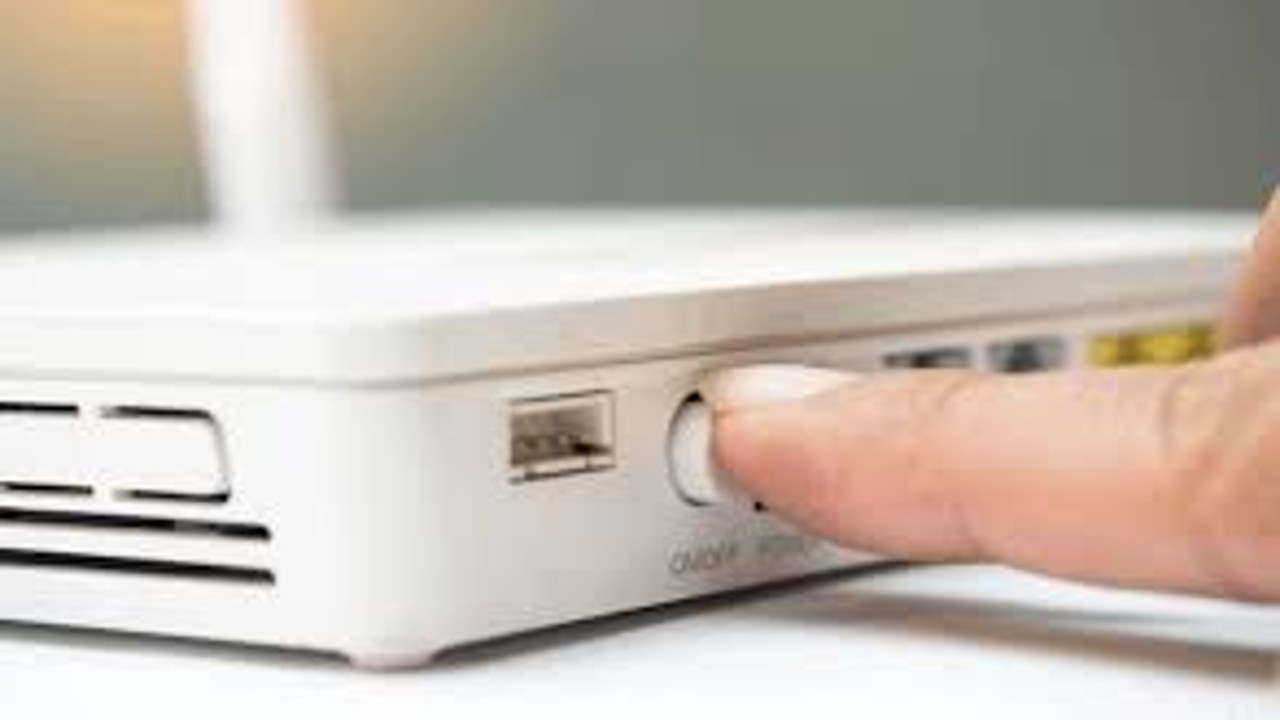
- Restart your router
3. Disable VPN temporarily
4. Check firewall settings
Re-add Network Printer:
- Open Settings
- Go to Printers & Scanners
- Click Add Device
Network issues are one of the top reasons for printer errors.
Method 8: Update Windows 11
Windows updates fix bugs and improve compatibility.
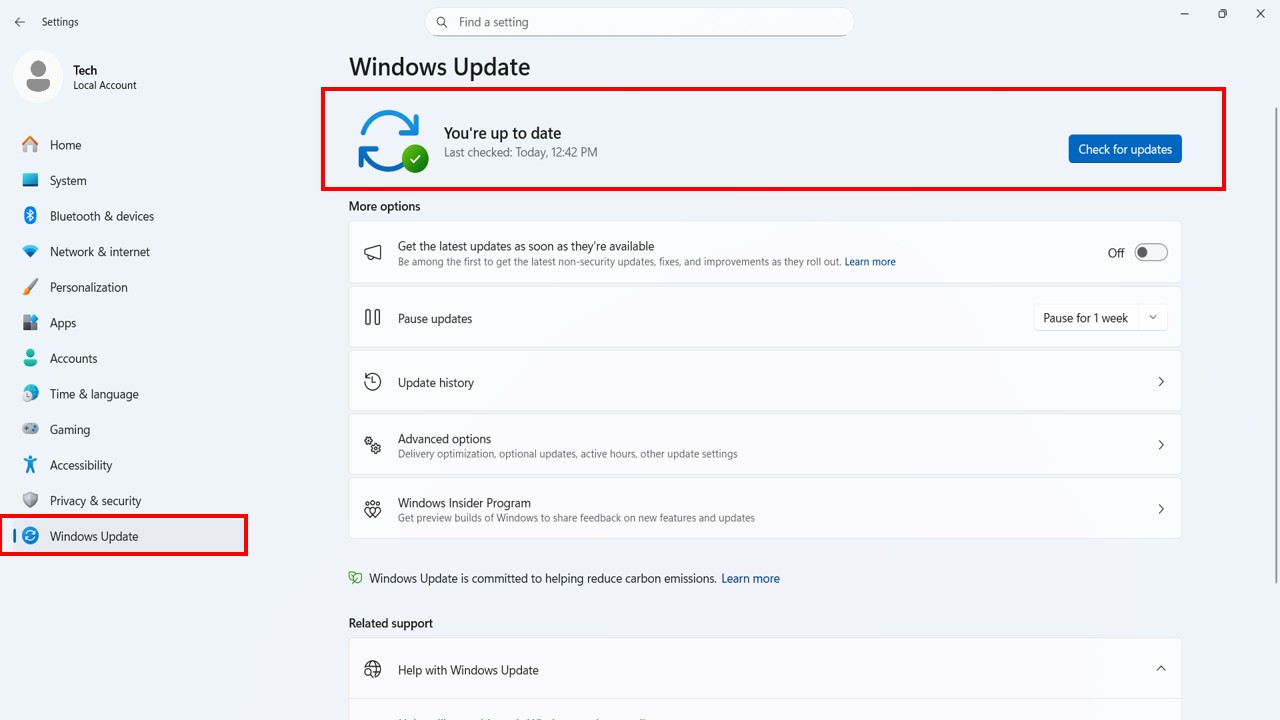
Steps:
- Open Settings
- Click Windows Update
- Select Check for Updates
- Install updates
- Restart PC
Method 9: Reinstall Printer Completely
If nothing works, reinstall printer.
Steps:
- Open Printers & Scanners
- Select printer
- Click Remove Device
- Restart PC
- Add printer again
Reinstalling refreshes printer configuration.
Advanced Fix – Reset Printing System
If error still appears:
- Open Services
- Stop Print Spooler
- Go to:
C:\Windows\System32\spool\PRINTERS - Delete all files inside folder
- Restart Print Spooler service
Do not delete system folders only files inside PRINTERS folder.
Check Previous Post⬇️
👉 How to Make Windows 11 25H2 Bootable USB Drive
Subscribe to My YouTube Channel Tech Legacy
FAQ – How to Fix Printer Error in Windows 11
Why is my printer showing error state in Windows 11?
It may be caused by outdated drivers, spooler service stopped, or network issue.
How do I fix printer offline in Windows 11?
Restart printer, check cable/WiFi connection, and set printer as default.
How do I restart Print Spooler service?
Press Windows + R → Type services.msc → Find Print Spooler → Restart.
Does Windows Update fix printer issues?
Yes, sometimes updates include bug fixes and driver improvements.
Why is my printer not detected?
Check USB cable, reinstall drivers, or reconnect network printer.
Windows 11 Printer Error Problem Solve
- How to Fix Printer Error in Windows 11
- Fix printer offline Windows 11
- Printer in error state Windows 11
- Restart Print Spooler
- Update printer driver Windows 11
- Windows 11 printer troubleshooting
- Fix network printer error
Conclusion
How to Fix Printer Error in Windows 11 using simple and advanced troubleshooting methods. Follow each method carefully and your printer start working properly.
If problem still continues, contact official printer support or consider reinstalling Windows 11 drivers.