
How to Fix High CPU Usage in Windows 11, Learn step-by-step methods to reduce 100% CPU usage, fix slow performance, and stop PC overheating. This complete guide explains how to disable startup programs, scan for malware, update drivers, optimize power settings, upgrade RAM, install SSD, improve graphics performance, and prevent hardware damage. If your Windows 11 PC is lagging, freezing, overheating, or making loud fan noise, these proven solutions will help boost speed and stability. Suitable for beginners and advanced users.
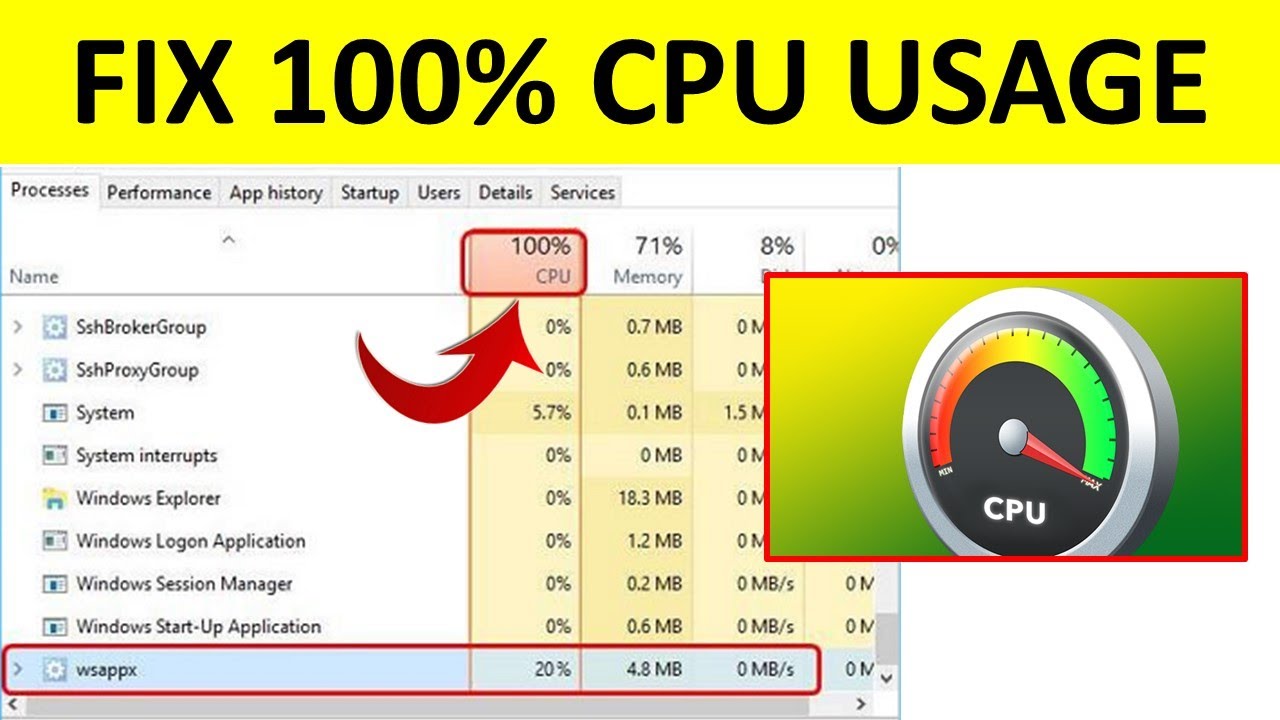
How to Fix High CPU Usage in Windows 11 (Complete Performance & Overheating Fix Guide)
How to Fix High CPU Usage in Windows 11 is one of the most important troubleshooting topics for Windows users. When CPU usage stays at 90% to 100%, your PC becomes slow, freezes frequently, overheats, and may shut down automatically.
This detailed guide will help you:
- Reduce 100% CPU usage
- Stop PC overheating
- Improve graphics performance
- Upgrade RAM & SSD for better speed
- Optimize Windows 11 for gaming and work
Let’s start step-by-step.
Table of Contents
Why High CPU Usage Happens in Windows 11
Before learning How to Fix High CPU Usage in Windows 11, you must understand the root causes.
Common Reasons:
- Too many background applications
- Heavy browser tabs
- Startup programs overload
- Windows Update running in background
- Malware infection
- Outdated drivers
- Insufficient RAM
- Old HDD instead of SSD
- Graphics processing overload
When CPU runs constantly at high load, it generates heat. This leads to PC overheating, reduced performance, and hardware damage risk.
Step 1: Check CPU Usage in Task Manager
The first step in How to Fix High CPU Usage in Windows 11 is identifying the culprit process.
How to Open Task Manager
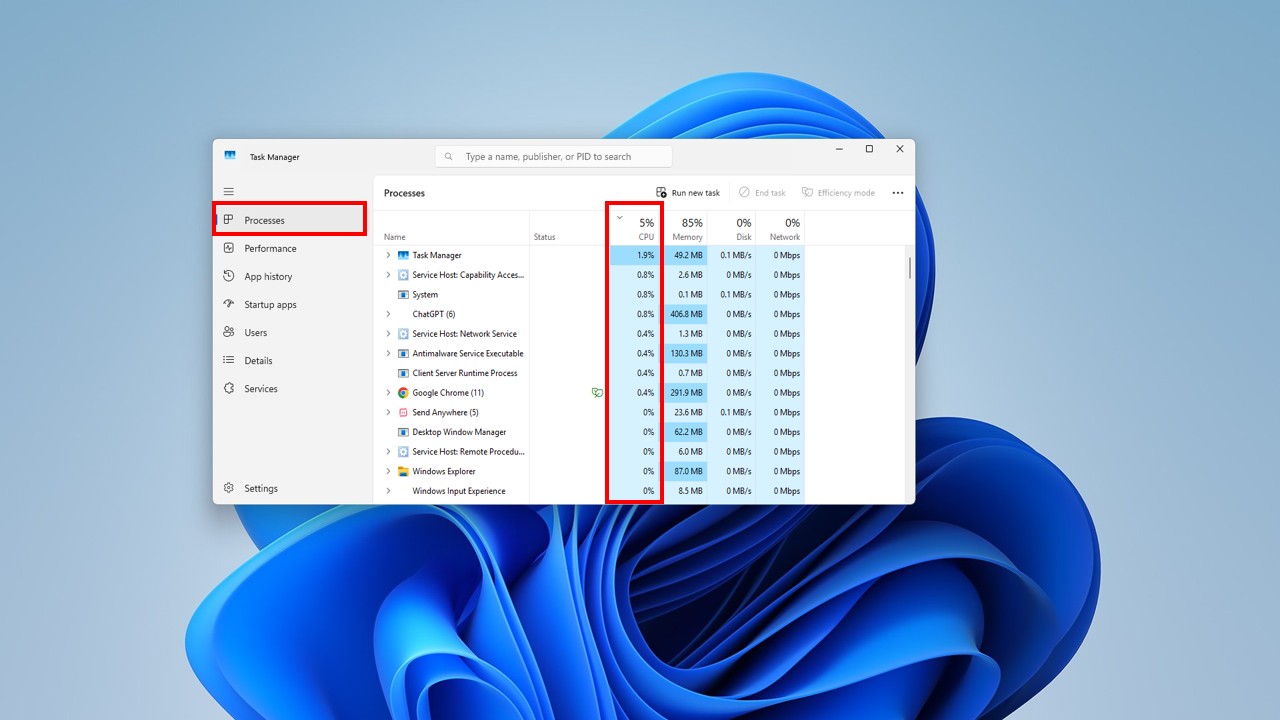
- Press Ctrl + Shift + Esc
- Click More Details
- Go to the Processes tab
- Click on CPU column to sort by highest usage
What to Do:
- Identify high-usage applications
- Right-click unnecessary apps → End Task
- Avoid stopping system processes
Step 2: Disable Startup Programs
Too many startup apps increase CPU load at boot.
Steps:
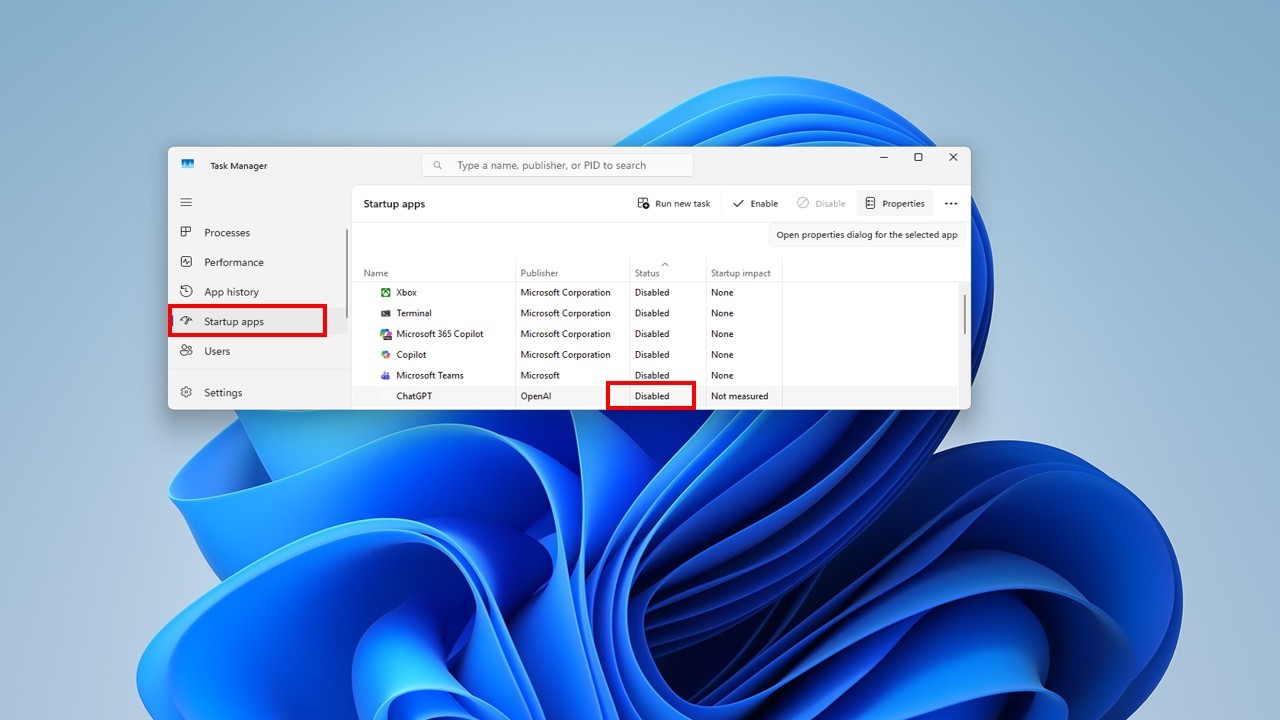
- Open Task Manager
- Click Startup Apps
- Disable unnecessary programs
- Restart PC
Step 3: Fix Windows Update CPU Usage
Sometimes Windows Update causes temporary high CPU usage.
Steps:
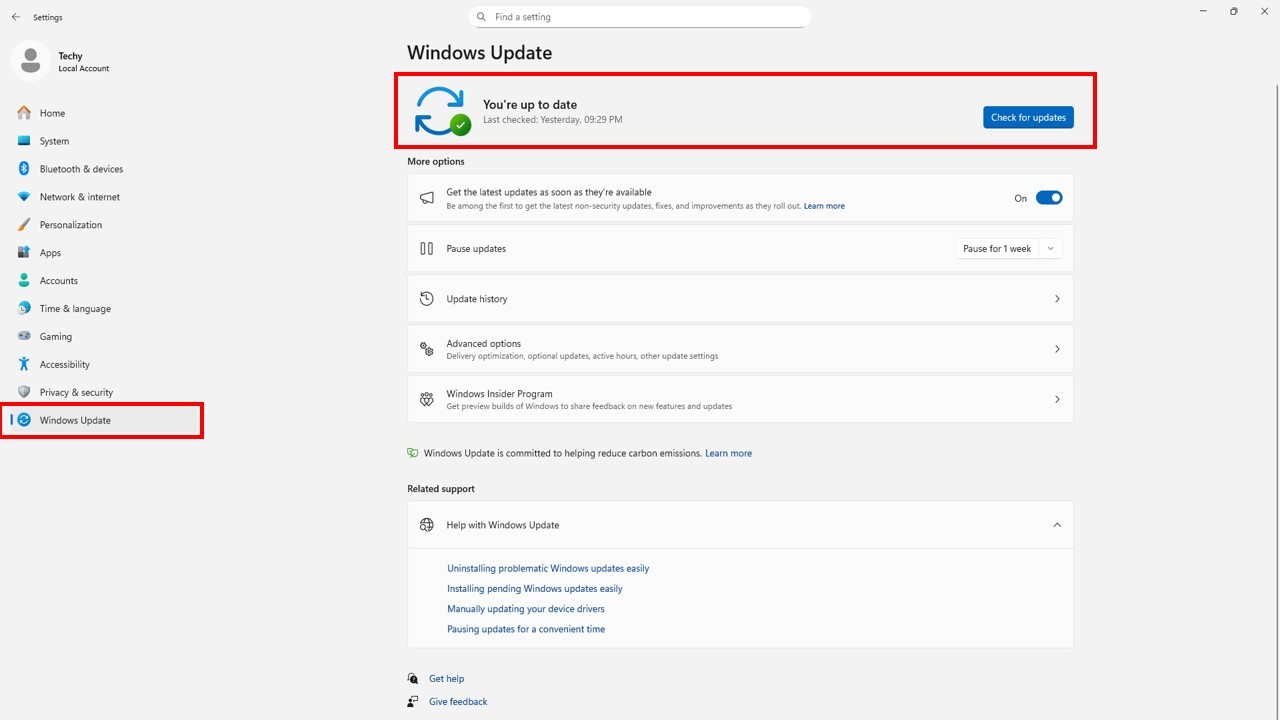
- Open Settings
- Click Windows Update
- Install pending updates
- Restart PC
Microsoft Official Support
https://support.microsoft.com/windows
Step 4: Run Malware Scan
Malware secretly consumes CPU and GPU resources.
Steps:

- Open Windows Security
- Click Virus & Threat Protection
- Select Full Scan
- Start scan
Step 5: Disable SysMain (Superfetch)
SysMain sometimes causes constant CPU spikes.
- Press Windows + R
- Type services.msc
- Find SysMain
- Disable and Stop service
Why PC Overheating Happens
High CPU usage directly causes overheating.
Main Causes of Overheating:
- Constant 100% CPU usage
- Dust buildup
- Faulty cooling fans
- Poor ventilation
- Old thermal paste
- Heavy graphics usage
- Gaming on integrated GPU
How to Fix PC Overheating
✔ Clean Internal Dust
- Open cabinet carefully
- Use compressed air
- Clean fans & vents
✔ Replace Thermal Paste
Thermal paste transfers heat from CPU to heatsink.
- Remove old paste
- Apply new high-quality thermal paste
- Reattach heatsink
✔ Improve Ventilation
- Use cooling pad for laptop
- Keep airflow space clear
- Avoid using laptop on bed
Graphics Usage and GPU Optimization
High graphics load increases CPU & GPU temperature.
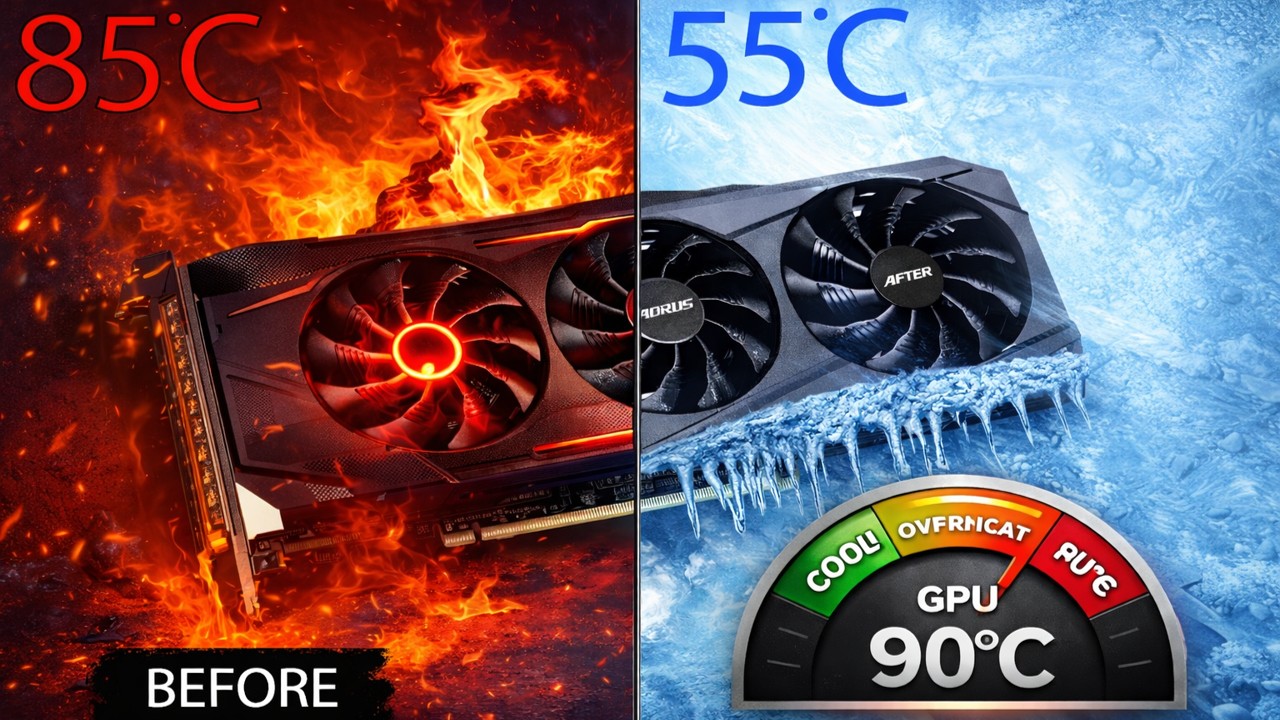
Signs Graphics Are Overloaded:
- Lag during gaming
- FPS drops
- High GPU usage in Task Manager
- Overheating while editing videos
Fix Graphics Overload:
- Update GPU drivers
- Lower game settings
- Disable background overlays
- Use dedicated GPU if available
Upgrade RAM to Reduce CPU Usage
Low RAM forces CPU to work harder.
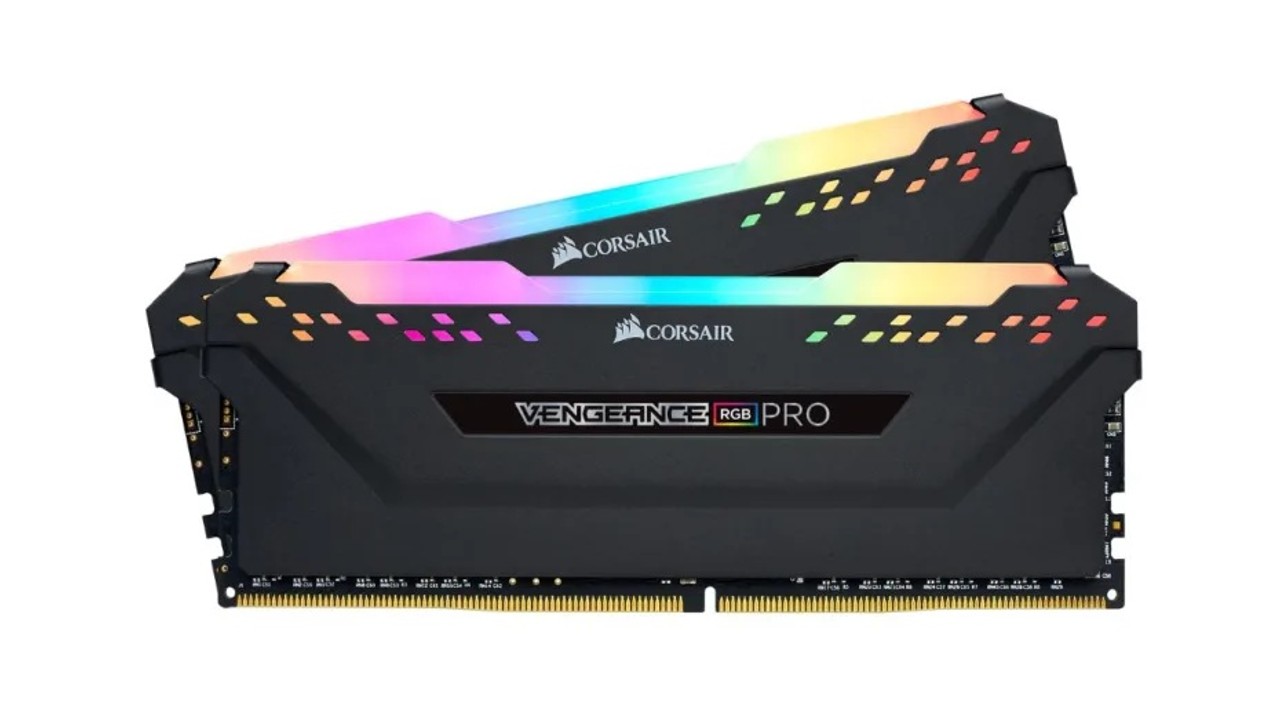
When to Upgrade RAM:
- System freezes frequently
- RAM usage above 80%
- Multitasking causes lag
Recommended RAM:
- Minimum: 8GB
- Best: 16GB for smooth performance
Upgrade HDD to SSD (Major Performance Boost)
If you still use HDD, CPU usage may spike due to slow disk response.

Benefits of SSD:
- Faster boot time
- Faster software loading
- Reduced CPU waiting time
- Improved overall performance
SSD upgrade is one of the best solutions for fixing high CPU usage.
Adjust Power Settings
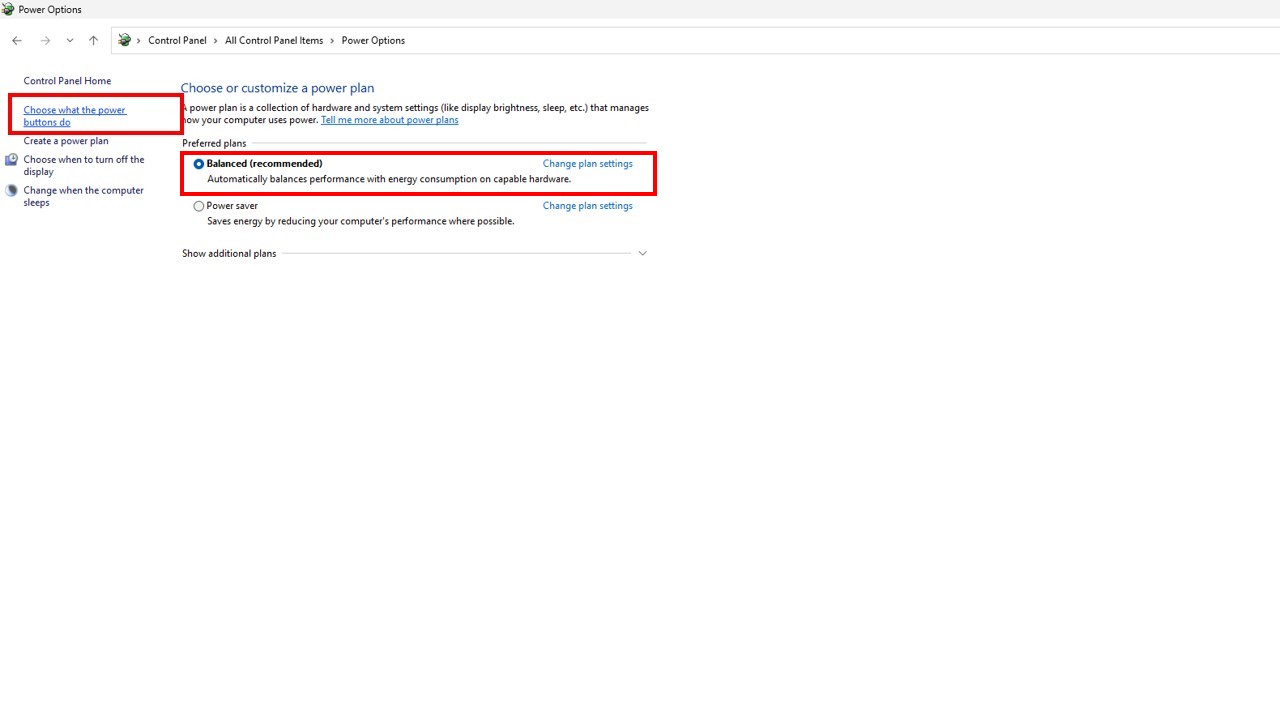
- Open Control Panel
- Click Power Options
- Select Balanced Mode
Avoid High Performance mode unless needed.
Advanced Fix – Run SFC and DISM
Open Command Prompt as Administrator and run:
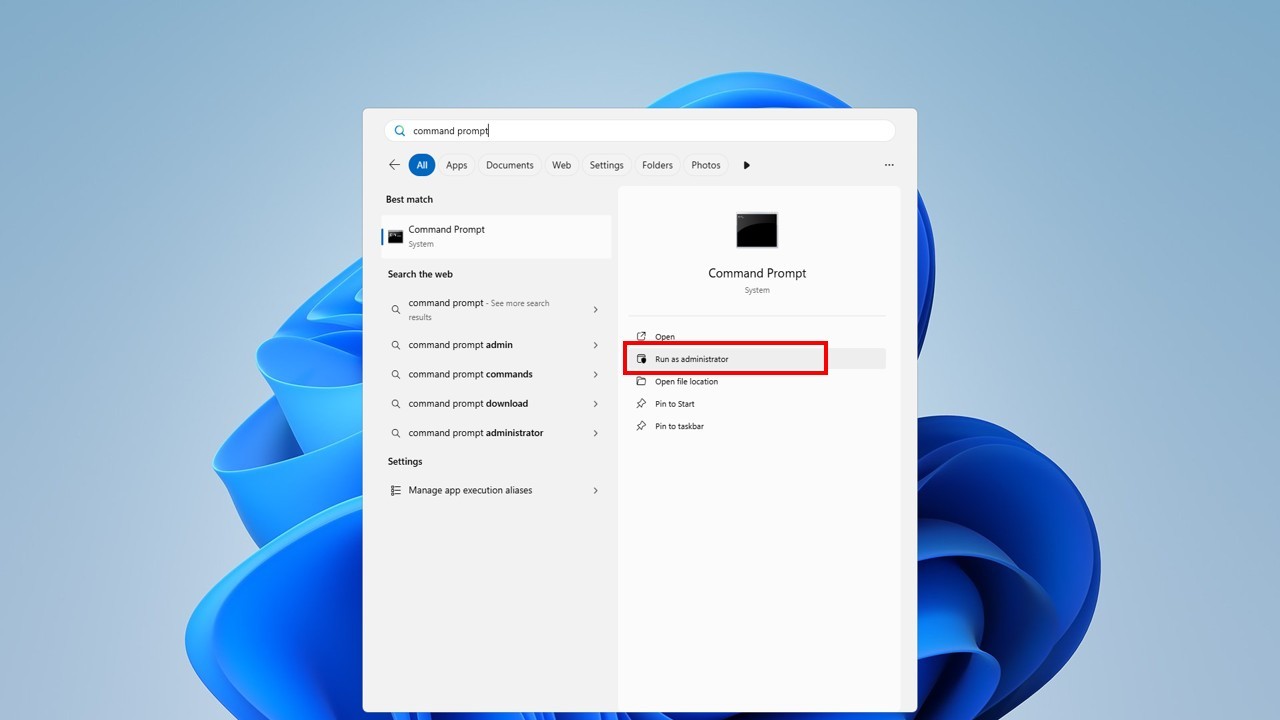
sfc /scannow
🎥 SUBSCRIBE TO MY YOUTUBE CHANNEL TECH LEGACY
Watch the Full Video
Use this Web Tool
FAQ – How to Fix High CPU Usage in Windows 11
Q1: Why is my CPU always at 100%?
It may be caused by background apps, malware, insufficient RAM, or outdated drivers.
Q2: Can upgrading RAM reduce CPU usage?
Yes, more RAM reduces CPU pressure during multitasking.
Q3: Does SSD reduce CPU usage?
Yes, SSD improves response time and lowers CPU wait load.
Q4: Is overheating dangerous?
Yes, prolonged overheating damages hardware.
Q5: What temperature is safe?
Idle: 30–50°C
Heavy load: Below 85°C recommended.
Conclusion
Now you completely understand How to Fix High CPU Usage in Windows 11, prevent PC overheating, optimize graphics usage, upgrade RAM, install SSD, and improve overall performance.
By following this guide, you can:
- Reduce 100% CPU usage
- Stop overheating
- Boost gaming performance
- Extend hardware lifespan
- Improve Windows 11 speed