
Introduction
MS Excel Keyboard Shortcut Keys Beginner to Advanced is the ultimate guide for anyone who wants to work faster and smarter in Microsoft Excel. If you are still using your mouse for everything, you are wasting valuable time.
Keyboard shortcuts in MS Excel improve productivity, reduce effort, and help you complete tasks in seconds. Whether you’re a beginner or an advanced Excel user, this guide covers everything step by step.
MS Excel Keyboard Shortcut Keys Beginner to Advanced guide helps you improve productivity, save time, and work faster in Microsoft Excel. In this detailed tutorial, you will learn all essential Excel shortcut keys including basic, intermediate, and advanced shortcuts for formatting, formulas, navigation, data management, pivot tables, and more. Whether you are a student, office worker, accountant, or data analyst, mastering Excel keyboard shortcuts can dramatically increase your efficiency. If you want to become an Excel expert and boost your workflow speed, this complete MS Excel Keyboard Shortcut Keys Beginner to Advanced tutorial is perfect for you. Start learning today and transform your Excel skills like a professional.
Why MS Excel Keyboard Shortcut Keys Are Important
Using MS Excel keyboard shortcuts:
- Saves time
- Increases speed
- Improves workflow efficiency
- Reduces dependency on mouse
- Makes you look professional
Professionals like accountants, data analysts, and office executives rely heavily on keyboard shortcuts daily.
Basic MS Excel Keyboard Shortcut Keys (Beginner Level)
These shortcuts are essential for beginners.
File Shortcuts
Shortcut | Function |
Ctrl + N | Create New Workbook |
Ctrl + O | Open Workbook |
Ctrl + S | Save Workbook |
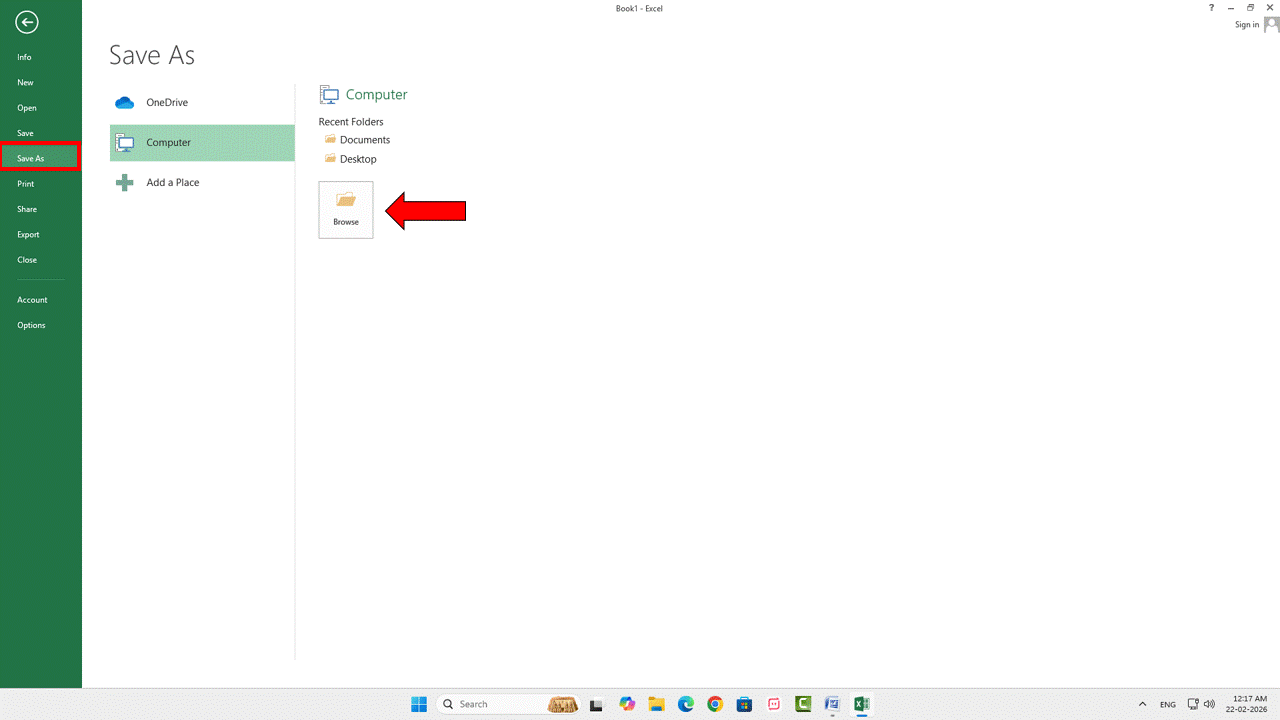
F12 | Save As |
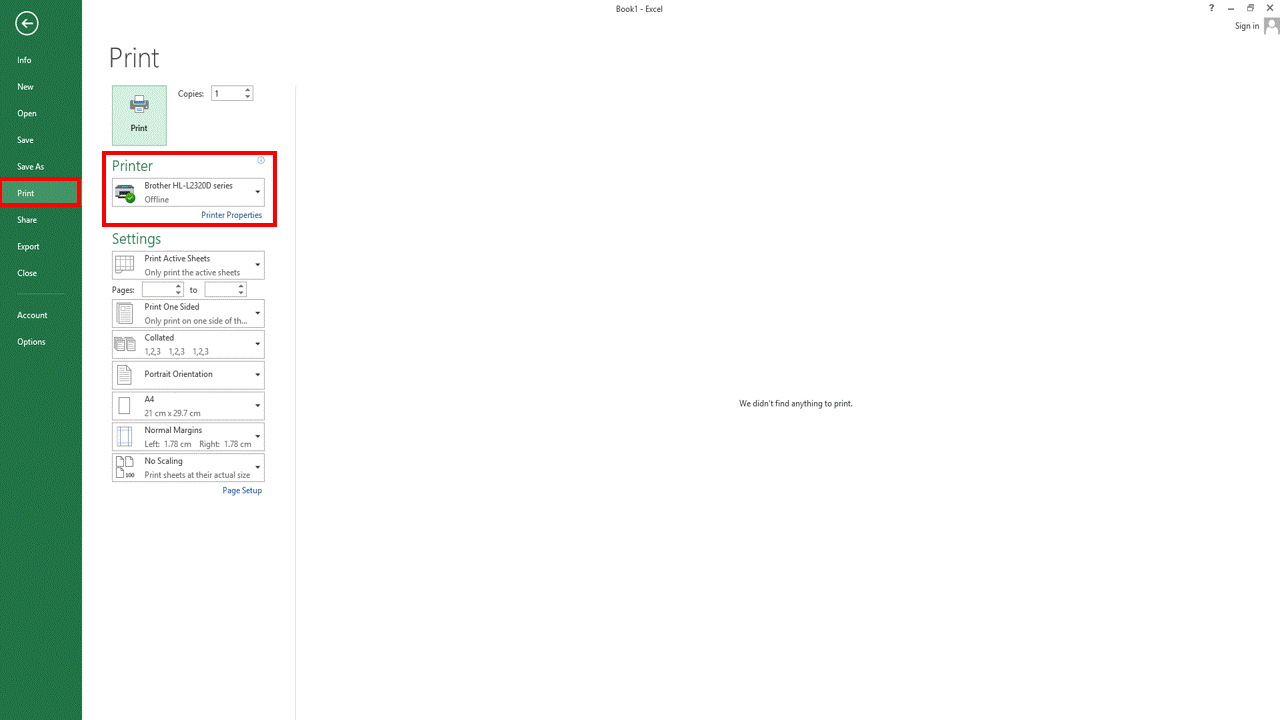
Ctrl + P |
Ctrl + W | Close Workbook |
Editing Shortcuts
Shortcut | Function |
Ctrl + C | Copy |
Ctrl + X | Cut |
Ctrl + V | Paste |
Ctrl + Z | Undo |
Ctrl + Y | Redo |
Ctrl + A | Select All |
Delete | Delete Cell Content |
Navigation Shortcut Keys in Excel
Navigation shortcuts help you move quickly inside large datasets.
Cell Navigation
Shortcut | Function |
Arrow Keys | Move One Cell |
Ctrl + Arrow Key | Jump to End of Data |
Ctrl + Home | Go to A1 |
Ctrl + End | Go to Last Used Cell |
Page Up / Down | Scroll Page |
Alt + Page Up / Down | Scroll Horizontally |
Formatting Shortcut Keys in MS Excel
Formatting is very important for professional Excel sheets.
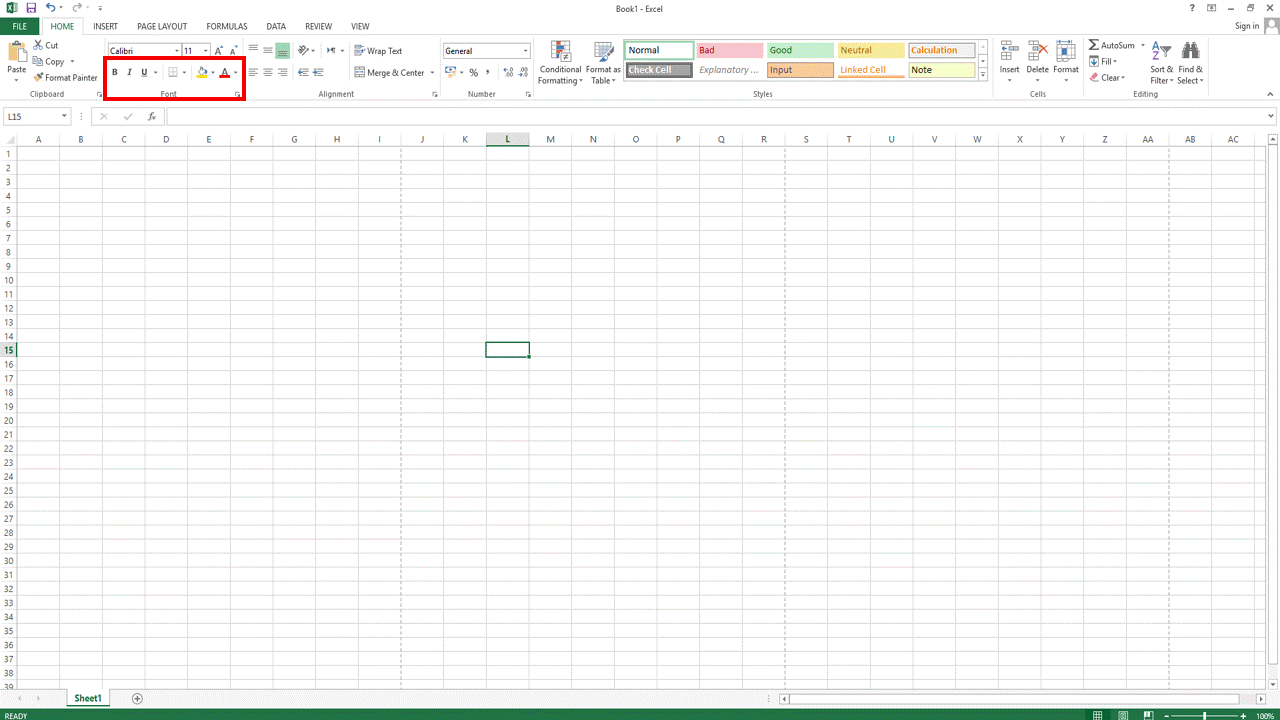
Basic Formatting
Shortcut | Function |
Ctrl + B | Bold |
Ctrl + I | Italic |
Ctrl + U | Underline |
Ctrl + 1 | Format Cells |
Ctrl + Shift + $ | Currency Format |
Ctrl + Shift + % | Percentage Format |
Ctrl + Shift + # | Date Format |
Formula Shortcut Keys (Intermediate Level)
Excel formulas are powerful. These shortcuts make them faster.
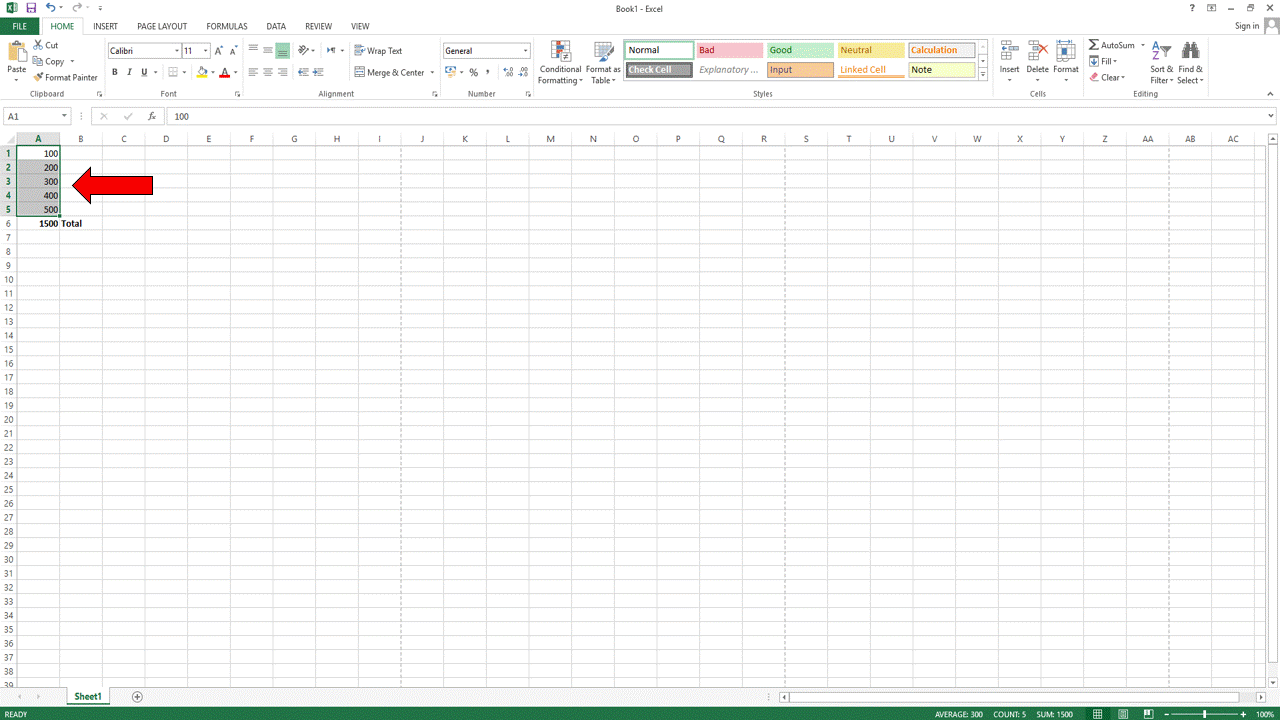
Shortcut | Function |
= | Start Formula |
Alt + = | AutoSum |
F2 | Edit Cell |
Ctrl + ` | Show Formulas |
F4 | Repeat Last Action / Lock Cell Reference |
Shift + F3 | Insert Function |
Data Management Shortcuts (Advanced Level)
These are advanced shortcuts for professional users.
Data Handling
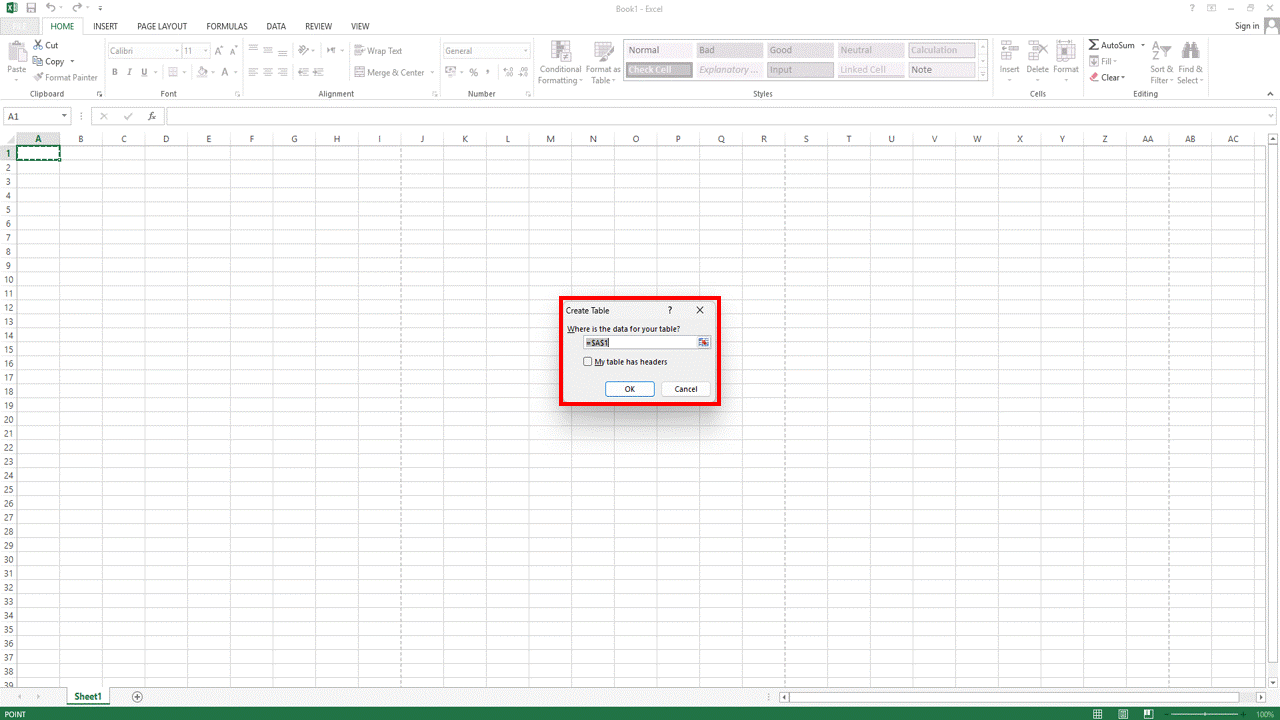
Shortcut | Function |
Ctrl + T | Create Table |
Ctrl + Shift + L | Apply Filter |
Alt + D + F + F | Filter |
Alt + A + M | Remove Duplicates |
Alt + A + S + S | Sort |
Pivot Table Shortcut Keys
Pivot Tables are powerful Excel tools.
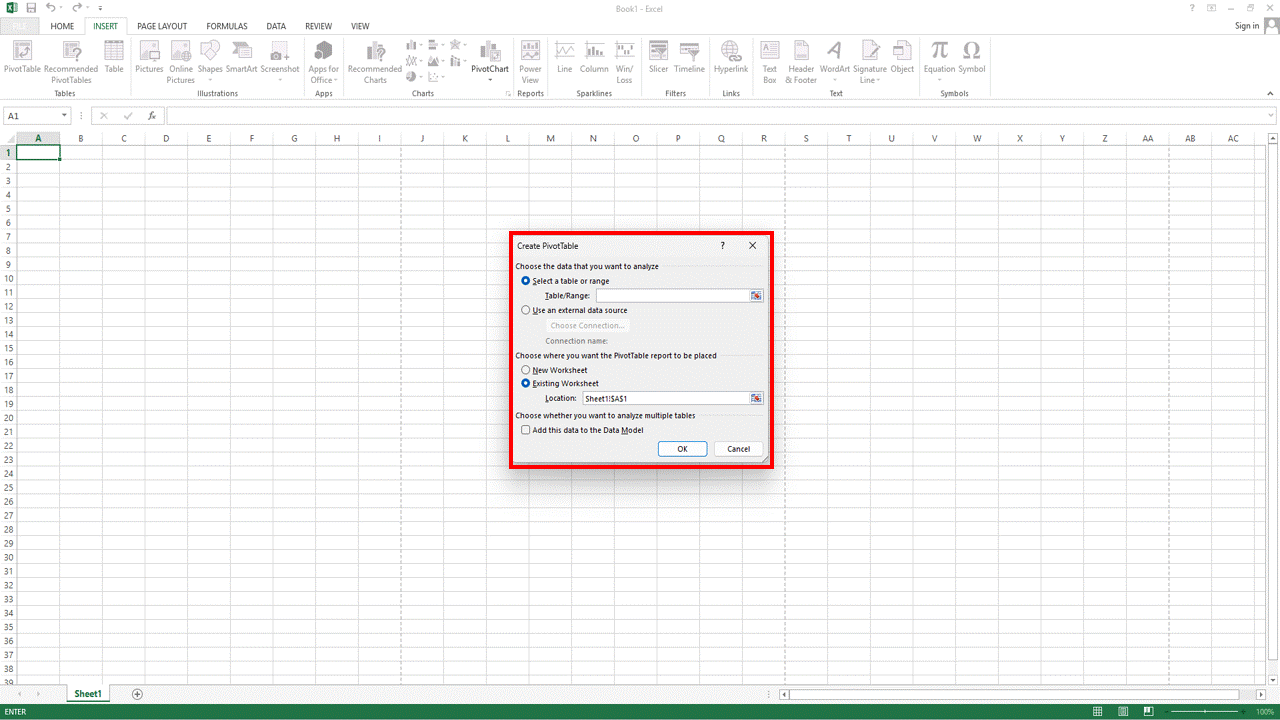
Shortcut | Function |
Alt + N + V | Insert Pivot Table |
Alt + J + T | Pivot Table Tools |
Ctrl + – | Delete Field |
Advanced MS Excel Keyboard Shortcut Keys
Window Management
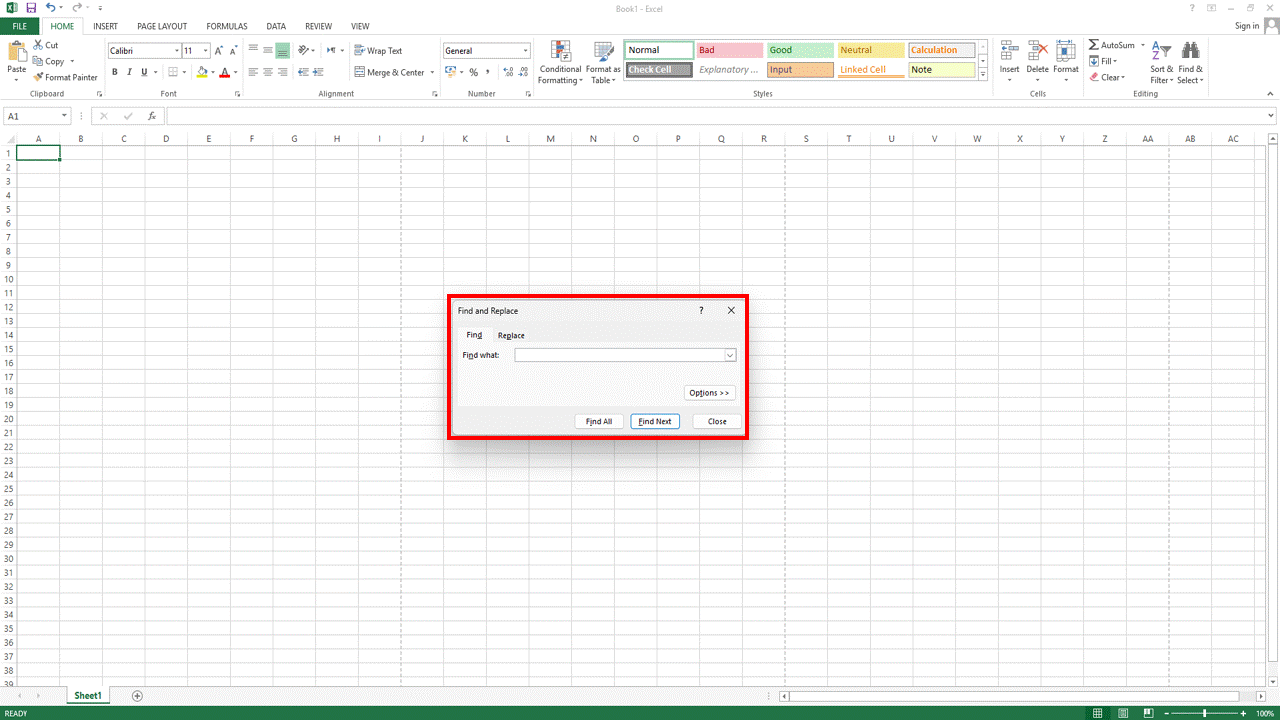
Shortcut | Function |
Ctrl + Tab | Switch Workbooks |
Alt + F1 | Insert Chart |
F11 | Chart in New Sheet |
Ctrl + F | Find |
Ctrl + H | Replace |
Step-by-Step – How to Practice Excel Shortcut Keys
Step 1: Open Excel
Press Windows Key → Search Excel → Open.
Step 2: Create Sample Data
Enter Name, Marks, Salary, etc.
Step 3: Apply Shortcuts
- Use Ctrl + T to create table
- Use Ctrl + Shift + L to apply filter
- Use Alt + = for sum
Step 4: Practice Daily
Use keyboard only for 30 minutes daily.
Pro Tips to Master MS Excel Keyboard Shortcut Keys
- Print shortcut list and keep near desk
- Practice without mouse
- Learn 5 shortcuts per day
- Watch practical tutorials (Add YouTube Channel Link)
- Use official Microsoft documentation
- MS Excel Keyboard Shortcut Keys Beginner to Advanced
- Excel shortcut keys list
- Microsoft Excel shortcuts
- Excel keyboard tricks
- Excel advanced shortcuts
- Excel productivity tips
Use this Tool to Generate Text to QR Code
FAQ – MS Excel Keyboard Shortcut Keys Beginner to Advanced
Q1: What is the most useful shortcut key in Excel?
The most useful shortcut is Ctrl + S (Save) and Ctrl + Z (Undo), but Alt + = (AutoSum) is extremely powerful for calculations.
Q2: How can I learn Excel shortcut keys fast?
Practice daily, print shortcut list, and use keyboard instead of mouse.
Q3: Are Excel shortcuts same in all versions?
Most shortcuts work in Excel 2010, 2016, 2019, and Microsoft 365.
Q4: What is the shortcut to create table in Excel?
Ctrl + T creates a table instantly.
Conclusion
Mastering MS Excel Keyboard Shortcut Keys Beginner to Advanced will dramatically improve your productivity. Whether you are a beginner or professional, these shortcuts will save hours of work every week.
Start practicing today and become an Excel power user.
Pingback: Top Excel Formulas and Functions Every User Should Know