
If you are experiencing buffering, slow loading videos, or lag while streaming, then this complete guide on How to Increase Internet Speed in Android Smart TV will help you fix all issues permanently.
Nowadays, Android Smart TVs are used for Netflix, YouTube, JioHotstar, and gaming. But slow internet can ruin the entire experience. The good news is — you can significantly improve your TV speed by following the right methods.
- boost internet speed android tv
- android tv wifi slow fix
- increase smart tv internet speed
- fix buffering smart tv
- improve streaming speed android tv
- android tv network optimization
- fast internet setup smart tv
Learn How to Increase Internet Speed in Android Smart TV with this complete advanced guide. Fix slow WiFi, buffering, and lag issues easily using proven methods like optimizing router placement, switching to 5GHz, clearing cache, updating software, and using Ethernet connections. This detailed step-by-step tutorial helps you boost streaming performance on apps like YouTube, Netflix, and JioHotstar. Discover expert tips, advanced network settings, DNS optimization, and troubleshooting techniques to maximize your Smart TV internet speed. Whether you are facing slow loading, video buffering, or connectivity drops, this guide provides practical solutions for smooth and fast streaming. Perfect for beginners and tech users who want the best performance from their Android Smart TV.
Understanding Internet Speed on Android Smart TV
Before applying fixes, you need to understand what affects speed:
Key Factors:
- Internet plan speed (ISP limit)
- WiFi signal strength
- Network congestion
- TV hardware capability
- Background processes
💡 Pro Tip: Even a 100 Mbps plan can feel slow if your WiFi signal is weak.
Signs Your Android TV Internet is Slow
- Videos buffering frequently
- Apps taking too long to open
- Streaming stuck at low quality
- Connection drops randomly
Table of Contents
How to Increase Internet Speed in Android Smart TV (Step-by-Step Advanced Guide)
Step 1 – Power Cycle Your Devices (Deep Restart Method)
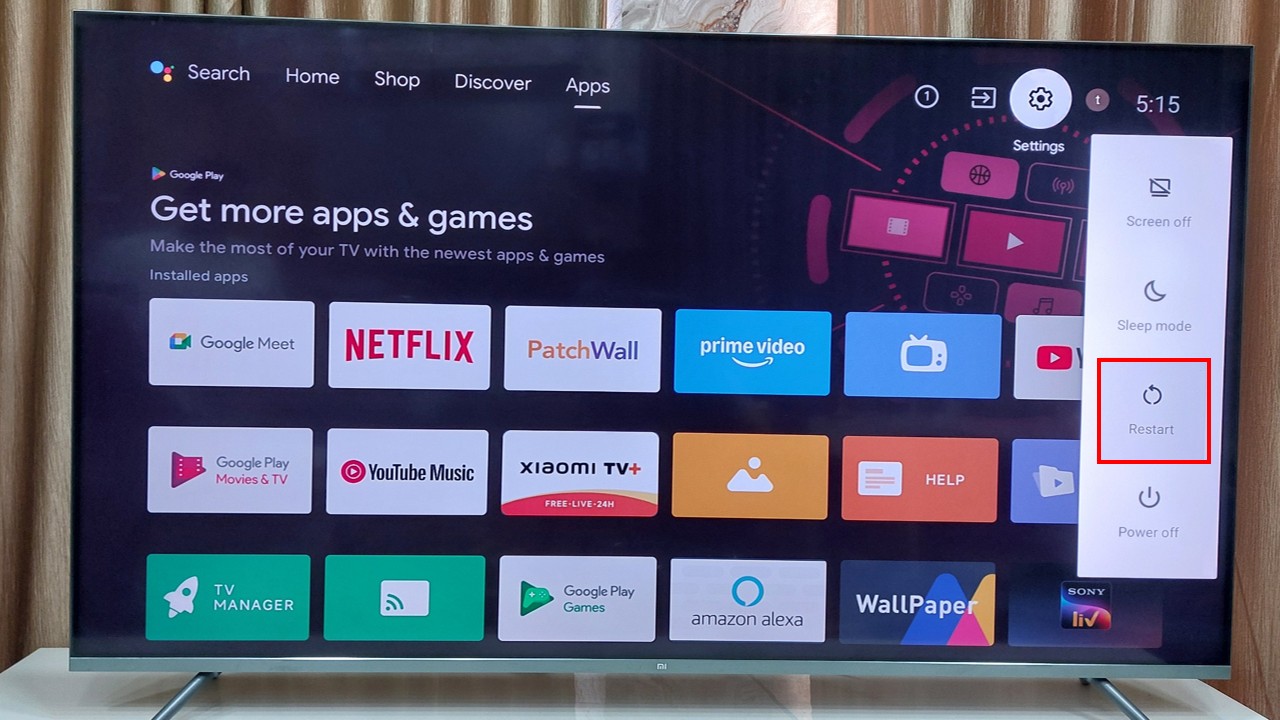
A simple restart is not enough. Do a power cycle.
Steps:
- Turn OFF TV
- Unplug from power
- Turn OFF router
- Wait 3–5 minutes
- Plug everything back
💡 This clears memory leaks and network glitches.
Step 2 – Optimize Router Placement (Very Important)
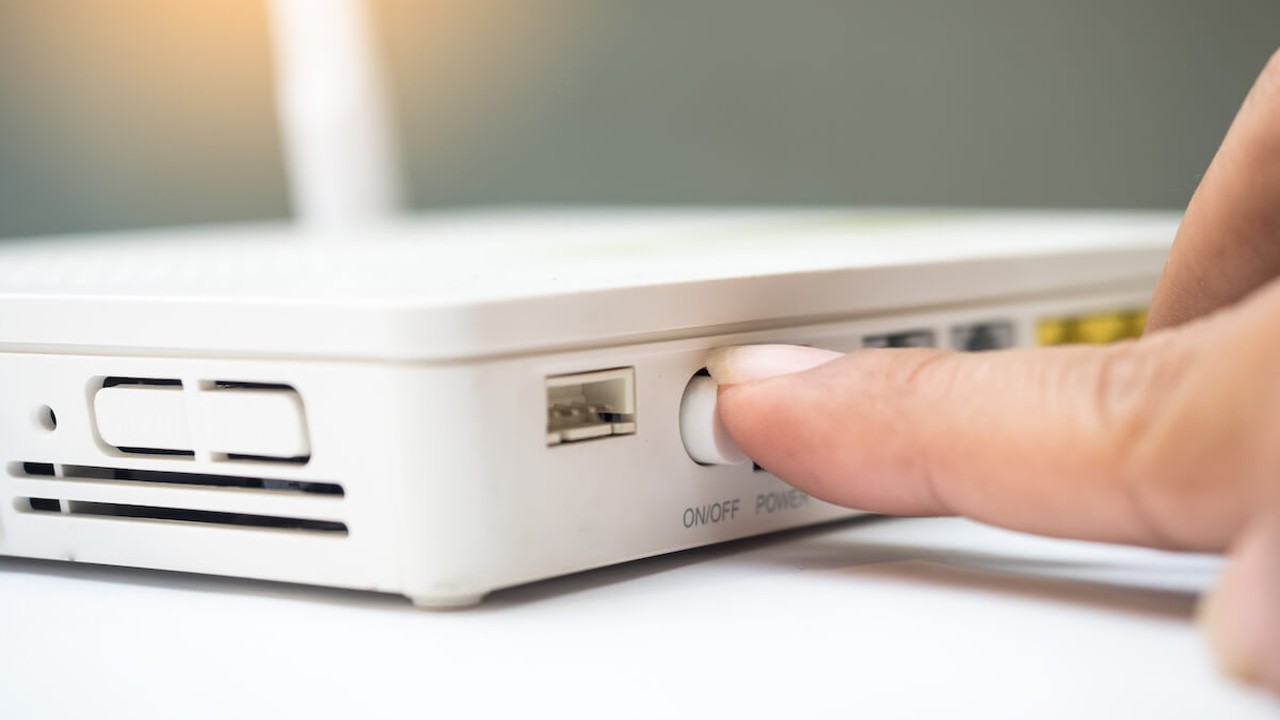
WiFi signals weaken with distance and obstacles.
Best Placement:
- Same room as TV
- Elevated position (table/shelf)
- Away from walls & metal objects
💡 Avoid placing router behind TV.
Step 3 – Switch to 5GHz WiFi (High-Speed Mode)
2.4GHz = long range but slow
5GHz = short range but fast 🚀
Steps:
- Go to Settings → Network
- Select your WiFi
- Choose 5GHz band
Step 4 – Use Ethernet Cable (Best Performance)
If possible, always use LAN cable.
Benefits:
- Stable connection
- No interference
- Lower latency
💡 This is the #1 recommended method.
Step 5 – Limit Background Apps & Processes
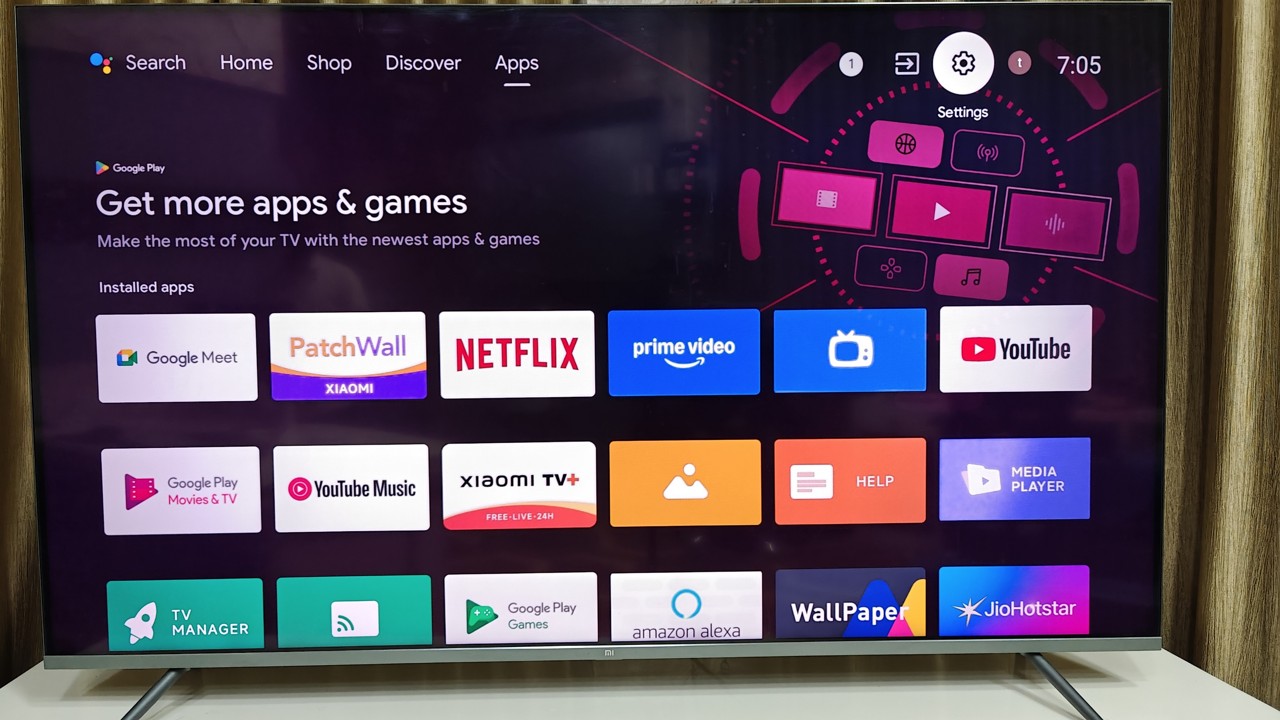
Android TVs run apps in background.
Steps:
- Go to Settings → Apps
- Force stop unused apps
- Disable auto-start apps
Step 6 – Clear Cache & Storage (Performance Boost)
Cache slows down apps over time.
Steps:
- Settings → Apps
- Select streaming app
- Click Clear Cache
Step 7 – Update Android TV Software & Apps
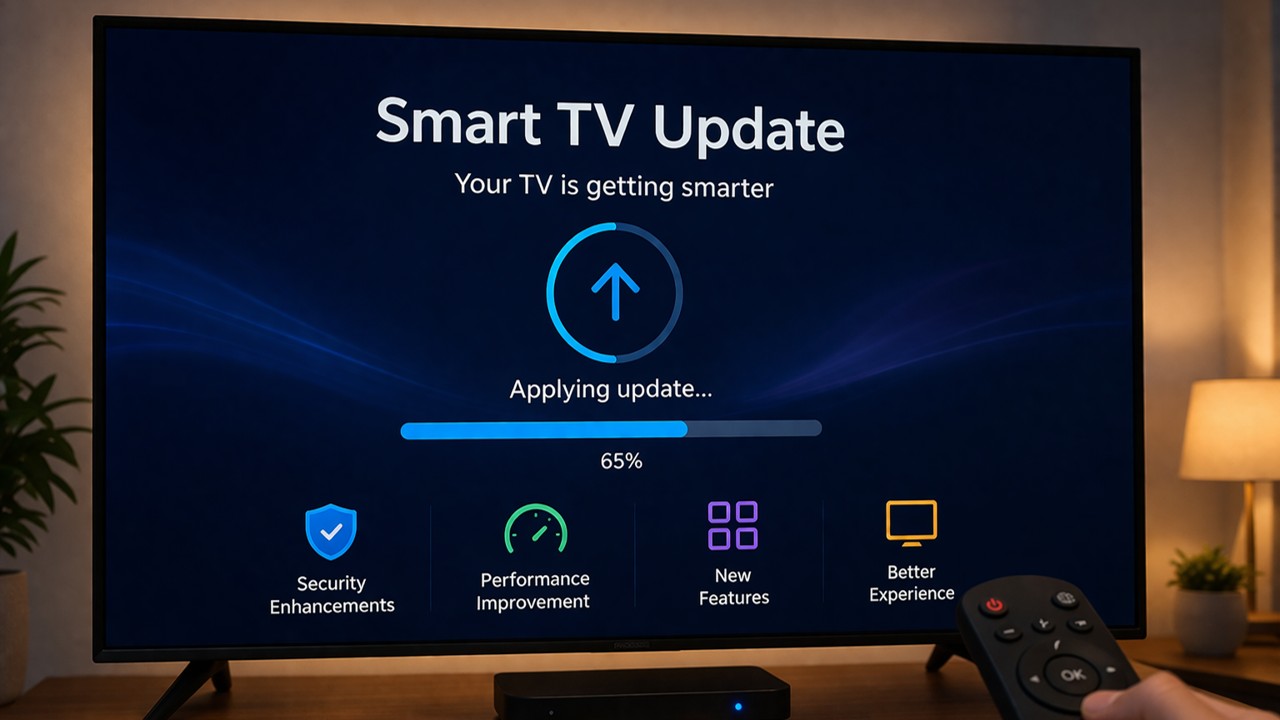
Outdated systems cause bugs.
Steps:
- Settings → Device Preferences
- About → System Update
Step 8 – Change DNS Settings (Advanced Trick)
DNS affects loading speed.
Recommended:
- Google DNS: 8.8.8.8
- 8.8.4.4
💡 Faster DNS = Faster streaming response.
Step 9 – Reduce Network Load
Do This:
- Pause downloads on other devices
- Limit 4K streaming on multiple devices
- Disconnect unused devices
Step 10 – Reset Network Settings (Last Option)
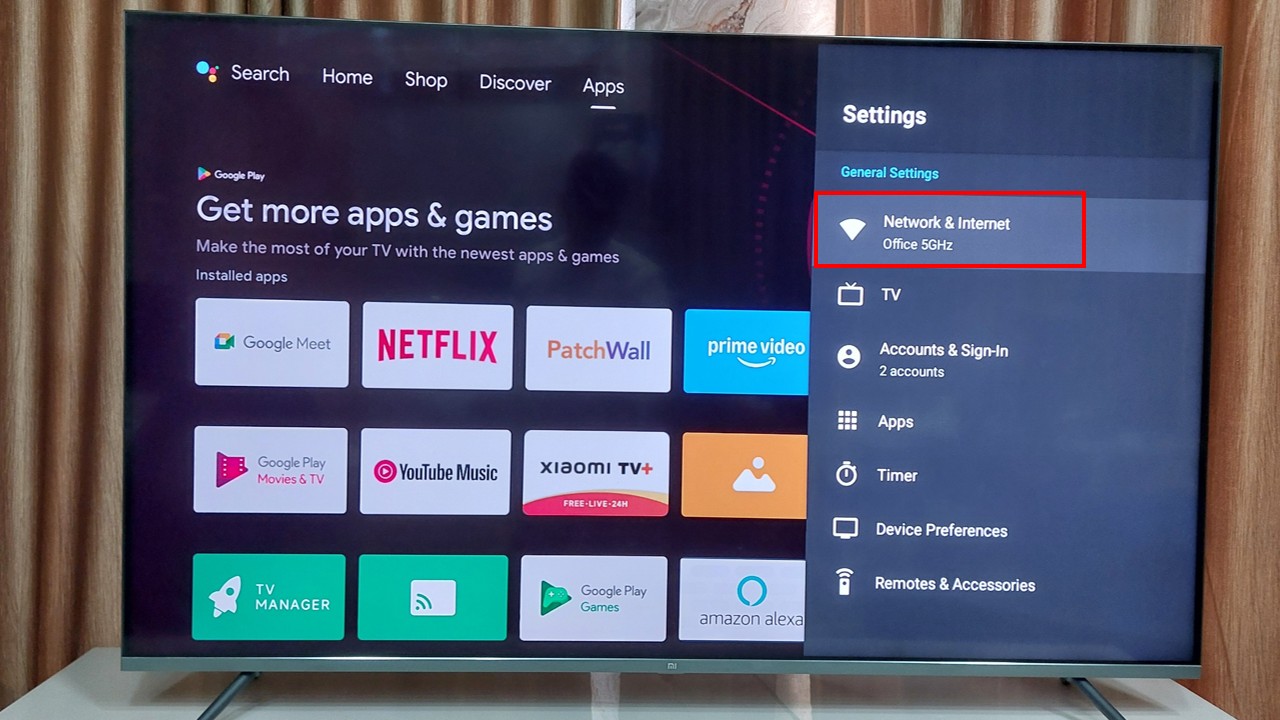
Steps:
- Settings → Network
- Forget WiFi
- Reconnect
Advanced Network Optimization Tips (Pro Level)
🚀 Upgrade Router
Old routers limit speed. Use dual-band or WiFi 6 router.
📶 Use WiFi Extender
If TV is far, extender improves signal.
⚡ Use Fiber Broadband
Fiber = stable + fast speed.
Best Internet Speed for Android Smart TV
| Usage Type | Required Speed |
| HD Streaming | 5–10 Mbps |
| Full HD | 10–20 Mbps |
| 4K Streaming | 25+ Mbps |
Test Internet Speed on Android TV
How to Check Internet Speed in Android Smart TV
Text to QR Code Generator – Free Online Tool 2026
Watch Full Video (Tech Legacy)
Common Mistakes That Slow Down Internet
❌ Router far from TV
❌ Too many devices connected
❌ Not updating TV
❌ Using 2.4GHz only
FAQ (Frequently Asked Questions)
❓ Q1: How to Increase Internet Speed in Android Smart TV easily?
Restart devices, use 5GHz, and clear cache.
❓ Q2: Is Ethernet better than WiFi?
Yes, it provides faster and stable speed.
❓ Q3: Why buffering happens on Smart TV?
Due to slow internet, weak signal, or network congestion.
❓ Q4: Can DNS improve speed?
Yes, it improves response time.
❓ Q5: What is the best speed for 4K streaming?
Minimum 25 Mbps.
Conclusion
Now you fully understand How to Increase Internet Speed in Android Smart TV using both basic and advanced methods. By applying these techniques, you can eliminate buffering, improve streaming quality, and enjoy a seamless viewing experience.
Always keep your TV updated, use a strong internet connection, and optimize your network regularly for the best results.