
Introduction
If you are searching for how to fix all printer printing problem in Windows 11, then you are at the right place. Printer issues like not printing, showing offline, or slow performance are very common in Windows 11 systems. In this complete guide, we will explain how to fix all printer printing problem in Windows 11, how to set up a printer, and how to use Windows troubleshooting tools step by step.
What is Windows 11?
Windows 11 is the latest operating system developed by Microsoft. It comes with a modern design, improved performance, better security, and enhanced compatibility with devices like printers, scanners, and other peripherals.
Key Features of Windows 11:
- New user interface (UI)
- Faster performance
- Better driver support
- Built-in troubleshooting tools
- Improved device connectivity
👉 Despite improvements, users still face printer issues due to driver conflicts, incorrect settings, or network problems.
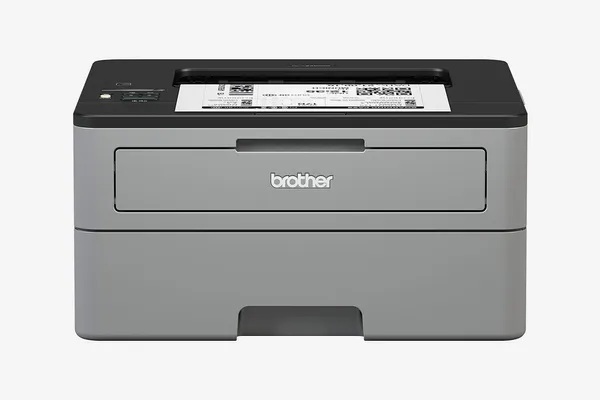
Table of Contents
Common Printer Problems in Windows 11
Before learning how to fix all printer printing problem in Windows 11, you should know the common issues:
- Printer not printing
- Printer offline error
- Print jobs stuck in queue
- Printer not detected
- Driver issues
- Slow printing
How to Setup Printer in Windows 11 (Step-by-Step)
Setting up a printer correctly is very important.
Step 1 – Connect Your Printer
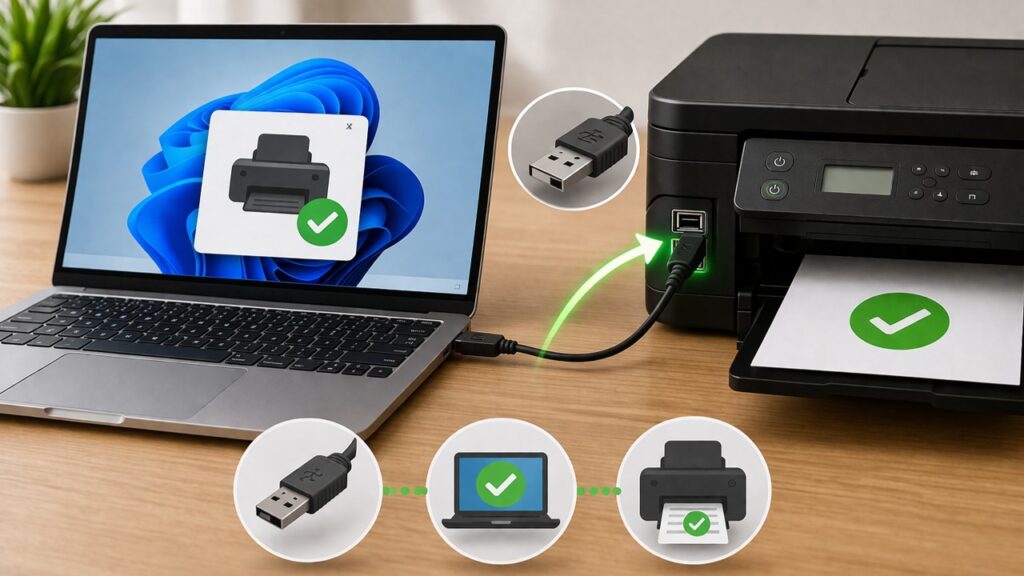
- Plug USB cable OR connect via Wi-Fi
- Turn ON the printer
Step 2 – Open Printer Settings
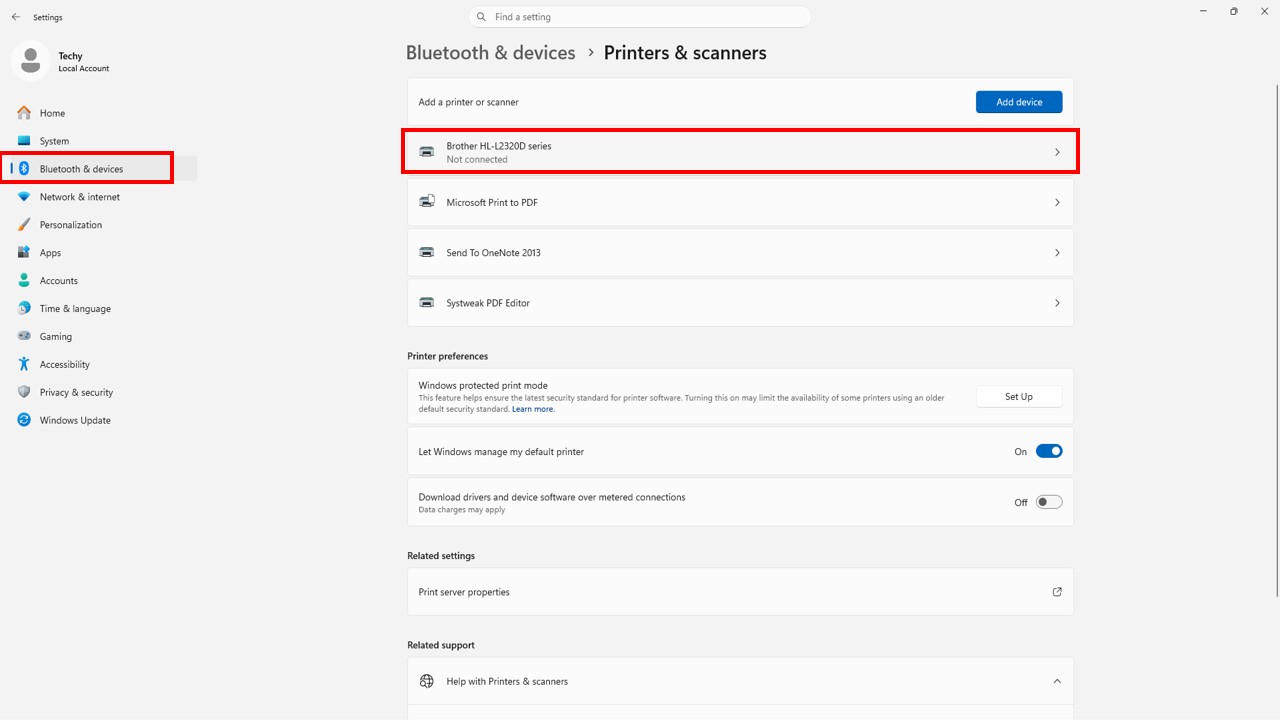
- Go to Settings
- Click Bluetooth & Devices
- Select Printers & Scanners
Step 3 – Add a Printer
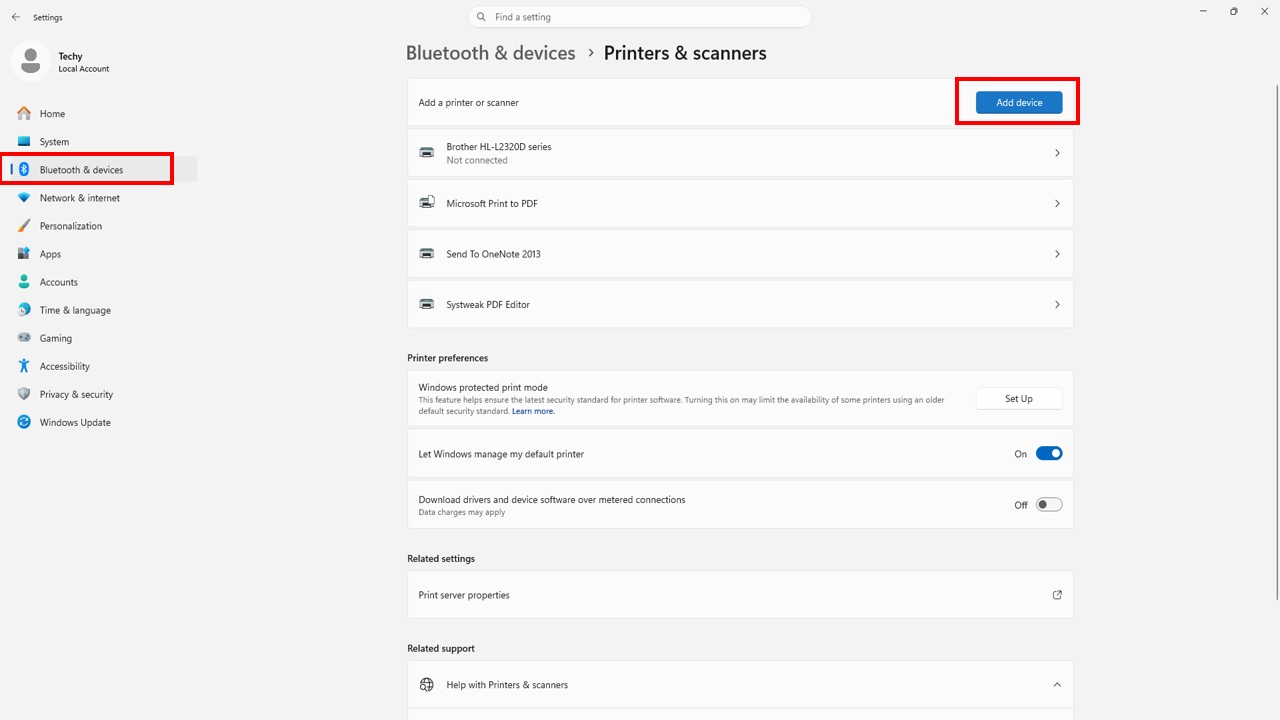
- Click Add Device
- Wait for Windows to detect your printer
- Select your printer and install
Step 4 – Install Drivers
- Windows installs drivers automatically
- If not, download from manufacturer website
Step 5 – Print Test Page
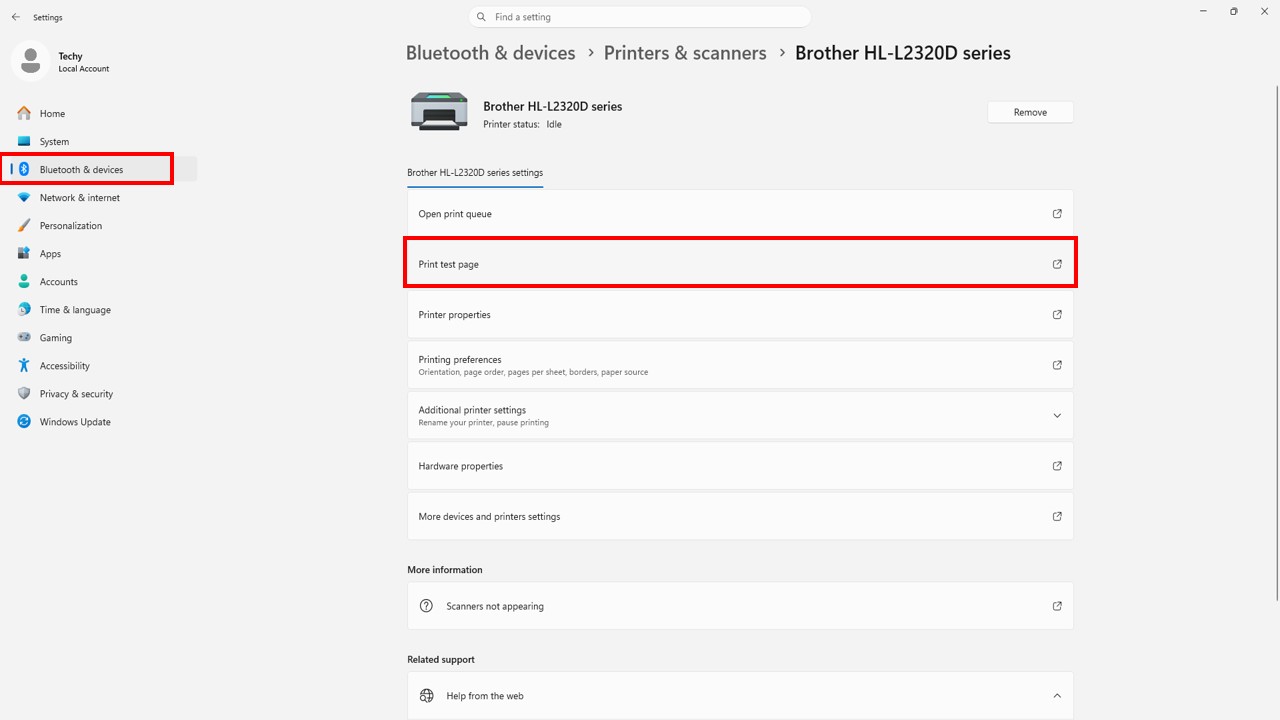
Select printer → Click Print Test Page
Step-by-Step Guide – How to Fix All Printer Printing Problem in Windows 11
Step 1 – Use Windows Printer Troubleshooter
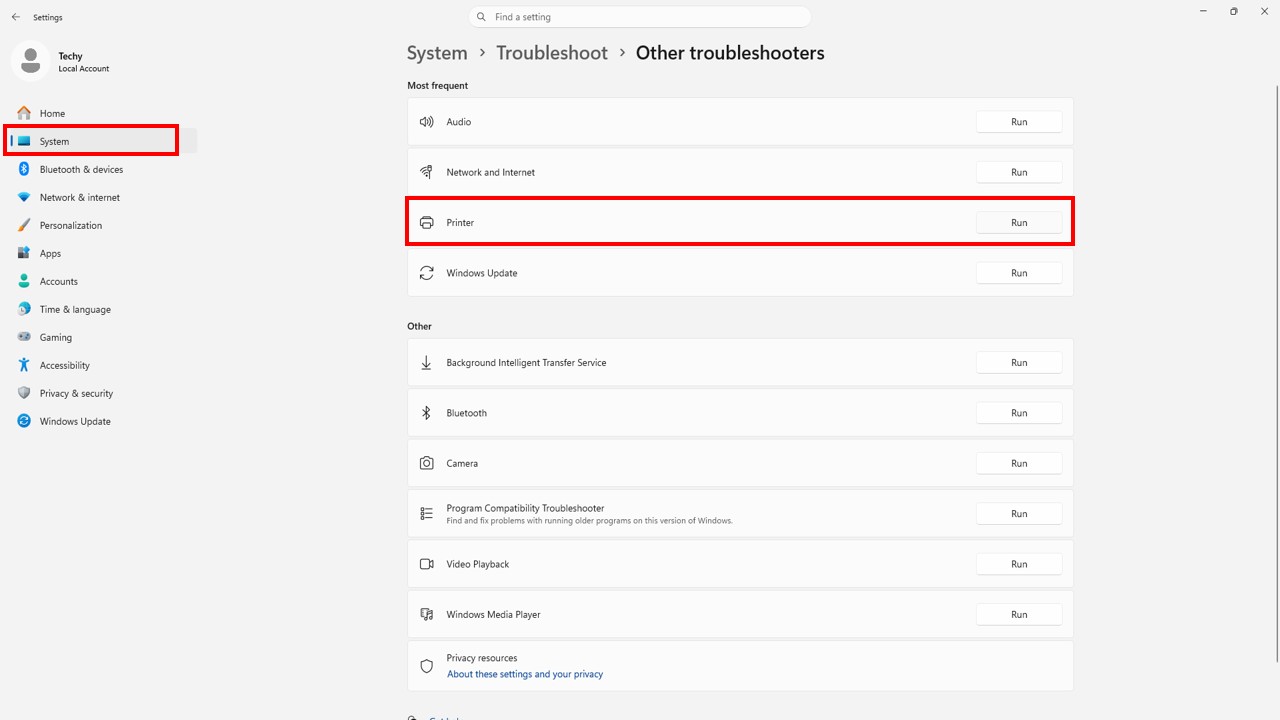
Windows 11 has a built-in tool to fix issues automatically.
- Open Settings
- Go to System → Troubleshoot → Other troubleshooters
- Find Printer Troubleshooter
- Click Run
👉 This tool can fix:
- Connection errors
- Driver issues
- Spooler problems
Step 2 – Check Printer Connection
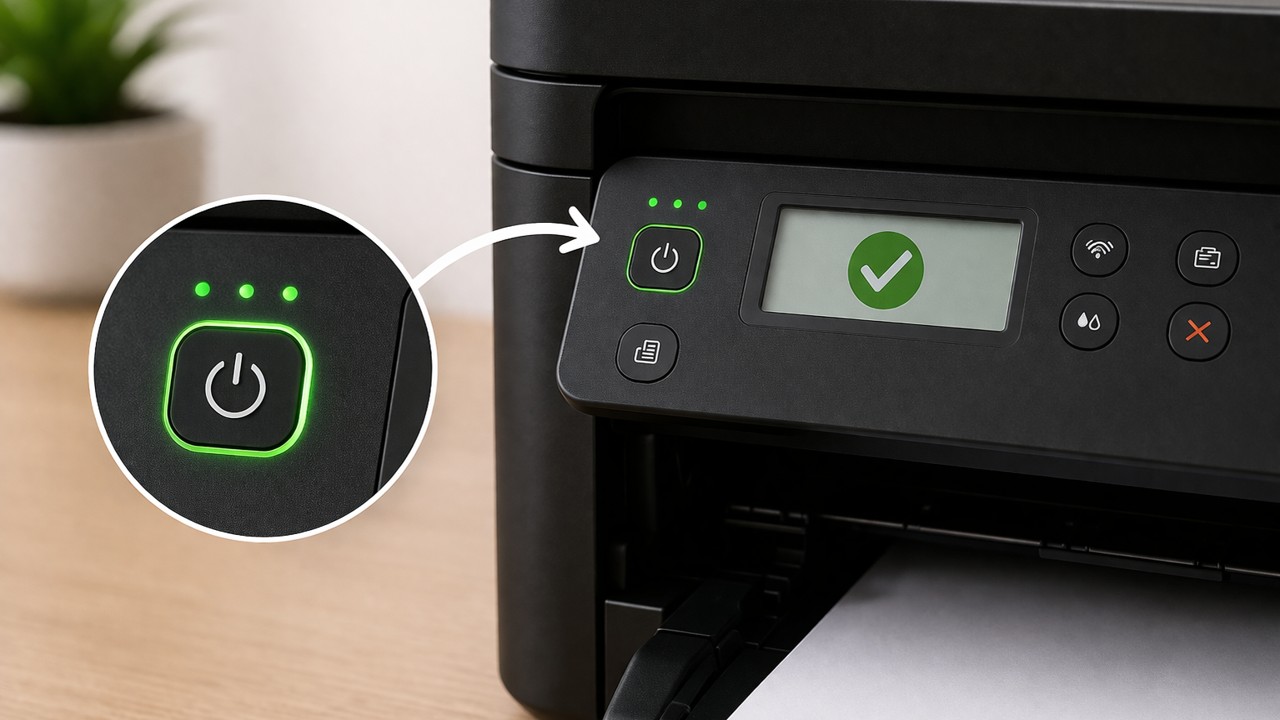
- Ensure printer is ON
- Check cables or Wi-Fi
- Restart printer & PC
Step 3 – Set Default Printer
- Settings → Printers & Scanners
- Select printer
- Click Set as Default
Step 4 – Clear Print Queue
- Press Windows + R → services.msc
- Stop Print Spooler
- Go to:
C:\Windows\System32\spool\PRINTERS - Delete files
- Restart spooler
Step 5 – Restart Print Spooler
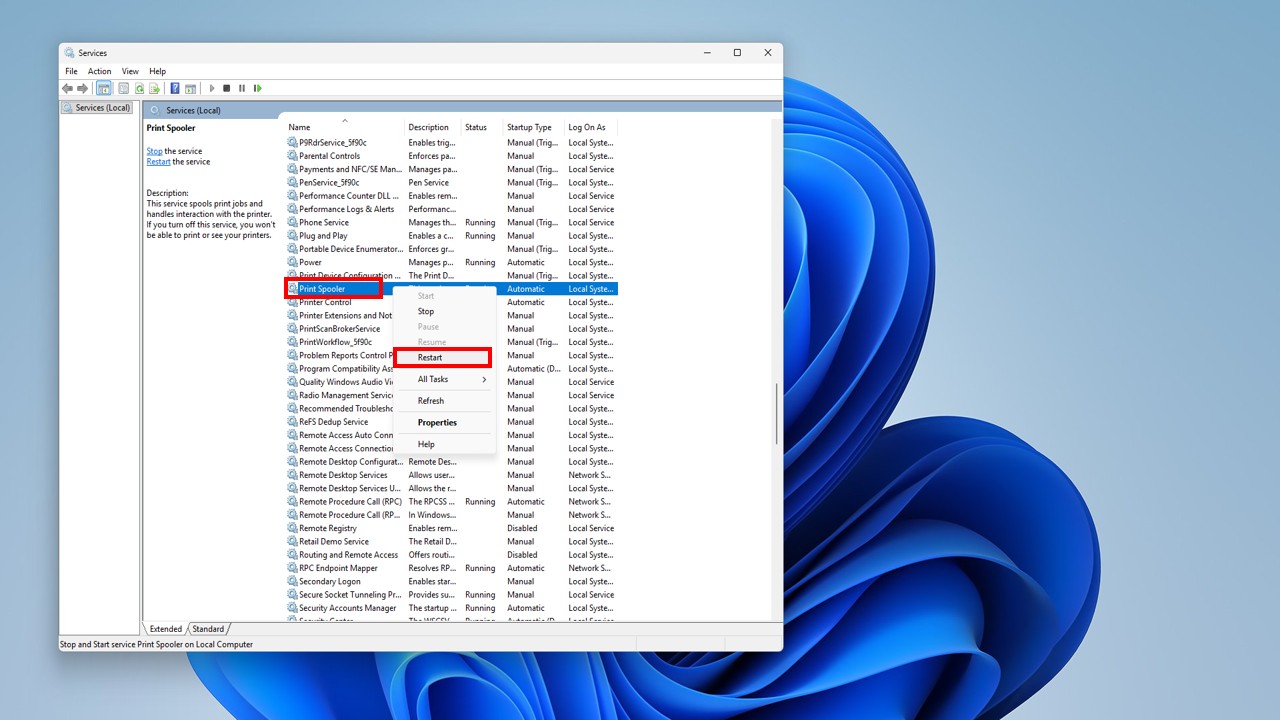
- Open Services
- Restart Print Spooler
Step 6 – Update Printer Drivers
- Open Device Manager
- Update drivers
Step 7 – Reinstall Printer
- Remove printer
- Restart system
- Add again
Step 8 – Fix Printer Offline Issue
- Open printer settings
- Disable Use Printer Offline
Advanced Solutions for Printer Issues
Check Windows Update
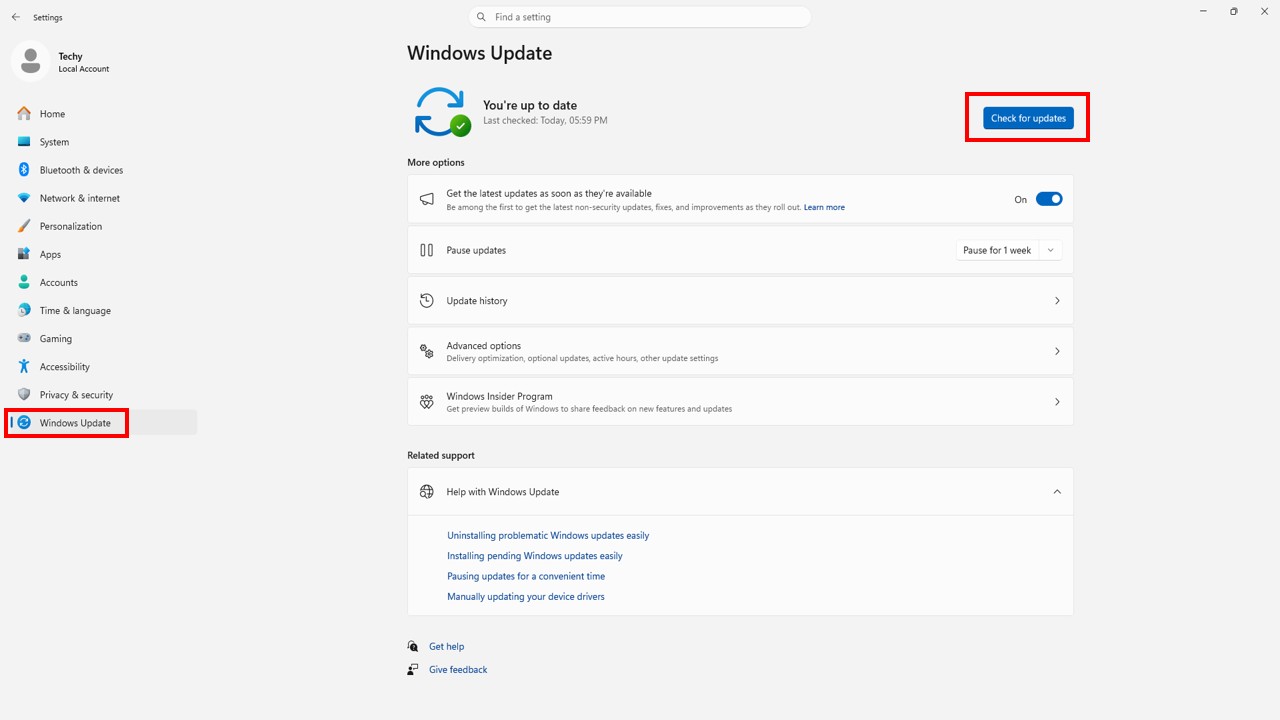
Install latest updates
Check Firewall Settings
Disable temporarily
Use Manufacturer Software
Download from official websites:
- HP
- Canon
- Epson
👇 Use our useful tool:
Text to QR Code Generator – Free Online QR Tool Generator
Top Excel Formulas and Functions Every User Should Know
Subscribe YouTube Channel Tech Legacy
👉 Watch full tutorial here:
Printer Problem in Windows 11
- how to fix all printer printing problem in windows 11
- printer not printing windows 11
- windows 11 printer troubleshoot
- printer setup windows 11
- fix printer offline
- printer driver fix
Tips to Avoid Printer Problems
- Keep drivers updated
- Use genuine accessories
- Restart printer regularly
- Avoid large print queues
FAQ – How to Fix All Printer Printing Problem in Windows 11
Q1. How do I run printer troubleshoot in Windows 11?
Go to Settings → System → Troubleshoot → Other troubleshooters → Run Printer.
Q2. Why is my printer not printing?
Due to driver issues, connection problems, or spooler errors.
Q3. How to install printer in Windows 11?
Go to Printers & Scanners → Add Device.
Q4. How to fix printer offline issue?
Disable “Use Printer Offline” option.
Q5. Does Windows 11 support all printers?
Yes, but updated drivers are required.
Conclusion
Now you fully understand how to fix all printer printing problem in Windows 11, how to set up a printer, and how to use the Windows troubleshooting tool effectively.
By following these steps, you can fix almost all printer-related issues quickly and easily.