
If you are searching for How to Fix Slow PC Startup in Windows 11, you are likely frustrated with long boot times. A slow startup can reduce productivity and affect system performance. The good news is that you can fix this problem using the right optimization techniques.
You will learn step-by-step methods to improve Windows 11 boot speed permanently.
Why Is Windows 11 Startup Slow?
Understanding the root cause helps fix the issue faster.
Common reasons include:
- Too many startup programs
- Background apps running automatically
- HDD instead of SSD
- Corrupted system files
- Low RAM
- Malware infection
- Outdated Windows updates
- Fragmented hard drive
Table of Contents
Method 1: Disable Startup Apps (Most Important Step)
Startup apps are the #1 reason behind slow PC startup.
Steps to Disable Startup Apps:
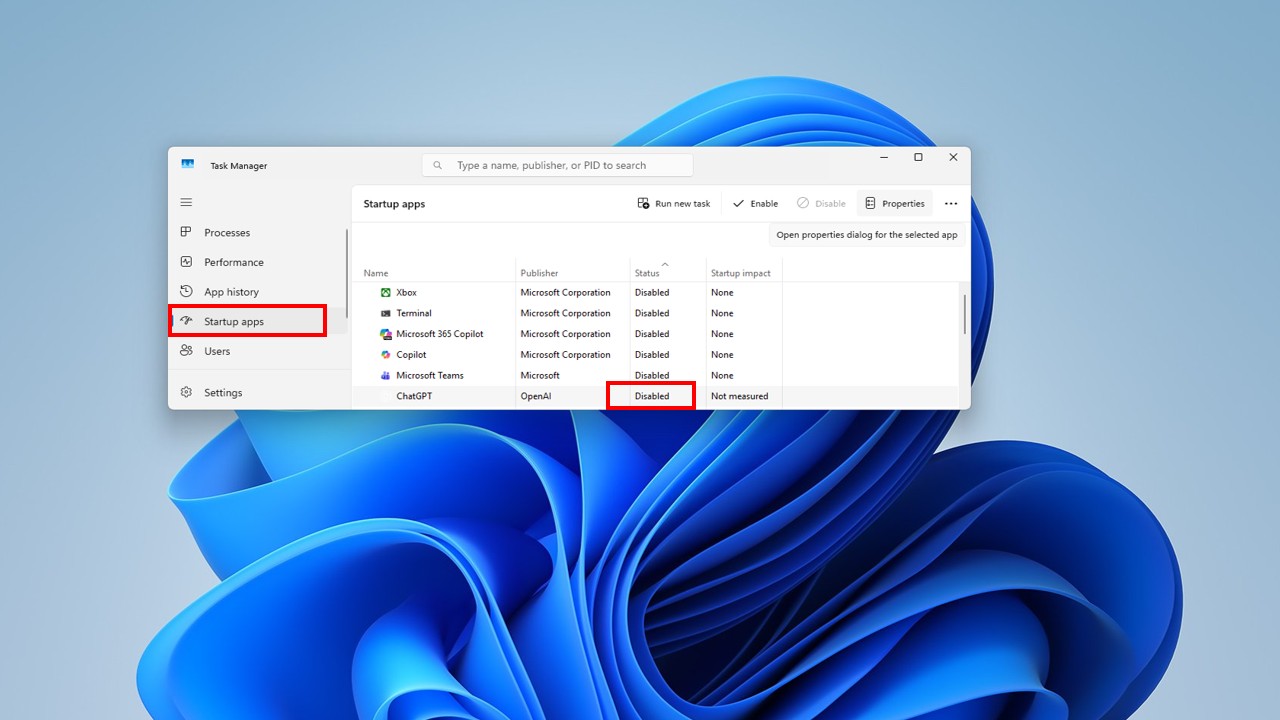
- Press Ctrl + Shift + Esc to open Task Manager
- Click Startup Apps tab
- Check apps marked as High Impact
- Right-click unnecessary apps
- Click Disable
This method can reduce startup time by 30 to 60%.
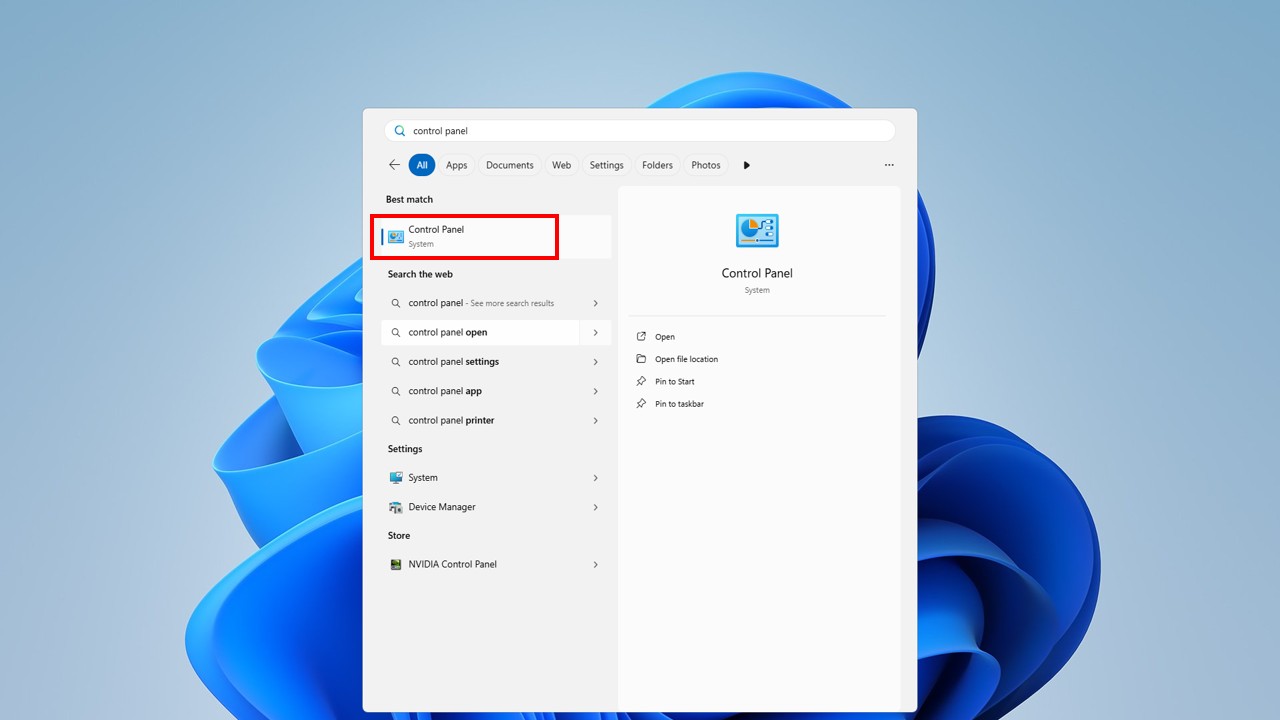
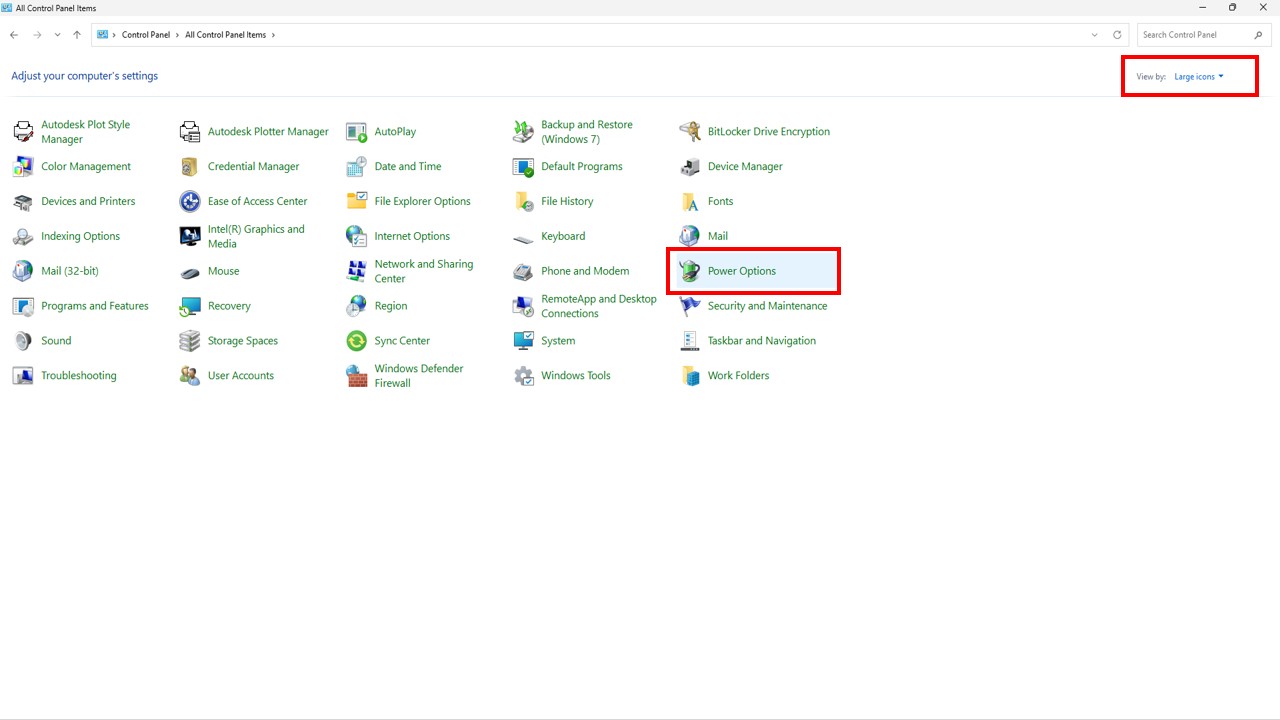
Method 2: Enable Fast Startup in Windows 11
Fast Startup reduces boot time by saving system state.
Steps:
- Open Control Panel
2. Click Power Options
3. Select Choose what the power buttons do
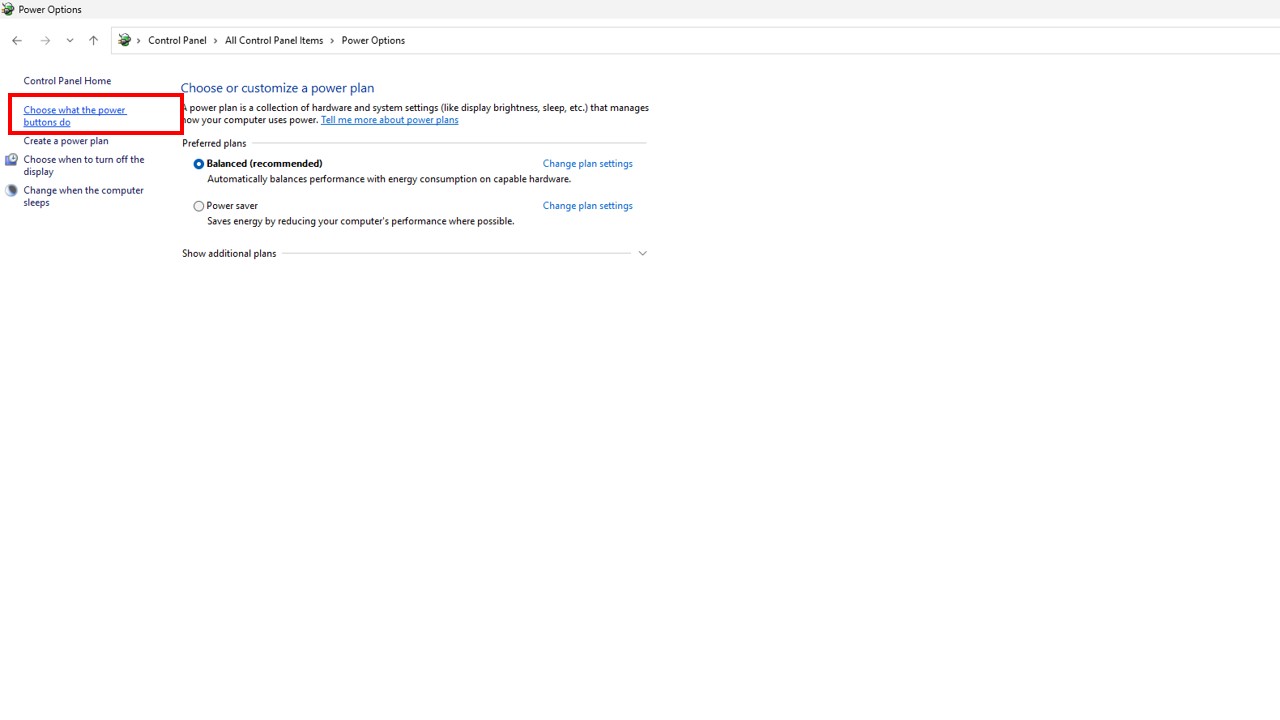
4. Click Change settings that are currently unavailable
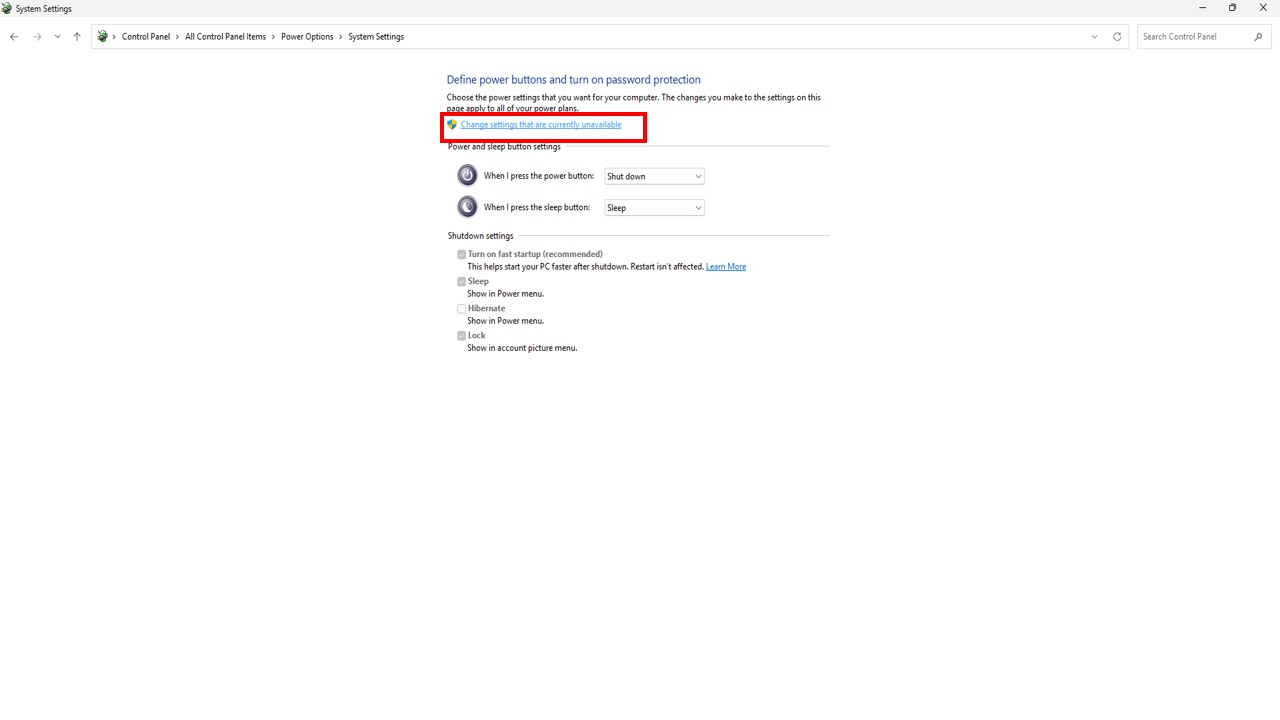
5. Enable Turn on Fast Startup
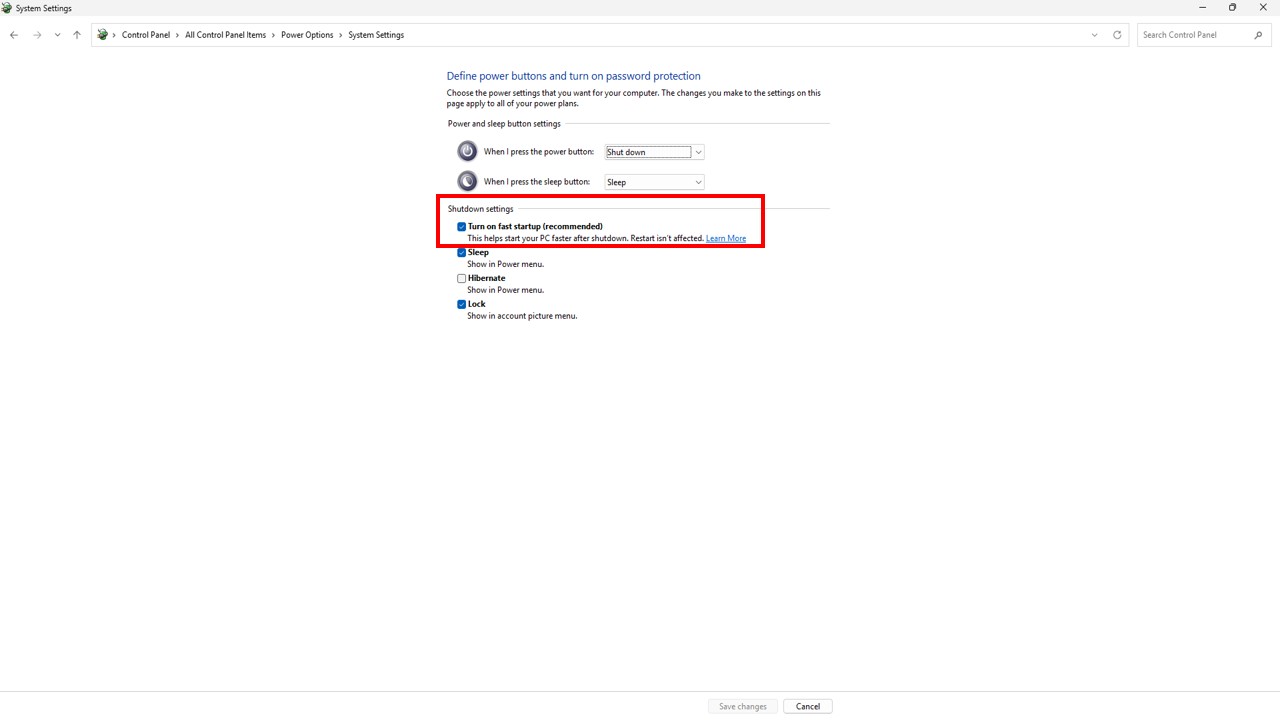
6. Click on Save changes
If disabled, Windows takes longer to initialize services.
Method 3: Upgrade HDD to SSD (Permanent Performance Boost)
If your PC uses HDD, boot time will be slow.

Why SSD Improves Startup?
- Faster read/write speed
- No mechanical delay
- Windows loads 5x faster
An SSD can reduce boot time from 2 minutes to 15–20 seconds.
For Windows reinstallation after SSD upgrade, follow this step
How to Make Windows 11 Bootable USB Drive
Method 4: Clean Temporary Files & Free Disk Space
Low storage causes slow startup.
Steps:
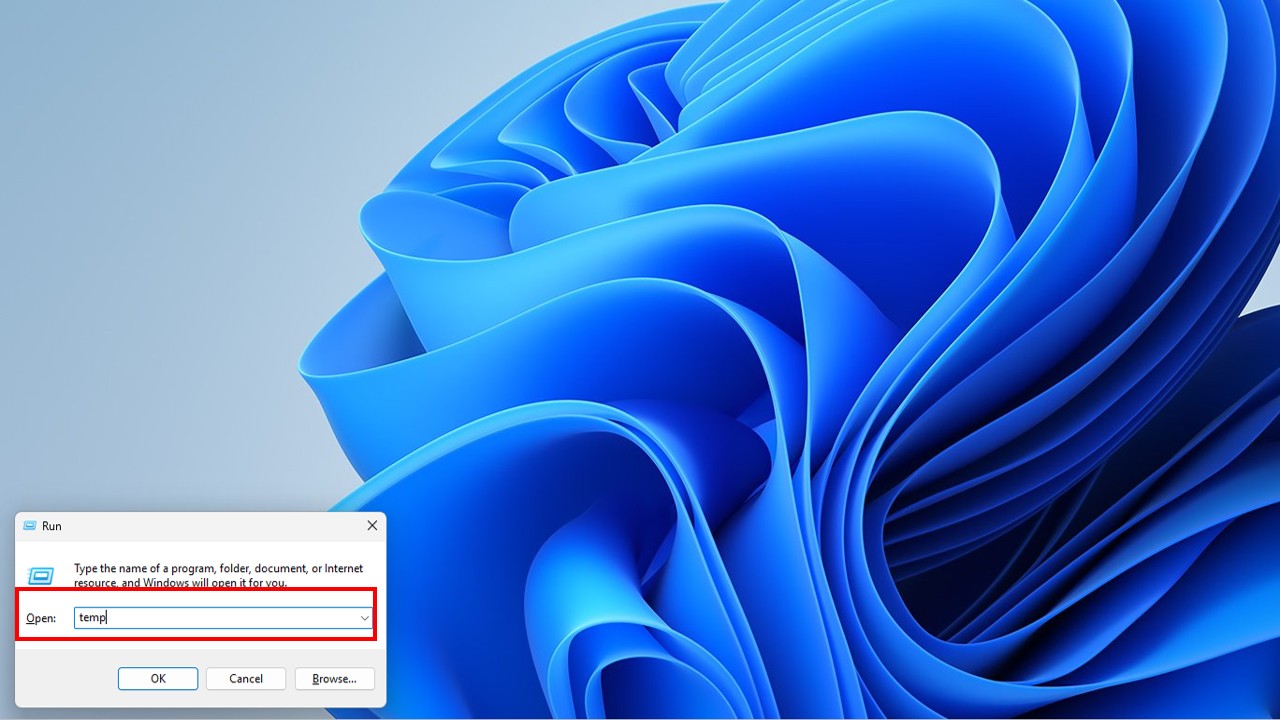
- Press Windows + R
- Type temp → Delete files
- Again open Run → Type %temp%
- Use Disk Cleanup
- Empty Recycle Bin
Method 5: Disable Background Apps
Windows 11 runs many apps in the background.
Steps:
- Open Settings
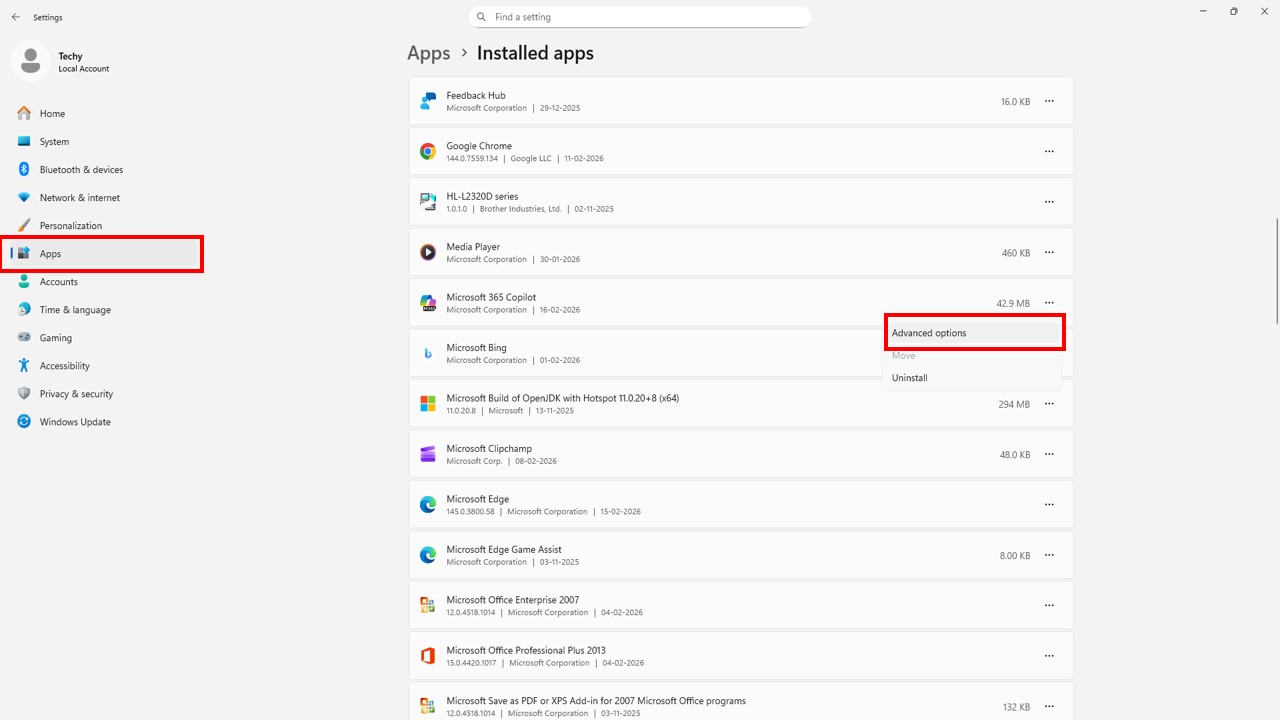
2. Go to Apps > Installed Apps
3. Click 3 dots → Advanced Options
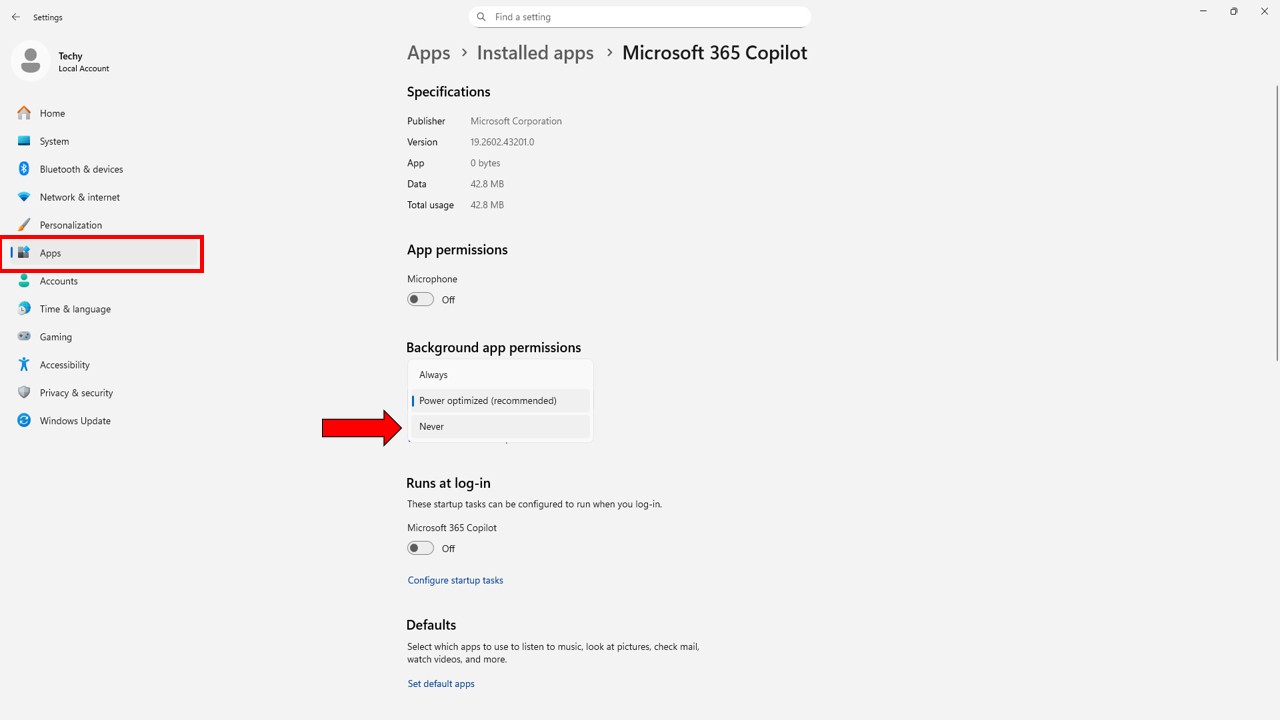
4. Set Background App Permission to Never
Method 6: Update Windows 11 & Drivers
Outdated drivers slow down startup.
Steps:
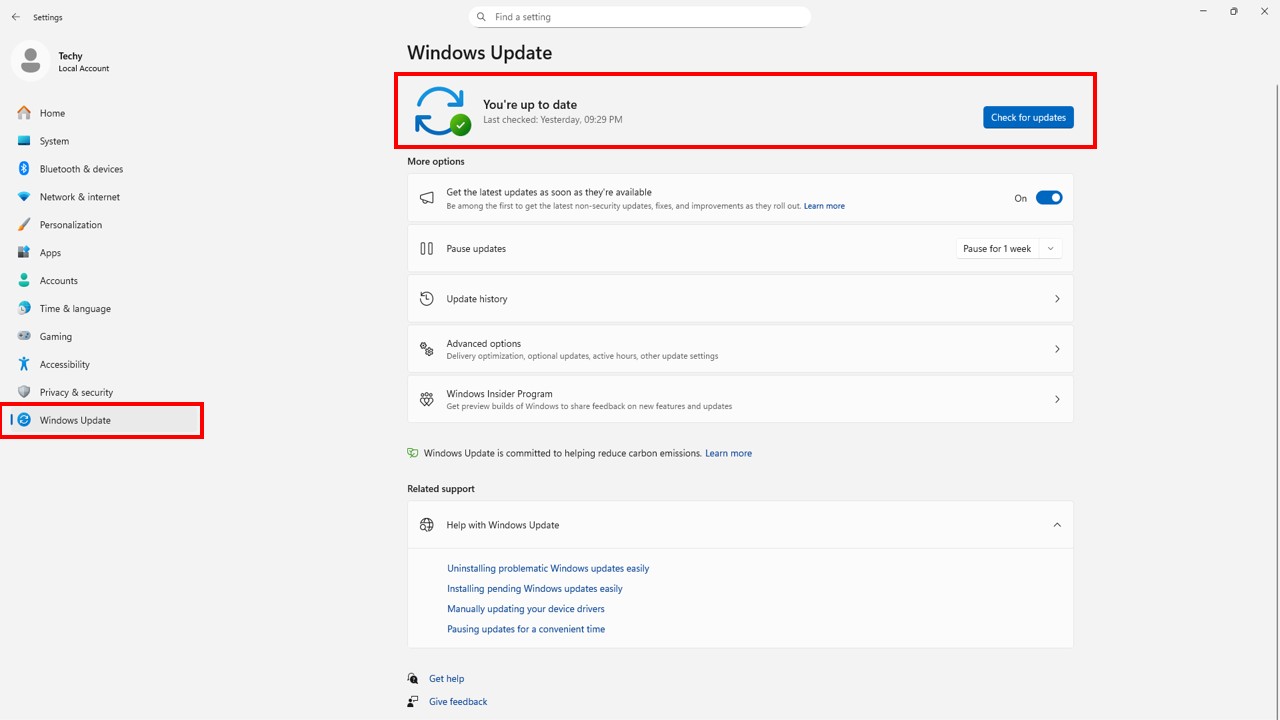
- Open Settings
- Click Windows Update
- Select Check for Updates
Also update drivers from your laptop manufacturer’s website.
Method 7: Scan for Malware
Malware consumes startup resources.
Steps:
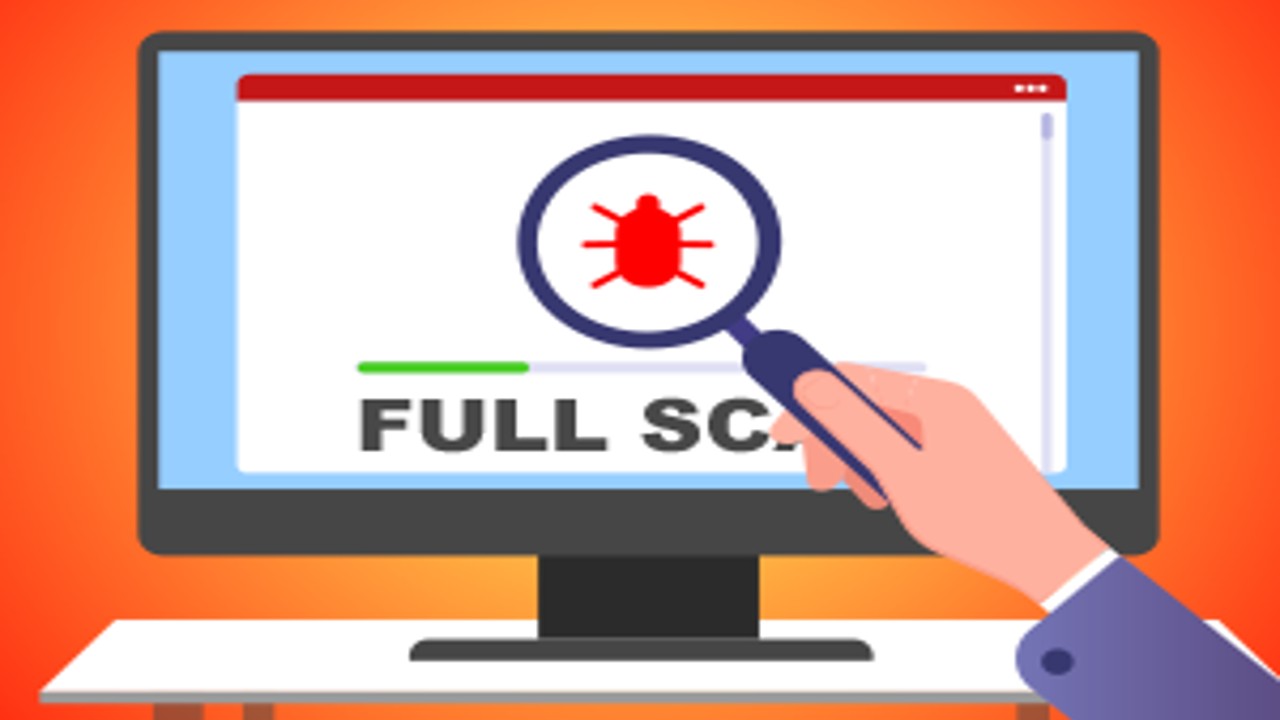
- Open Windows Security
- Click Virus & Threat Protection
- Run Full Scan
Method 8: Use System File Checker (Advanced Fix)
Corrupted system files can cause slow boot.
Steps:
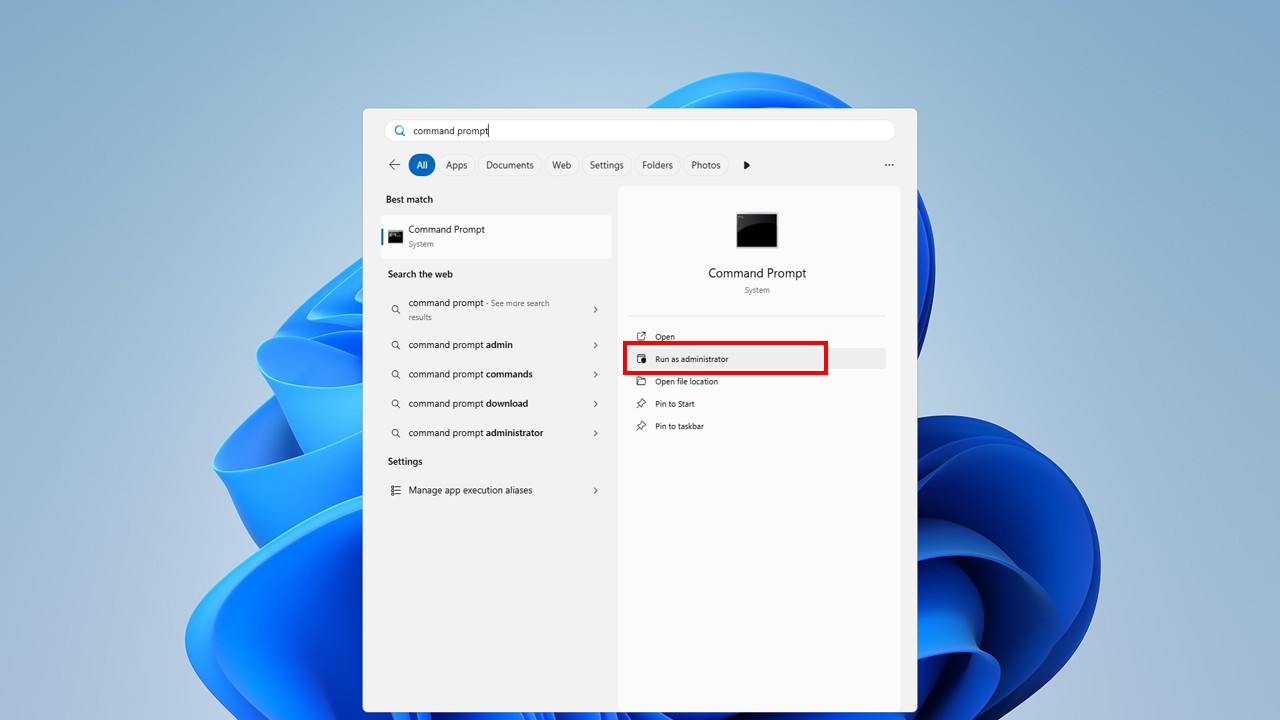
- Open Command Prompt as Administrator
- Type:
- sfc /scannow
- Press Enter
Wait for scanning to complete.
Method 9: Optimize Virtual Memory
Increasing virtual memory helps low RAM systems.
Steps:

- Search Advanced System Settings
- Click Performance Settings
- Go to Advanced tab
- Click Virtual Memory
- Set custom size
Method 10: Perform Clean Boot
Clean Boot starts Windows with minimal services.
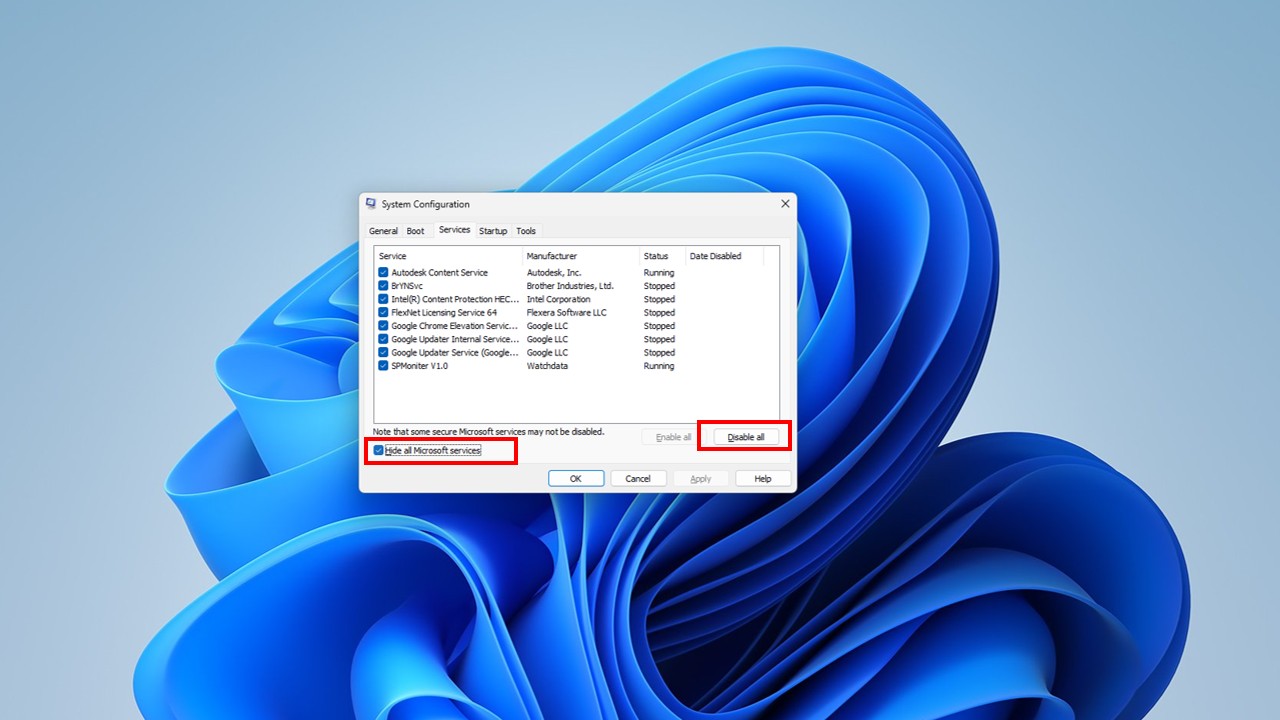
- Press Windows + R
- Type msconfig
- Go to Services
- Tick Hide Microsoft Services
- Disable remaining services
- Restart PC
Advanced Optimization Tips
- Upgrade RAM to 8GB or 16GB
- Disable transparency effects
- Turn off animations
- Keep Windows updated
- Use SSD instead of HDD
- Keep at least 20% disk free
Use this Text to QR Code Generator Tool
Text to QR Code Generator – Free Online QR Code Tool 2026
- How to Fix Slow PC Startup in Windows 11
- Windows 11 slow startup fix
- Speed up Windows 11 boot time
- Windows 11 startup optimization
- Improve Windows 11 performance
- Fix slow boot Windows 11
FAQ – How to Fix Slow PC Startup in Windows 11
Q1: What is normal startup time in Windows 11?
15–30 seconds with SSD.
Q2: Does upgrading RAM help startup?
Yes, especially if you have less than 8GB RAM.
Q3: Is Fast Startup safe?
Yes, but sometimes disable it if facing update issues.
Q4: Why is my new PC slow at startup?
Too many pre-installed apps.
SUBSCRIBE TO MY CHANNEL TECH LEGACY
How to Check SSD Speed in Windows 11
Conclusion
Now you fully understand How to Fix Slow PC Startup in Windows 11 using professional optimization techniques. By disabling startup apps, enabling Fast Startup, cleaning disk, upgrading to SSD, scanning malware, and updating drivers, you can dramatically reduce boot time.
Pingback: How to Fix High CPU Usage in Windows 11