
Introduction
If you are struggling with Zoom stuck on connection in Windows 11, you are not alone. Many users face this issue while joining online meetings, classes, or office calls. The problem usually occurs due to internet connectivity errors, incorrect network configuration, outdated Windows updates, or Zoom app conflicts. In this complete guide, you will learn how to fix Zoom stuck on connection in Windows 11 using Command Prompt (CMD), Windows Update fixes, and network optimization techniques. All solutions are explained step by step, making it easy even for beginners.
What Is Zoom Application?
Zoom is a cloud-based video conferencing software used worldwide for:
- Online meetings
- Virtual classrooms
- Remote work
- Webinars and interviews
Zoom supports Windows 11, but improper system settings or network issues can cause Zoom to remain stuck on the “Connecting…” screen.

Why Is Zoom Stuck on Connection in Windows 11?
The main reasons include:
- Internet not working properly
- DNS or IP conflict
- Windows 11 update bugs
- Firewall or antivirus blocking Zoom
- Corrupted Zoom cache
- VPN or proxy enabled
- Network adapter errors
Table of Contents
How to Fix Zoom Stuck on Connection in Windows 11
Below are proven solutions arranged from basic to advanced.
Method 1: Fix Internet Issues Using Command Prompt (CMD)
Command Prompt is one of the most powerful tools to fix network-related issues in Windows 11.
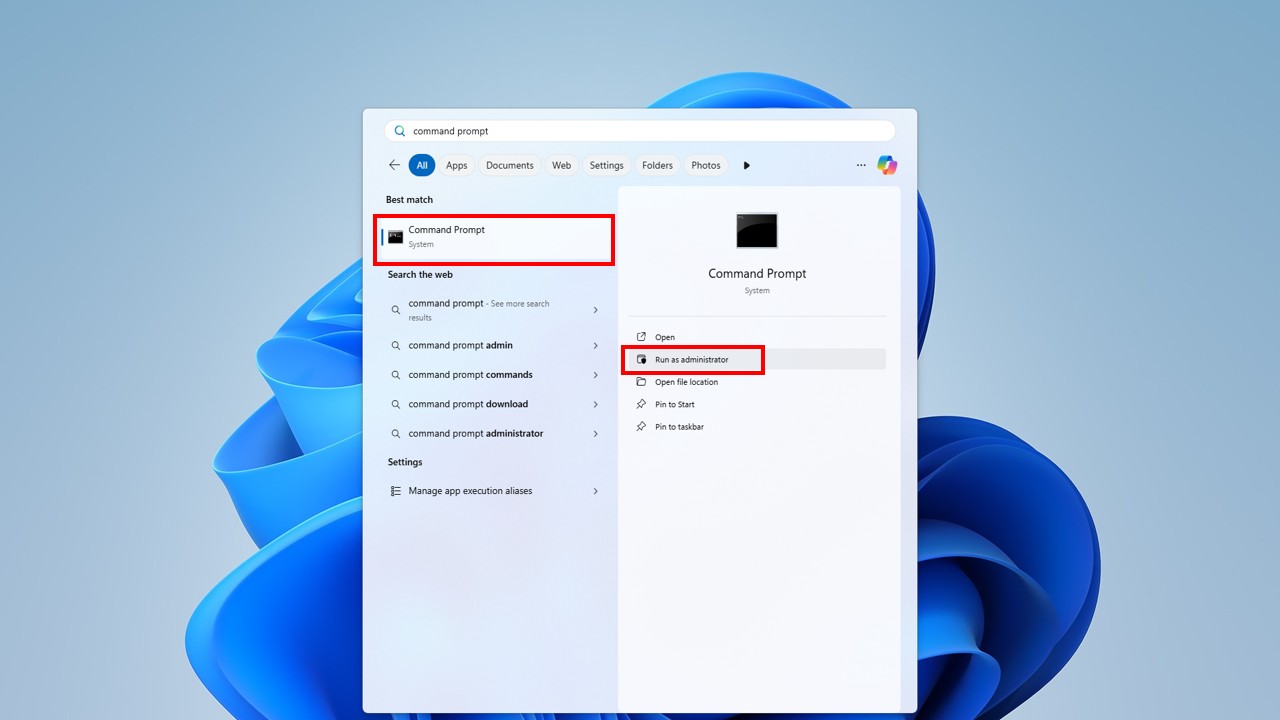
Step 1: Open Command Prompt as Administrator
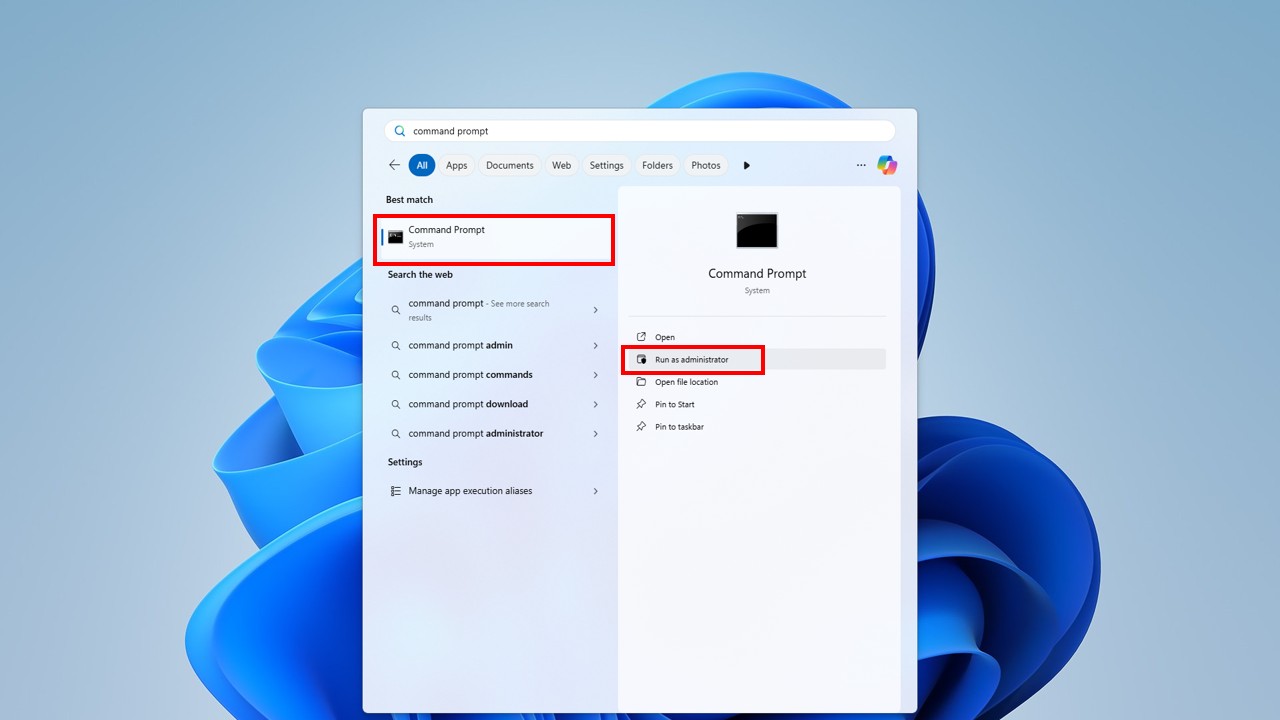
- Press Windows + S
- Type cmd
- Right-click → Run as Administrator
Step 2: Flush DNS Cache
DNS cache corruption can stop Zoom from connecting.
Type this command and press Enter:
ipconfig /flushdns
✔ You should see: Successfully flushed the DNS Resolver Cache
Step 3: Reset IP Address
ipconfig /release
ipconfig /renew
This refreshes your internet connection and fixes IP conflicts.
Step 4: Reset Network Stack
netsh int ip reset
netsh winsock reset
- Restart your PC after running these commands
Fix Zoom Internet Issue via Windows Network Reset
- Open Settings
- Go to Network & Internet
- Scroll down → Advanced Network Settings
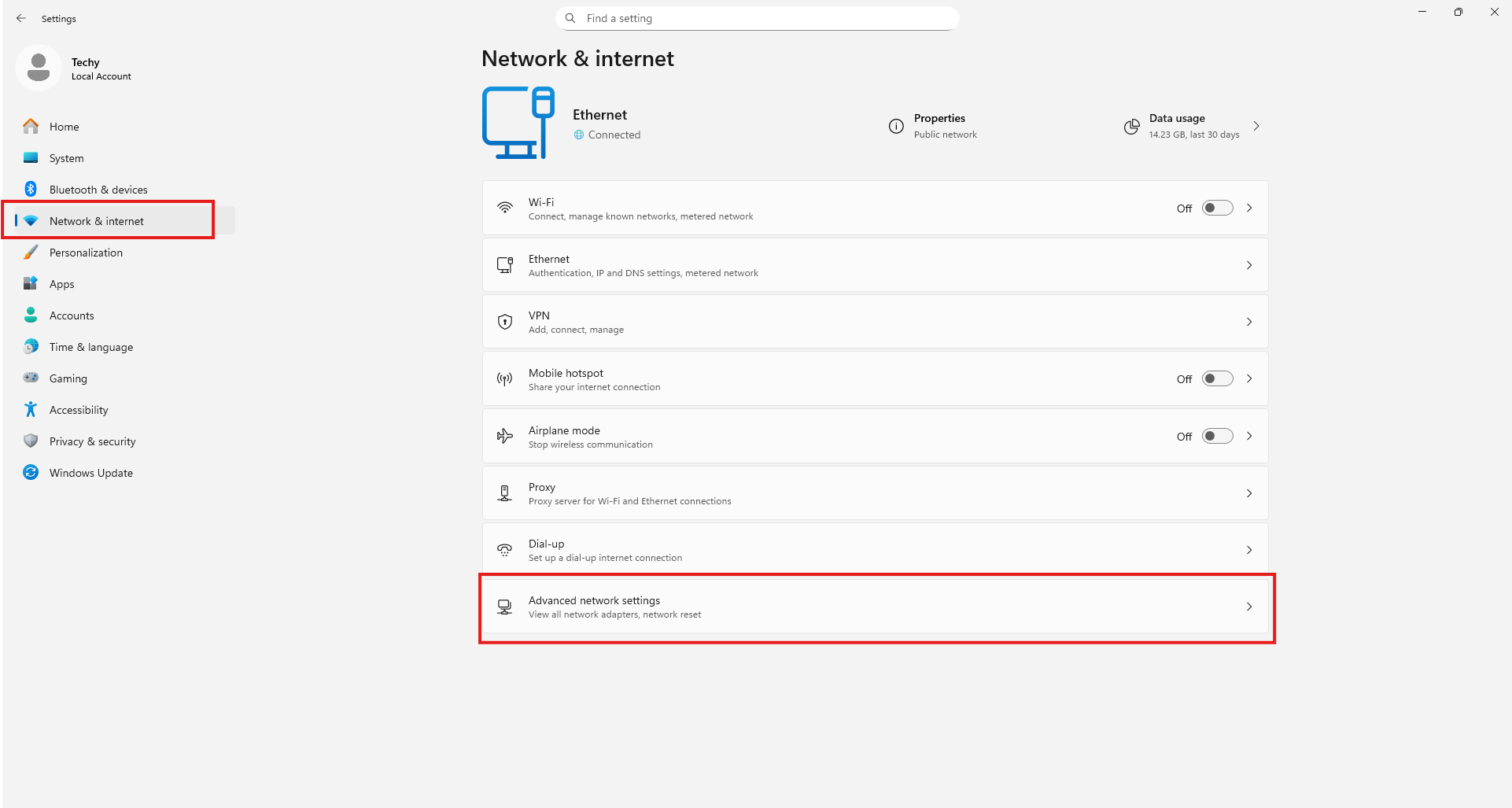
4. Click Network Reset
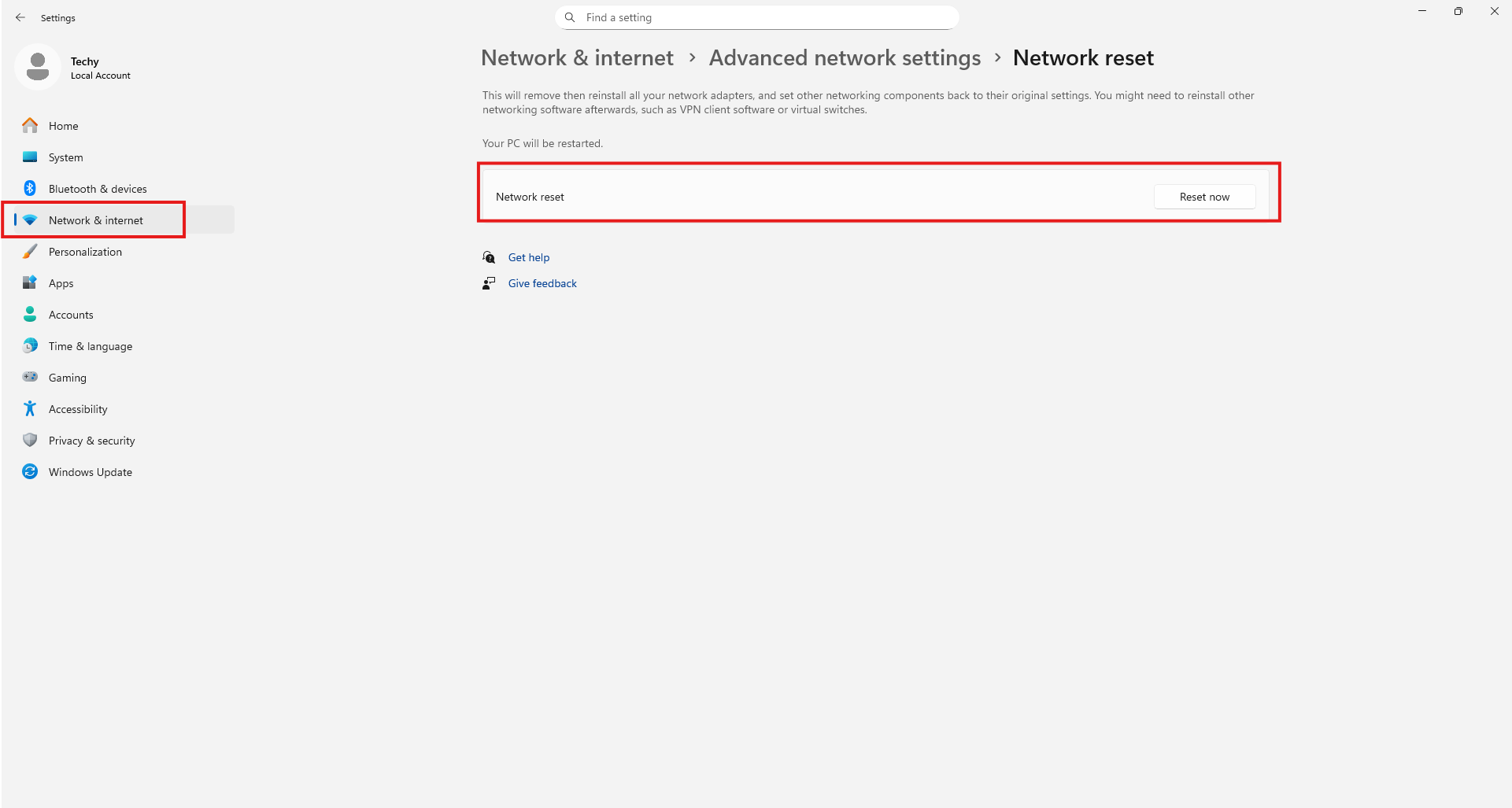
Restart your PC
Method 3: Fix Zoom Stuck on Connection Using Windows Update
Outdated Windows versions often cause Zoom compatibility issues.
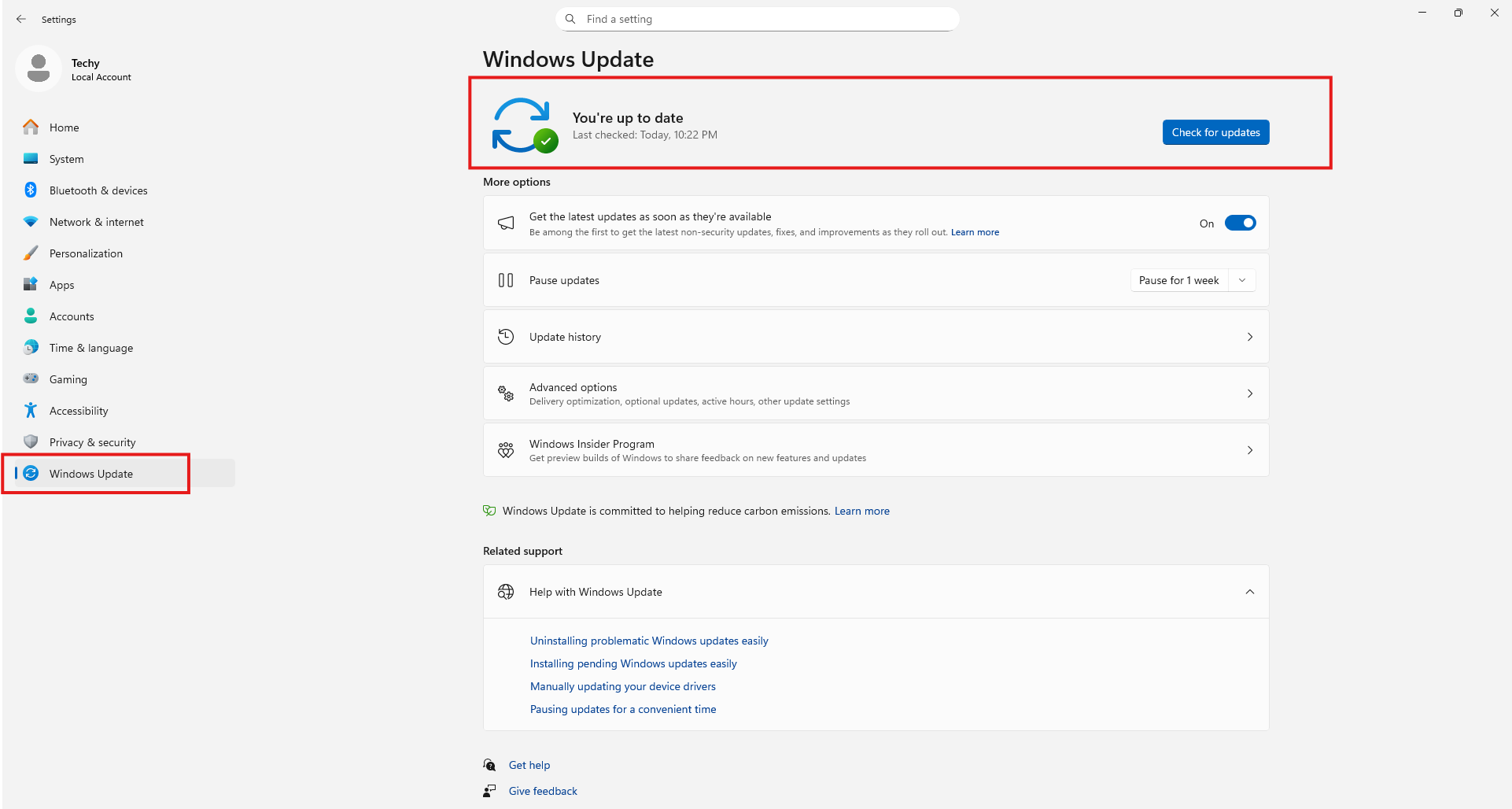
Step 1: Check Windows Update
- Open Settings
- Go to Windows Update
- Click Check for Updates
- Install all pending updates
Step 2: Fix Windows Update Errors Using CMD
If updates are stuck, use these commands:
- net stop wuauserv
- net stop bits
- net start wuauserv
- net start bits
Restart PC and check for updates again.
Method 4: Allow Zoom Through Windows Firewall
- Open Windows Security
- Go to Firewall & Network Protection
- Click Allow an app through firewall
- Enable Zoom for Private & Public networks
Method 5: Disable VPN or Proxy Settings
VPNs can block Zoom servers.
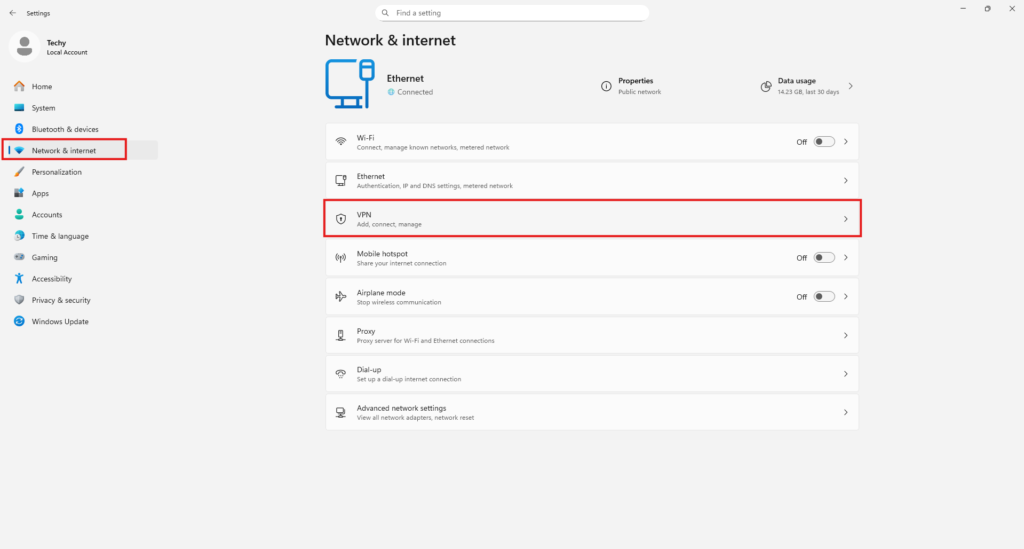
- Go to Settings → Network & Internet
- Disable VPN
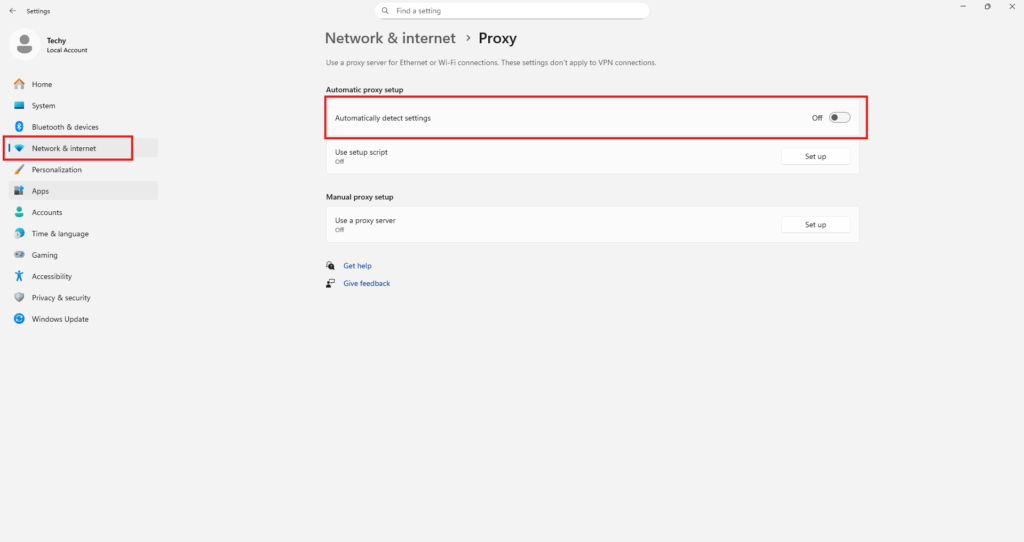
- Turn off Proxy
- Restart Zoom
Method 6: Clear Zoom Cache Files
- Close Zoom
- Press Win + R
- Type:
%appdata%
- Delete Zoom folder
- Restart Zoom
Method 7: Reinstall Zoom Application
- Open Control Panel
- Uninstall Zoom
- Restart PC
- Download latest Zoom version
👉 Recommended Windows 11 guides from our website:
- Fix Wi-Fi Not Showing & No Internet Error in Windows 11
- Windows 11 Shortcut Keys Basic to Advanced
- Fix Wi-Fi Not Connecting Problem in Android Smart TV 2026
Watch Video Tutorial
Subscribe to My YouTube Channel Tech Legacy
🎥 Complete video guide to fix Zoom stuck on connection issue in Windows 11:
- How to fix Zoom stuck on connection in Windows 11
- Zoom not connecting Windows 11
- Fix Zoom internet issue CMD
- Zoom connection problem Windows 11
- Windows 11 Zoom network fix
- Zoom meeting stuck on connecting
Frequently Asked Questions (FAQ)
Q1: Why is Zoom stuck on connecting in Windows 11?
Zoom gets stuck due to DNS errors, firewall blocks, outdated Windows updates, or internet instability.
Q2: Can Command Prompt fix Zoom internet issues?
Yes, CMD commands like DNS flush and Winsock reset can fix most Zoom network problems.
Q3: Does Windows Update affect Zoom connection?
Yes, outdated or buggy Windows updates can break Zoom compatibility.
Q4: Should I reset network settings to fix Zoom?
Network reset is highly effective when CMD fixes do not work.
Conclusion
By following this complete guide on How to Fix Zoom Stuck on Connection in Windows 11, you can permanently solve Zoom connection problems. Using Command Prompt, Windows Update optimization, and network troubleshooting, your Zoom meetings will run smoothly without interruptions.