
INTRODUCTION
Learning Microsoft Word is one of the most essential computer skills today. If you want to learn Microsoft Word beginner to advanced, this complete guide will help you understand every feature step by step. Microsoft Word is widely used for document creation, office work, assignments, resumes, and professional reporting.
In this guide, you will learn Microsoft Word beginner to advanced, starting from basics like interface and typing, to advanced tools like mail merge, formatting, and shortcuts.
Learn Microsoft Word Beginner to Advanced with this complete step-by-step guide designed for students, beginners, and professionals. This detailed Microsoft Word tutorial covers everything from basic interface understanding to advanced features like formatting, tables, mail merge, shortcuts, and productivity tips. If you want to learn Microsoft Word beginner to advanced in an easy and practical way, this guide is perfect for you. We also explain Microsoft Word tools, functions, real-life usage, and expert tips to help you work faster and smarter. Whether you are preparing for a job, improving office skills, or learning computer basics, this Microsoft Word guide will help you master Word easily.
What is Microsoft Word?
Microsoft Word is a word processing software developed by Microsoft. It is used to create, edit, format, and print documents such as letters, resumes, reports, and books.
Why Learn Microsoft Word?
- Essential for office jobs
- Used in schools and colleges
- Improves productivity
- Helps in professional document creation
Microsoft Word Versions Overview
- Microsoft Word 2010
- Microsoft Word 2013
- Microsoft Word 2016
- Microsoft Word 2019
- Microsoft Word 2021
- Microsoft Word (Microsoft 365)
💡 All versions follow almost the same working structure.
Microsoft Word Interface Explained (Beginner Level)
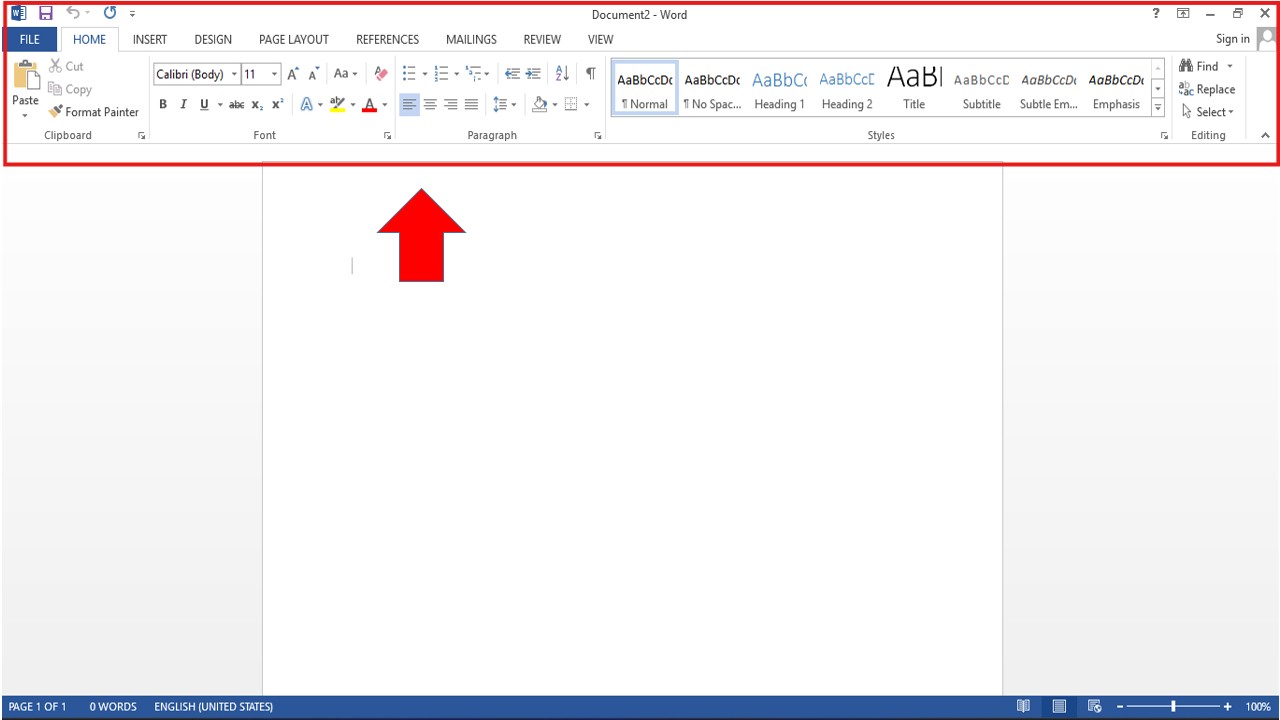
Main Parts of Microsoft Word
- Title Bar
- Quick Access Toolbar
- Ribbon
- Tabs (Home, Insert, Layout, etc.)
- Document Area
- Status Bar
Basic Microsoft Word Skills (Step-by-Step)
How to Create a New Document
- Open Microsoft Word
- Click on Blank Document
- Start typing
How to Save a Document
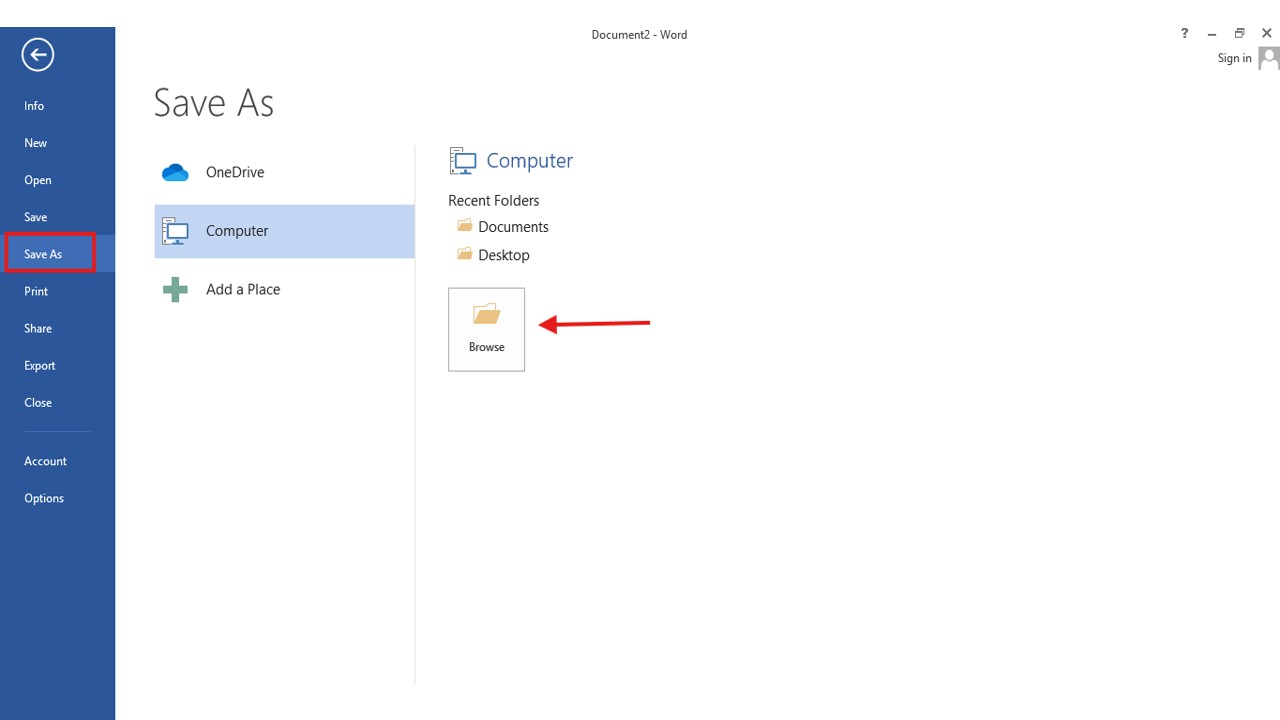
- Click File > Save As
- Choose location
- Enter file name
- Click Save
Text Formatting in Microsoft Word
- Font size
- Font style
- Bold, Italic, Underline
- Text color
- Alignment
Page Layout & Formatting (Intermediate Level)
Page Setup Options
- Margins
- Orientation (Portrait/Landscape)
- Size
- Columns
Paragraph Formatting
- Line spacing
- Indentation
- Bullets and numbering
Insert Tools in Microsoft Word
Insert Images
- Go to Insert Tab
- Click Pictures
- Select image
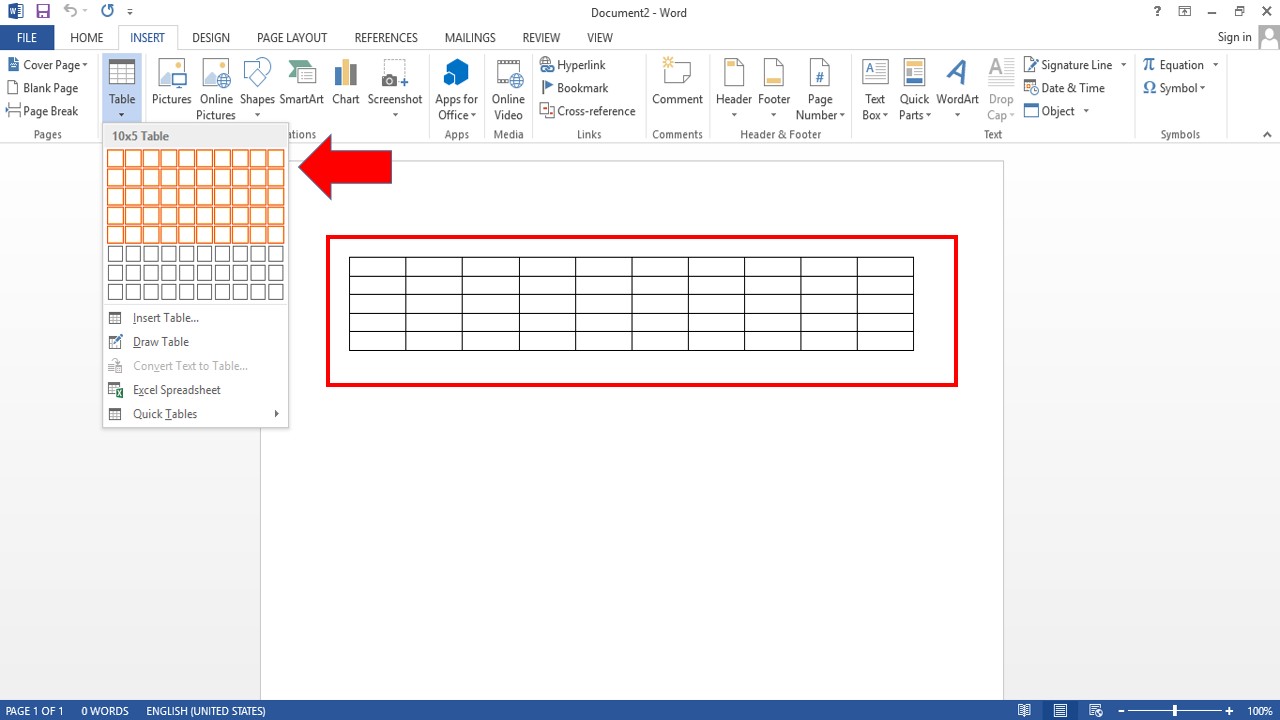
Insert Table
- Used for structured data
- Supports rows and columns
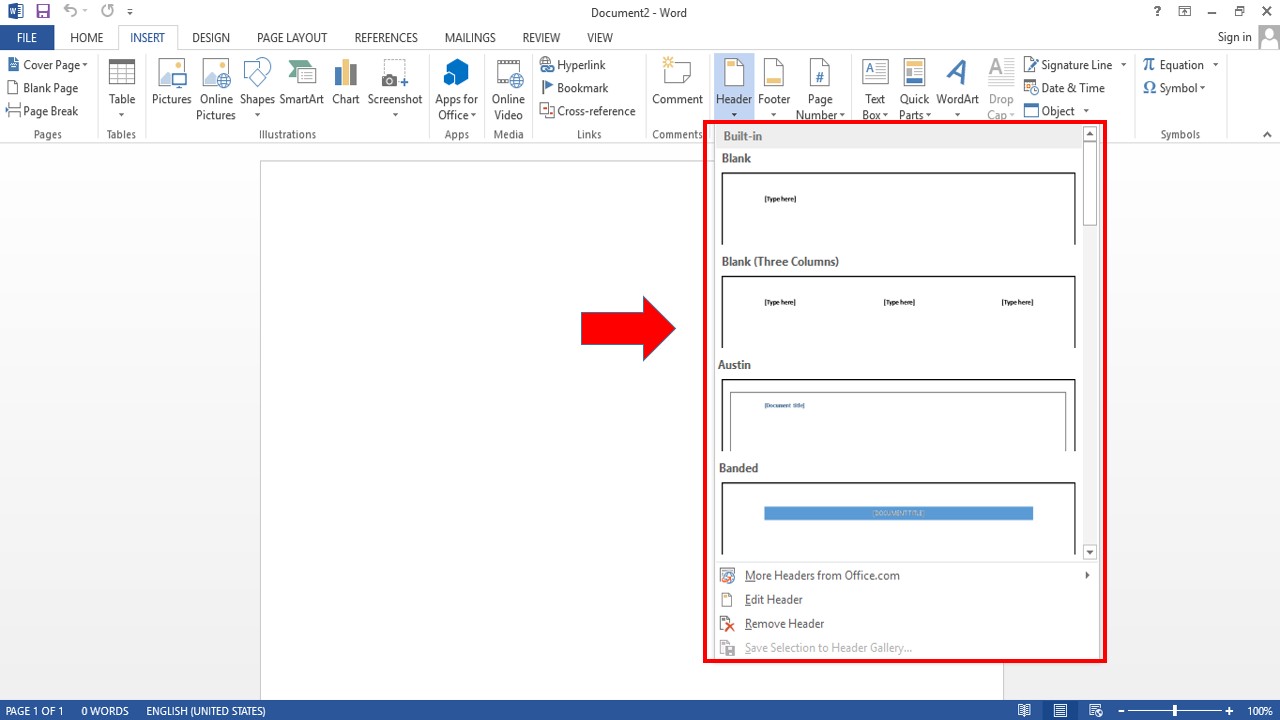
Header & Footer
- Page numbers
- Document title
- Date and time
Advanced Microsoft Word Features
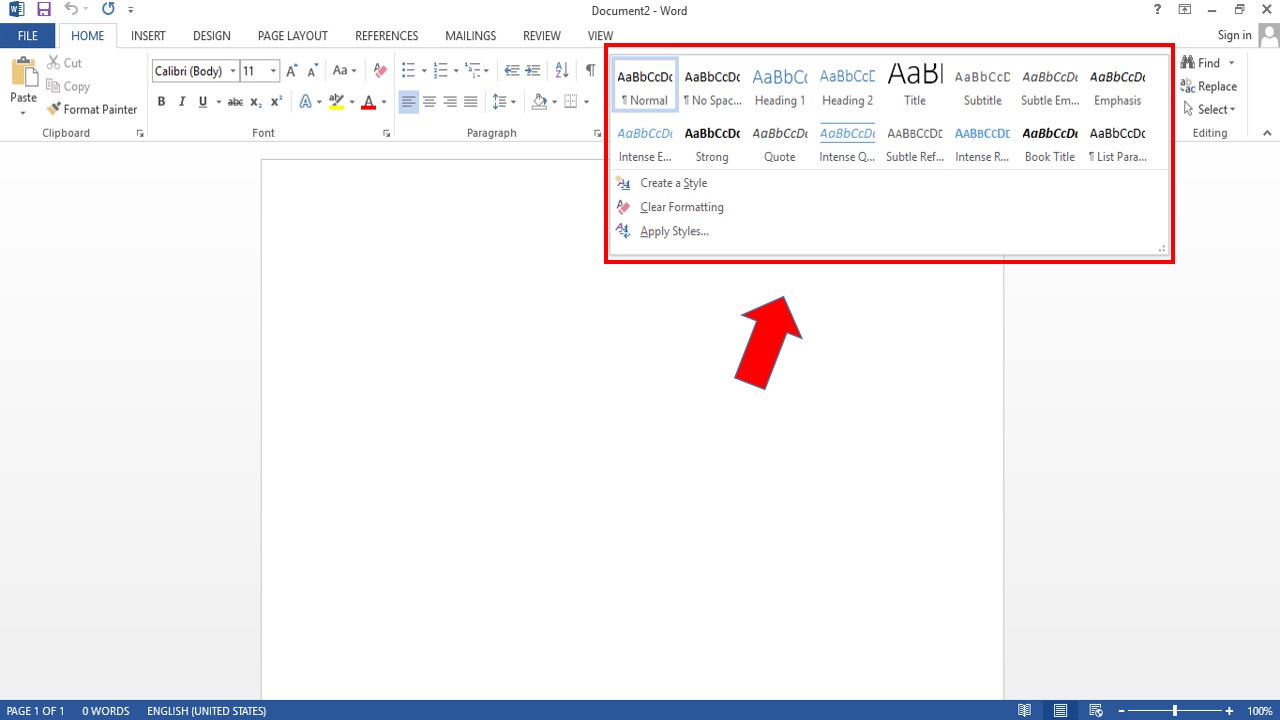
Styles & Themes
- Heading styles
- Consistent formatting
Mail Merge (Advanced Feature)
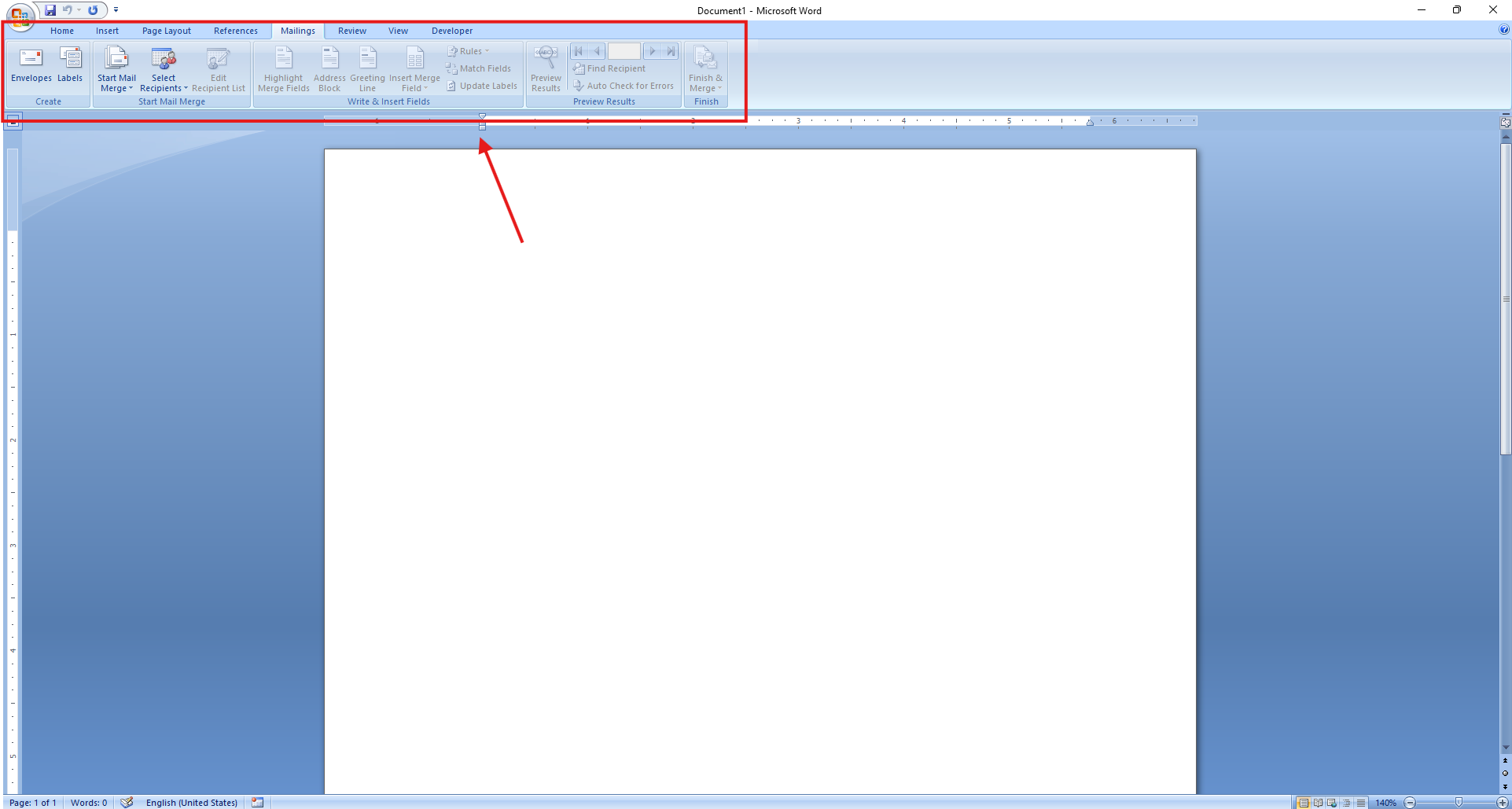
Used for bulk letters, certificates, and emails.
Steps:
- Mailings tab
- Select recipients
- Insert merge fields
- Finish & merge
Review Tools
- Spell check
- Grammar check
- Track changes
- Comments
Some popular shortcuts:
- Ctrl + B – Bold
- Ctrl + I – Italic
- Ctrl + S – Save
- Ctrl + Z – Undo
- Ctrl + P – Print
Common Microsoft Word Errors & Fixes
🔗How to Fix You’re Not Connect Error in Microsoft Edge
Learn Microsoft Word via Video (YouTube)
📺My YouTube Channel:
- Learn microsoft word beginner to advanced
- Microsoft word tutorial
- Microsoft word basics
- Microsoft word advanced features
- Microsoft word step by step
- Microsoft word for beginners
FAQ – Learn Microsoft Word Beginner to Advanced
❓ Is Microsoft Word easy to learn?
Yes, Microsoft Word is beginner-friendly and easy to learn step by step.
❓How long does it take to learn Microsoft Word?
Basic skills: 7–10 days
Advanced skills: 30–45 days
❓ Is Microsoft Word useful for jobs?
Yes, it is essential for office and professional work.
❓ Can I learn Microsoft Word for free?
Yes, using online tutorials and YouTube videos.
CONCLUSION
If you want to learn Microsoft Word beginner to advanced, this guide gives you everything you need—from basics to professional-level features. Practice regularly, use shortcuts, and follow step-by-step methods to master Microsoft Word efficiently.
Pingback: Microsoft Word Keyboard Shortcut Keys You Must Know in 2026